---
title: "Self service field error validation"
id: "self-service-field-error-validation"
project: "EHR User Guide"
url: "https://help.cloud5.com.au/articles/ehr-user-guide/self-service-field-error-validation"
updated: 2026-10-19T00:52:40Z
---
# Self service field error validation
You can control whether EmpowerHR issues error or warning messages when users enter values that do not pass validation rules.
You can set the severity level to:
* **Warning** - a warning message displays but the user can still go ahead
* **Error** - the field must be completed with valid data otherwise an error displays and stops the user from going further
* **Ignore** - no severity. No error or warning is provided when the value does not pass validation rules
To set the field error validation severity: 
1. Go to **Administration** > **Screen Management** > **Field Error Validation**.
2. At **Field Error Validation**, expand a group of screens, and then keep expanding the group until you see the screen you want to work on. Alternatively, use **Search** to locate the screen.
|  | You can only set field error validation severity on a screen that displays the **Change** option. |
| --- | --- |
1. Click **Change**.
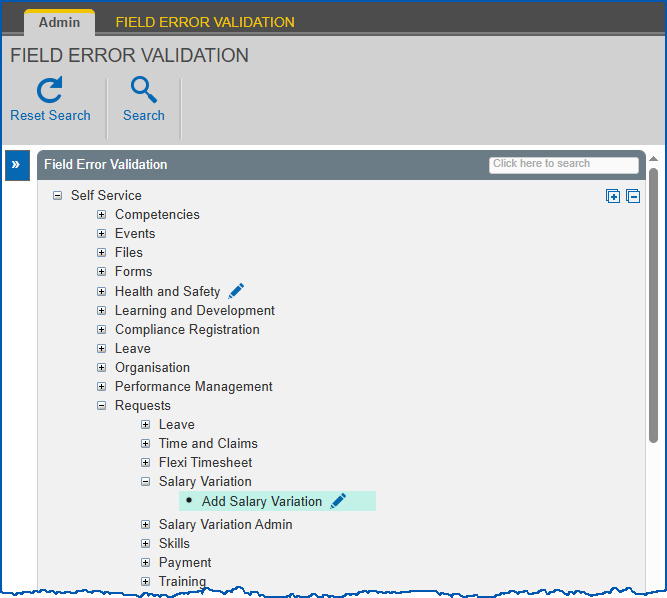
1. EmpowerHR displays the **Field Severity**details screen like the following example.
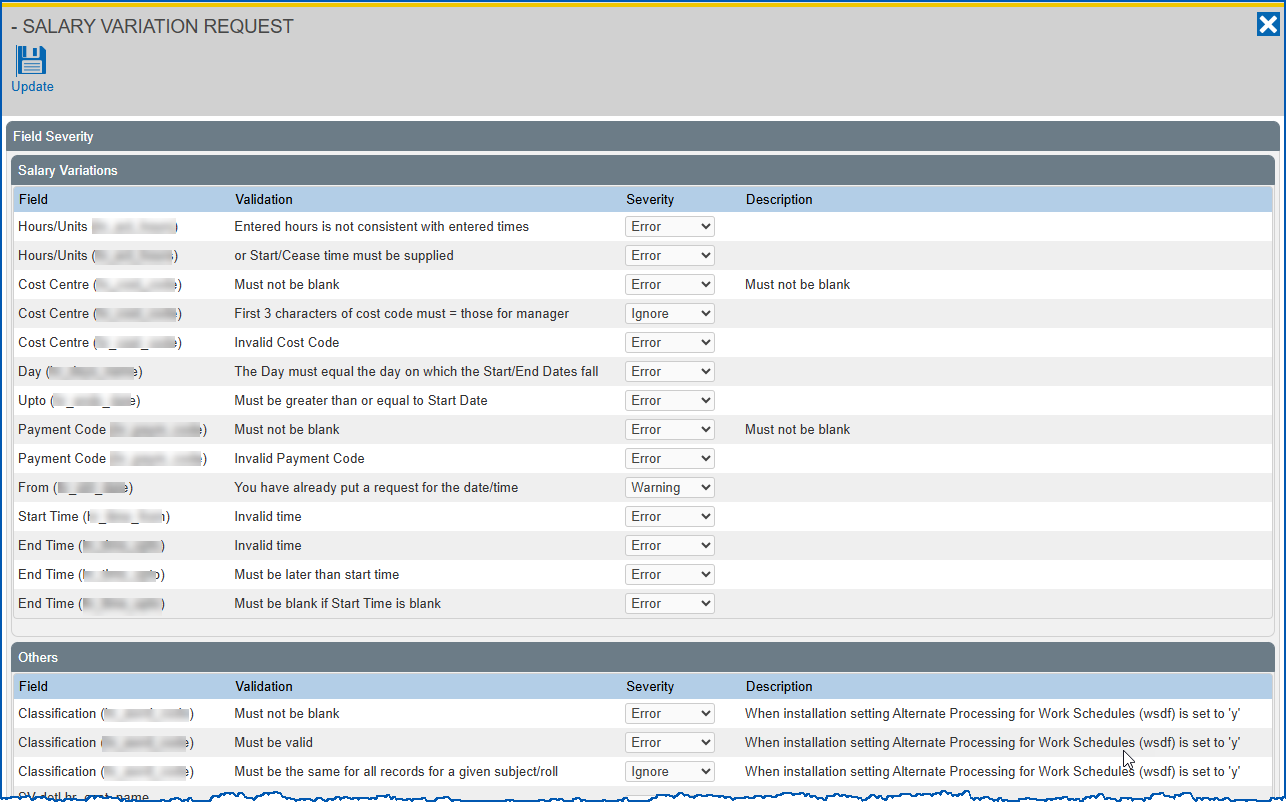
1. At the field you want to set the validation severity for, select an option from the **Severity** dropdown list.
2. Click **Update**.
| Next topic
[Function management](/articles/ehr-user-guide/function-management) |
| --- |
© 2023 Fusion5. All rights reserved.