---
title: "Self service additional security & access configuration"
id: "self-service-additional-security-access-configuration"
project: "EHR User Guide"
url: "https://help.cloud5.com.au/articles/ehr-user-guide/self-service-additional-security-access-configuration"
updated: 2026-10-19T00:53:30Z
---
# Self service additional security & access configuration
Here are additional security and access configuration and functions explained.
### Sessions
Use the **Sessions** screen to view current user sessions. It displays:
* user name
* IP address
* session start time
* time of the last request
* length of the session
EmpowerHR terminates a user's session if they are inactive for longer than the **<session-timeout>** setting in the web.xml configuration file.
Go to **Administration**> **Sessions** to view the **Sessions** screen.

### System
The **System** screen offers you quick ways to:
* check build details and system status
* control security by locking/unlocking the system
* rebuild menus and position security
Go to **Administration**> **System**to view the **System** screen.
The screen has a number of fields you can change and a range of buttons to use.
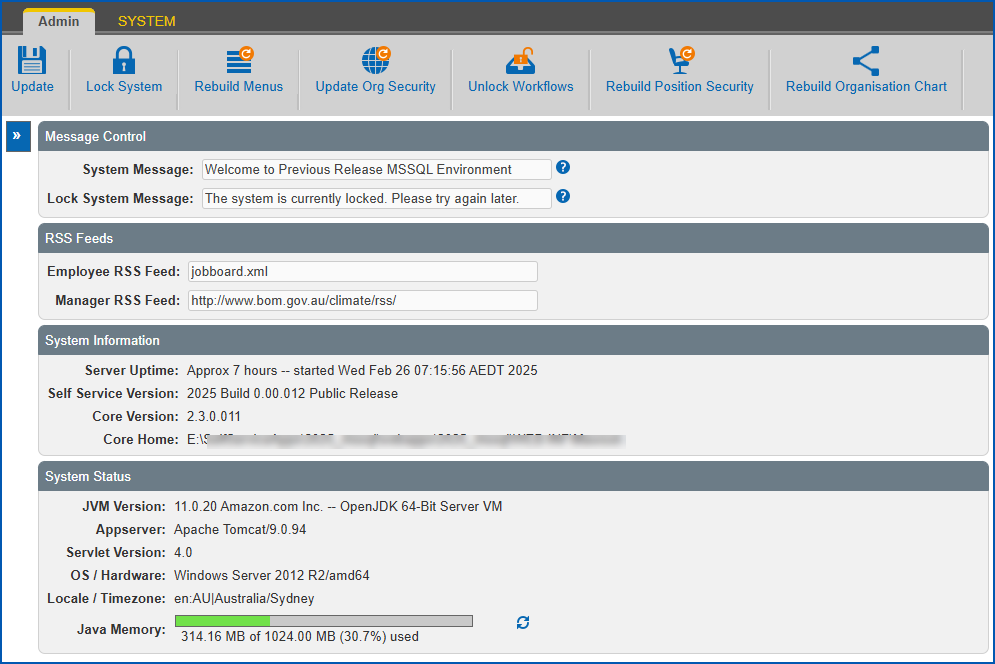
Here's an explanation of what you can do at each of the **System** screen fields.
| **Fields** | **At these fields, you can...** |
| --- | --- |
| Message Control | Change the **System Message** and **Lock System Message** if you want.
When a user:
- is signed on, EmpowerHR displays the System Message
- tries to sign on when the system is locked, EmpowerHR displays the Lock System Message
|
| RSS Feeds | Change the RSS feeds to suit your requirements.
EmpowerHR displays the:
- Employee RSS Feed in the employee profile
- Manager RSS Feed in the manager profile
If you prefer not to use RSS feeds, leave these fields blank. |
| System Information
System Status | View technical details about the system's software build and check the current system status. |
Here's an explanation of **System** screen buttons.
| **Button** | **Click the button when you need to...** |
| --- | --- |
| Lock System | ...lock the system to all users.
Locking the system means EmpowerHR:
- does not allow anyone to sign on (except the system administrator)
- displays the Lock System message. You can update this message to let users know how long the system is unavailable (see Message Control fields explained in the table above).
Only you, as the system administrator, can unlock the system. |
| Rebuild Menus | ...rebuild the self service menus without having to restart the web application.
For example, you could do this if new permissions for menu access are granted and the changes are needed right away. |
| Update Org Security | ...rebuild the employee security for all profiles, without having to restart the web application. |
| Unlock Workflow | ...unlock any workflow requests that EmpowerHR didn't unlock when processing was completed. |
| Rebuild Position Security | ...rebuild the position security for all profiles, without having to restart the web application. |
### Logs
The **Logs**screen displays logs for components of the system. You can set the level of detail the logs display by configuring the **log4j2.xml** file (WEB-INF/classes****directory of the web application).
Generally, you don't change the values in this file unless required for debugging purposes. When you do change the values, the application must be stopped and restarted for the changes to take effect. The valid log level values are:
* off
* fatal
* error
* warn
* info
* debug
* all
Go to **Administration**> **Logs**to view the **Logs** screen.
### Database
The **Database**screen displays information about the database and its connections.
Go to **Administration**> **Database**to view the **Database** screen.
| Next topic
[Web services](/articles/ehr-user-guide/web-services) |
| --- |
© 2023 Fusion5. All rights reserved.