---
title: "Screen painting"
id: "screen-painting"
project: "EHR User Guide"
url: "https://help.cloud5.com.au/articles/ehr-user-guide/screen-painting"
updated: 2026-10-19T00:54:27Z
---
# Screen painting
Screen painting is available on any EmpowerHR screen showing the **Screen Painting** option. This feature allows you to customise how fields display for your organisation.
Depending on the type of field, you can:
* change the field name
* change the window name (where the field relies on a control table)
* grey the field so users can't access it, but can still see it
* make the field invisible so it no longer appears on the screen
## How to use screen painting
To paint fields on a screen:
1. Go to the screen where the fields are located, and click **Screen Painting**. A list of fields you can paint is displayed.
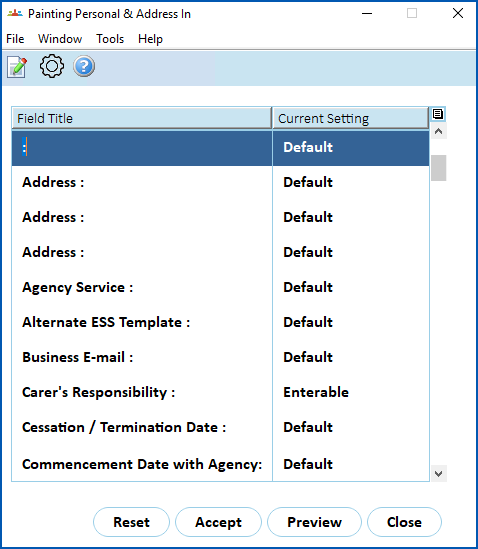
1. Select the field you want to paint, and then click **Open**.
2. The details display, depending on the type of field. The following examples show details for the **Private E-mail** and **Y** **our sexual orientation** fields.
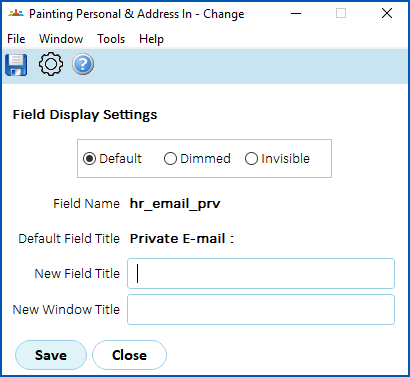 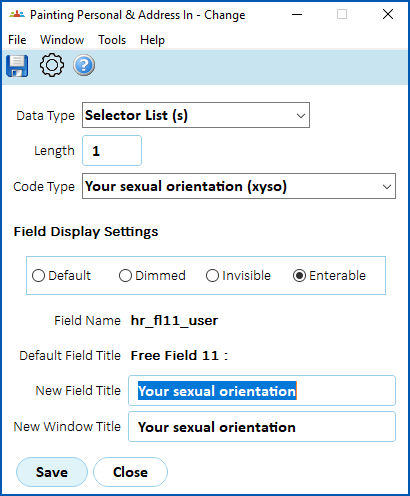
1. Make your changes, using the following table as a guide.
|  | Some options are only available when the field is not considered critical to maintaining system integrity. |
| --- | --- |
| **In this field...** | **Do this...** |
| --- | --- |
| New Field Title | Change the name of the field, if required. |
| New Window Title | Change the name of the window title, if required. |
| Default | To revert to the system's default setting for the field, click the **Default** option. |
| Dimmed | To dim (grey out) the field so users can't enter data but can still see the field, click the **Dimmed** option. |
| Invisible | To make the field disappear from the screen, click the **Invisible** option.
Only use the **Invisible** option if the field really is irrelevant to your organisation. |
| Enterable | To allow users to enter data in the field, click the **Enterable** option. |
1. Click **Save**, and then click **Preview** so you can view the effect on the screen before committing to the changes.
2. If you are:
1. satisfied with the changes, click **Accept**, and then click **Close**. The changes take effect and will appear in every user's view of the screen.
2. not satisfied with the changes, click **Close**. The changes are discarded.
|  | The **Reset** button resets *all* settings to the default, including all previous changes made. |
| --- | --- |
| Next topic
[Field margins](/articles/ehr-user-guide/field-margins) |
| --- |
© 2023 Fusion5. All rights reserved.