---
title: "Screen paint gender diversity fields"
id: "screen-paint-gender-diversity-fields"
project: "EHR User Guide"
url: "https://help.cloud5.com.au/articles/ehr-user-guide/screen-paint-gender-diversity-fields"
updated: 2026-10-19T00:54:17Z
---
# Screen paint gender diversity fields
## Screen paint gender diversity fields for the desktop 
If implementing the gender diversity feature for the first time, you'll find the **Gender Diversity**tab is hidden by default.
Use EmpowerHR's screen painting feature to:
* show the **Gender Diversity**tab (by making the fields visible)
* tailor the field titles and display settings to suit your organisation
To screen paint gender diversity fields for the desktop:
1. Go to Tasks > Employees > Employee Information > Employee Information.
2. At the Employee Information summary screen, find an employee record, select it, and then click Personal.
3. At Personal & Address Information, click **S****creen Painting**.
4. The Painting Personal & Address Information summary screen lists the fields on all tabs of the **Personal & Address Information**screen.
5. Scroll down, find the field you want to paint. Here are the fields to look for:
* How does the employee describe their gender?
* How does the employee describe their sexual orientation?
* Was the employee born with a variation of sex characteristics?
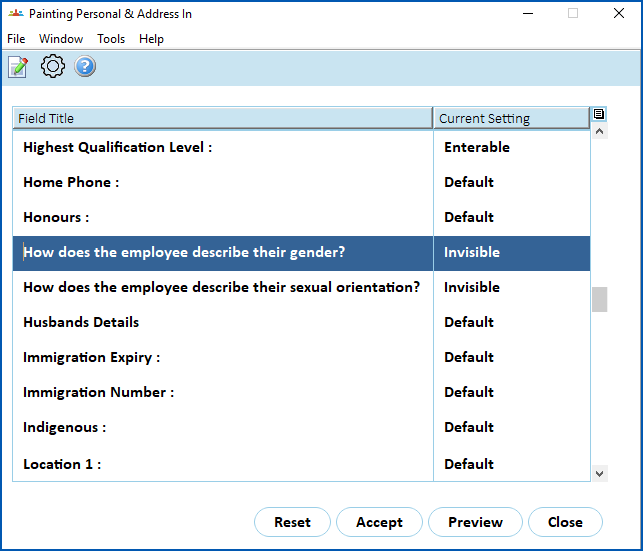
1. In the following example, we can see the current setting for the field, **How does the employee describe their gender** **?**, is invisible.
1. Select the field, and then click **Open**.
1. At the Painting Personal & Address Information details screen, paint the field using the following table as a guide.
| **At this field...** | **Do this...** |
| --- | --- |
| Default / Dimmed / Invisible / Enterable | Click one of the following:
- Default - to keep the default setting
- Dimmed - to grey out the field so users can see it but not update it
- Invisible - to hide the field from users
- Enterable - to enable users to see and enter data into the field
|
| New Field Title | Change the name for the field, if required. |
| New Window Title | N/A |
1. Repeat this procedure, starting at step 7, to:
1. paint the remaining gender diversity fields
2. paint (change) the title of the **Gender ** field, if your organisation prefers a different nameThe **Gender**field is enterable (can be edited) on the:
* **Personal**tab in the desktop,*and*
* **General** tab in self service
It appears as a display only field on the **Gender Diversit** **y** tab in both desktop and self service.
2. At the **Painting Personal & Address Information** screen, click **Accept** to apply your changes.
3. Close and then re-open the employee record for the changes to appear.
## Screen paint gender diversity fields in self service 
Using EmpowerHR's screen painting feature in self service, you can change field titles and field visibility for the **Gender Diversity**tab.
To screen paint gender diversity fields for self service:
1. In **Admin**, go to **Administration**> **Screen Management** > **Screen Painting**.
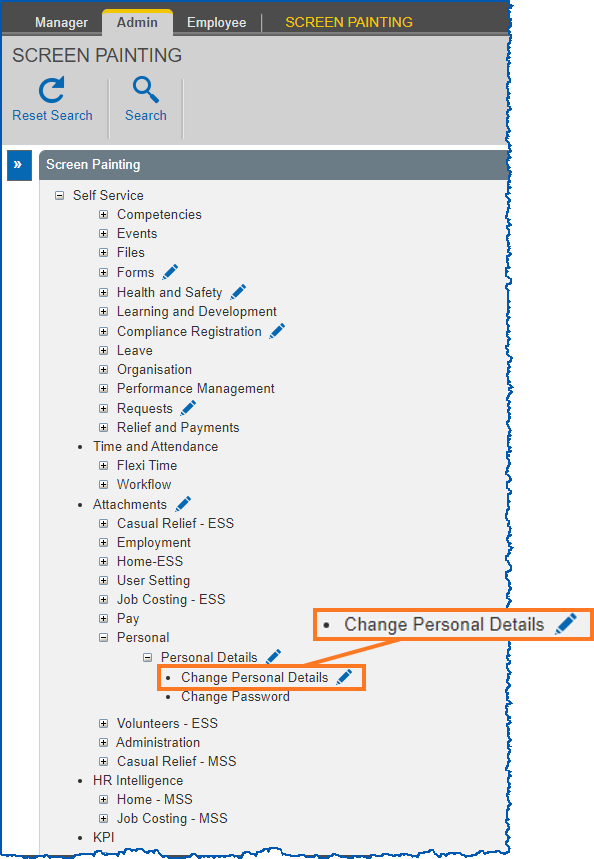
2. At **Screen Painting**, expand the **Self Service** list of screens, locate **Change Personal Details**, and then click **Change**.
1. At **Screen Painting - Personal Details**, scroll down and locate the group of **Gender Diversity** fields.
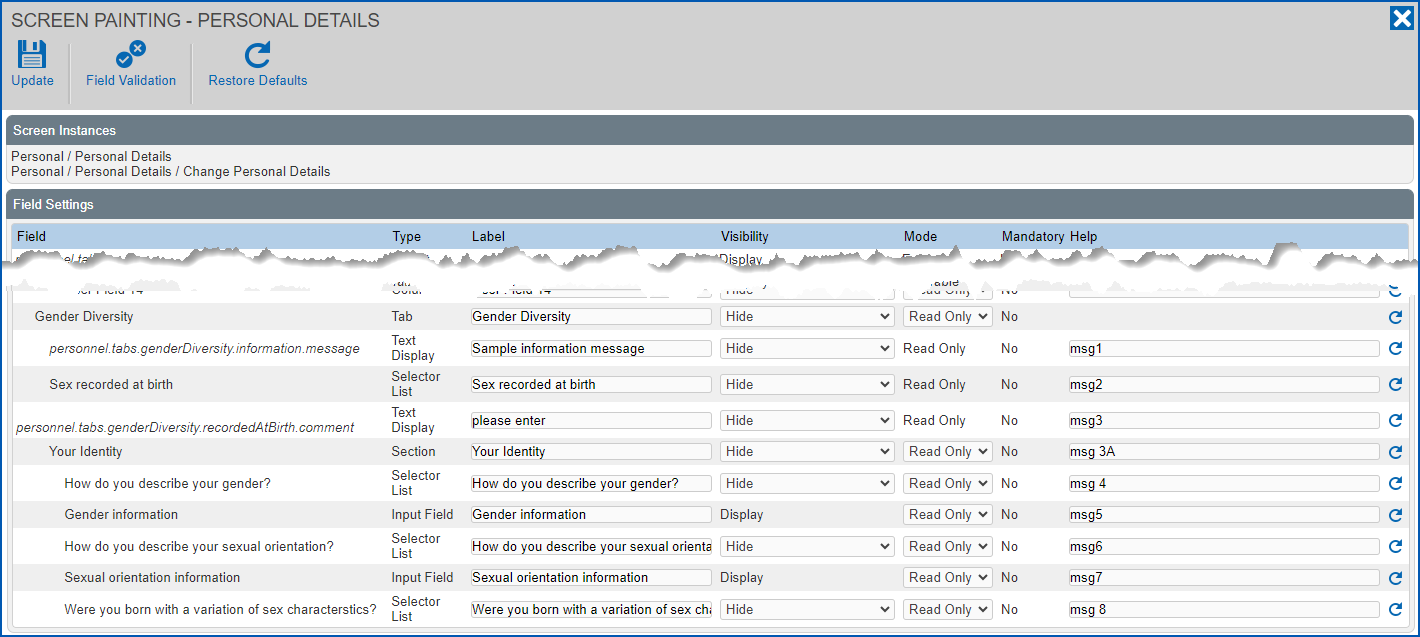
1. Make the changes you want to the field properties, using the following table as a guide.
| **In this column...** | **Do this...** |
| --- | --- |
| Type | Nothing. This column shows the type of field, for example, Table, Input Field, Section, etc.
You can't change the **Type**. |
| Label | Enter a new title (label) for the field, if required. |
| Visibility | If the field's visibility is set to **Hide**, and you want to display the field, select **Display**.
For example, the **Gender Diversity** tab may be hidden by default when your organisation first implements the feature. |
| Mode | Select an option from the dropdown list. |
| Mandatory | Nothing. The default setting is **No** (optional).
You can't change this setting to **Yes** (mandatory). |
| Help | See [customise info and help messages](/articles/ehr-user-guide/customise-info-and-help-messages). |
|  | To restore:
- default settings for an individual field, click Restore Defaults (located on the field row)
- default settings for all fields, click Restore Defaults (located at the top of the screen)
|
| --- | --- |
1. Repeat this procedure, starting at step 4, to:
1. paint the remaining gender diversity fields
2. paint (change) the title of the **Gender **field, if your organisation prefers a different name. The **Gender** field is located under **General** on the **Screen Painting - Personal Details** screen.The **Gender**field is enterable (can be edited) on the:
* **Personal**tab in the desktop,*and*
* **General** tab in self service
It appears as a display only field on the **Gender Diversit** **y** tab in both desktop and self service.
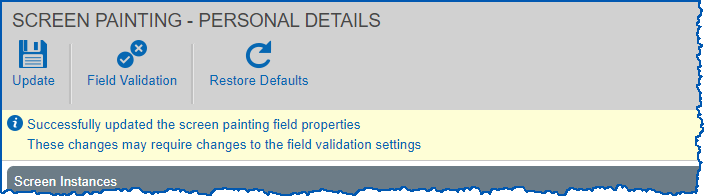
2. Click **Update**. EmpowerHR displays the following message.
1. According to the field properties you changed, if you:
1. need to update the validation settings, then go to to step 8
2. *don't* need to update the validation settings, then close the **Screen Painting - Personal Details** screen. No further action is required.
2. Click **Field Validation**.
3. At the **Personal Details - Field Severity** screen, find the field you want to set the validation severity for.
4. Select one of the following options from the **Severity**dropdown list to determine whether EmpowerHR issues an error or warning when a user enters a value that does not pass validation rules:
1. Warning
2. Error
3. Ignore
5. Click **Update**.
##
| Next topic
[Customise info and help messages](/articles/ehr-user-guide/customise-info-and-help-messages) |
| --- |
© 2023 Fusion5. All rights reserved.