---
title: "RWVP and TRB registration data"
id: "rwvp-and-trb-registration-data"
project: "EHR User Guide"
url: "https://help.cloud5.com.au/articles/ehr-user-guide/rwvp-and-trb-registration-data"
updated: 2026-10-19T00:53:27Z
---
# RWVP and TRB registration data
## Set up an additional data screen
Set up an additional data (reference) screen to record the number and expiry date of the following registrations:
* RWVP (Registration to Work with Vulnerable People)
* TRB (Teacher Registration Board)
###
Here are the fields to include:
| **Field** | **Name** | **Format** | **Validation** |
| --- | --- | --- | --- |
| Field 1 | RWVP No. | Text/character | Must not be blank |
| Field 2 | RWVP Exp. | Date |
| Field 3 | TRB No. | Text/character |
| Field 4 | TRB Exp | Date |
To learn how to set up the additional data screen, see [create additional reference screens](/articles/ehr-user-guide/create-additional-reference-screens).
## Update the installation setting, rps1
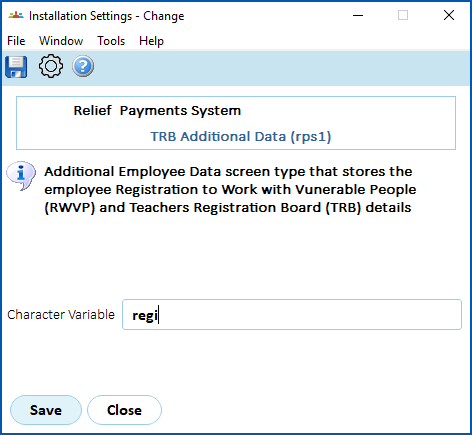
EmpowerHR uses the [installation settin](/articles/ehr-user-guide/set-installation-settings)g called **TRB Additional Data (rps1)** to identify the additional reference screen and determine if the RWVP and TRB are valid.
Update the **rps1** installation setting to add the **Screen Type** code for the additional data screen, as shown in the following example: 
## Add registration data to employees
Now, add the registration data to the relevant employees. There may be multiple ways to do this depending on how you set up the additional data screen (see [accessing additional reference screens](/articles/ehr-user-guide/accessing-additional-reference-screens) for more information). The following instructions show one method.
To add the registration data to employees: 
1. Go to **Task**> **Employees** > **Employee Information**> **Additional Employee Data.**
2. At the **Additional Employee Data** summary screen, click **New**.
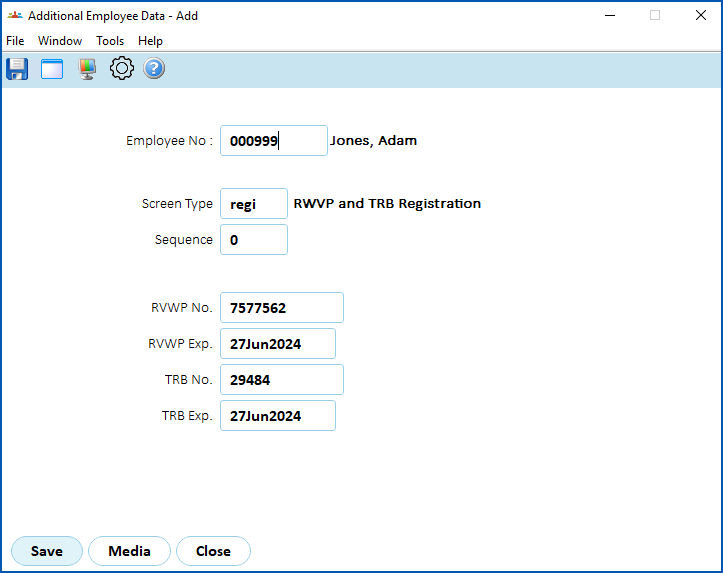
3. Complete the fields. Here's an example:
****
1. Click **Save**.
|  | Now, a new payment request *cannot* be created if the:
- TRB Exp. date is blank
- TRB Exp. date is in the past and the Flag field of the employee's employment group type is t
- RWVP Exp. date is blank or in the past
|
| --- | --- |
| Next topic
[Update cost centre codes for TASC](/articles/ehr-user-guide/update-cost-centre-codes-for-tasc) |
| --- |
© 2023 Fusion5. All rights reserved.