---
title: "Run an STP update event"
id: "run-an-stp-update-event"
project: "EHR User Guide"
url: "https://help.cloud5.com.au/articles/ehr-user-guide/run-an-stp-update-event"
updated: 2026-10-19T00:53:34Z
---
# Run an STP update event
To run an STP update event:
1. Go to Background Jobs > STP > STP Files Generation > STP Update Event – Phase 2.
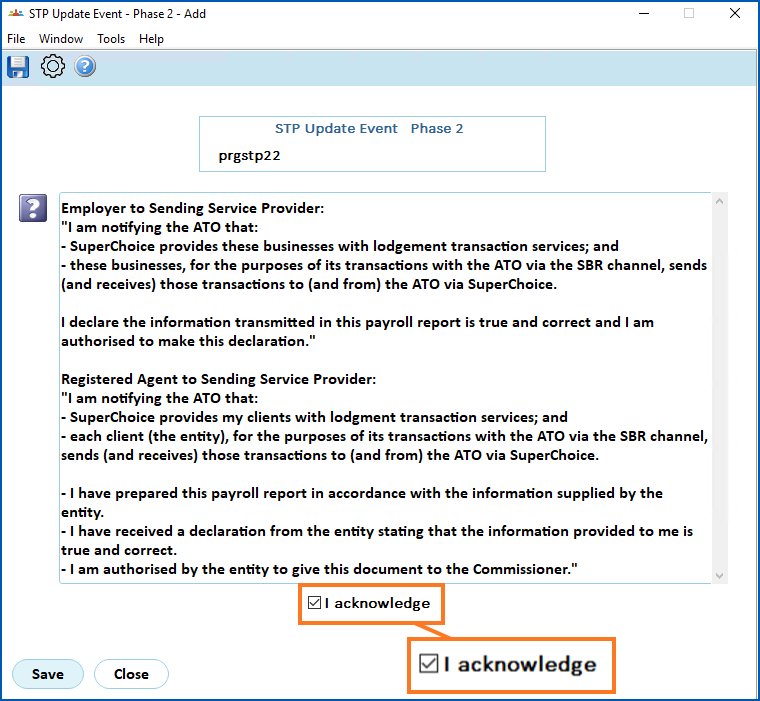
2. At STP Update Event – Phase 2 (declaration), select I acknowledge, and then click **Save**.
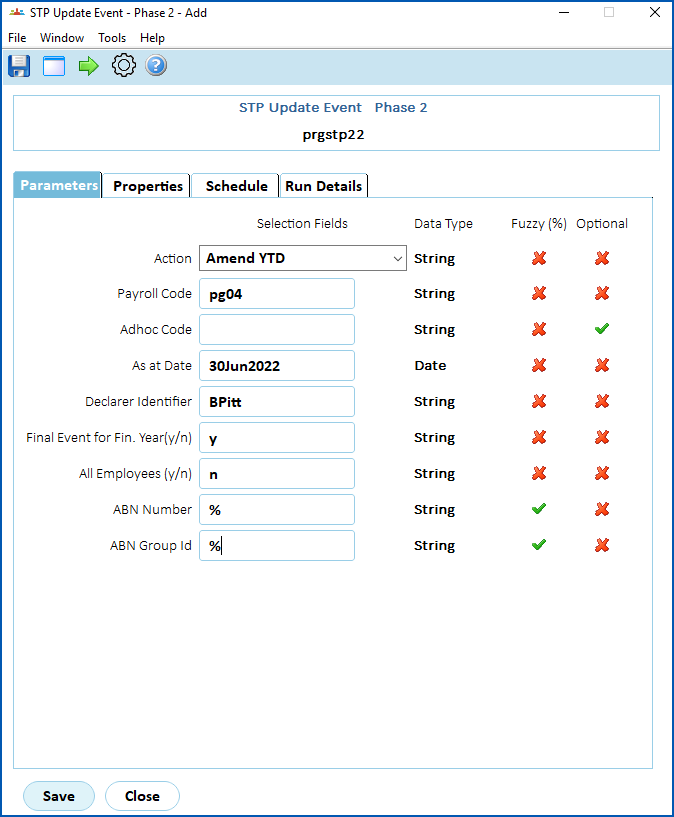
1. At the STP Update Event – Phase 2 detail screen, on the Parameters tab, complete the fields using the following table as a guide.
| **At this field...** | **Do this...** |
| --- | --- |
| Action | Select **Amend YTD**.
Only choose the **Replace Key Identifiers** action or **Zero Out YTD**action if you are moving from another payroll system or ABN. For more information about when to use these actions, see [when to alert the ATO about changes.](/articles/ehr-user-guide/when-to-alert-the-ato-about-changes) |
| Payroll Code | Enter the payroll code if you know it, or click **Window**, find and double-click the code to add it to the field. |
| Adhoc Code | If you want to apply the update event to just those employees paid in a particular ad hoc pay run, enter the code.
Otherwise, leave this field blank. |
| As At Date | Enter any date within the financial year.
This allows a complete reconciliation file as at 30 June. It includes any changes from ad hoc pay run after the last official paid date and before 1 July of the next financial year. |
| Declarer Identifier | Enter the name of the person completing the update event. The name is included in reporting to the ATO. |
| Final Event for Fin. Year Y/N | Enter:
- y (yes) if generating a final file for
 , and you've reconciled the payroll, or
- n (no) if not generating a file for EOFY
|
| Full File Replacement Y/N | Enter:
- y (yes) if generating a file to replace one you've lodged with the ATO before, or
- n (no) if not generating a file as a replacement for lodging with the ATO
|
| All Employees Y/N | Enter:
- y (yes)* if including all employees, or
- n (no) to include only particular employees you select - for example, if you want to report on only terminated employees
|  | \*Entering **y** (yes) to include all employees generates a larger file which may incur greater charges from your SSP SSP = Sending Service Provider |
| --- | --- | |
| ABN Number | Enter:
- % (wildcard character) to include all , or
- an individual ABN number to generate a file just for that ABN
|
| ABN Group ID | Enter:
- % (wildcard character) to include all ABN groups, or
- an ABN Group ID number to generate a file just for that ABN group
|
1. If you want to:
1. proceed with the update event, go to step 10
2. select particular employees for the update event, go to step 5
2. Click **Next Level**.
3. The **Employee Codes** summary screen displays.
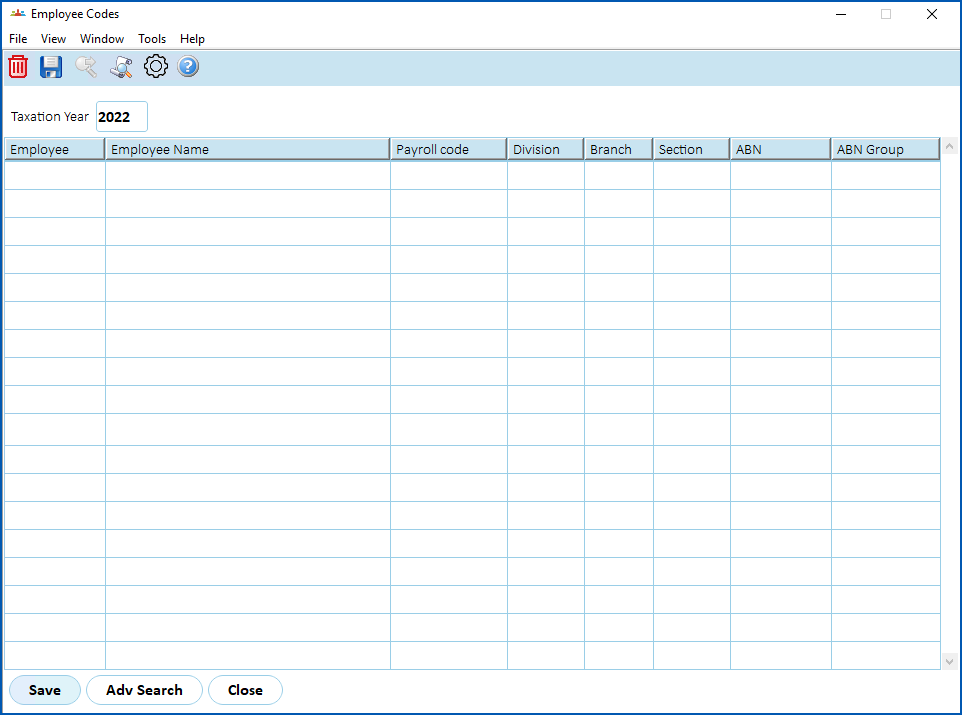
1. To select employees you want to include in the event, click **Adv Search,**enter your search criteria, and then click **Find Now**. The results are listed on the **Employee Codes** summary screen.
2. If you:
1. are satisfied with the list of results, go to step 9
2. want to remove any employee from the list of results, select the employee and click **Delete**. Then click **OK** to confirm the deletion. Go to step 9.
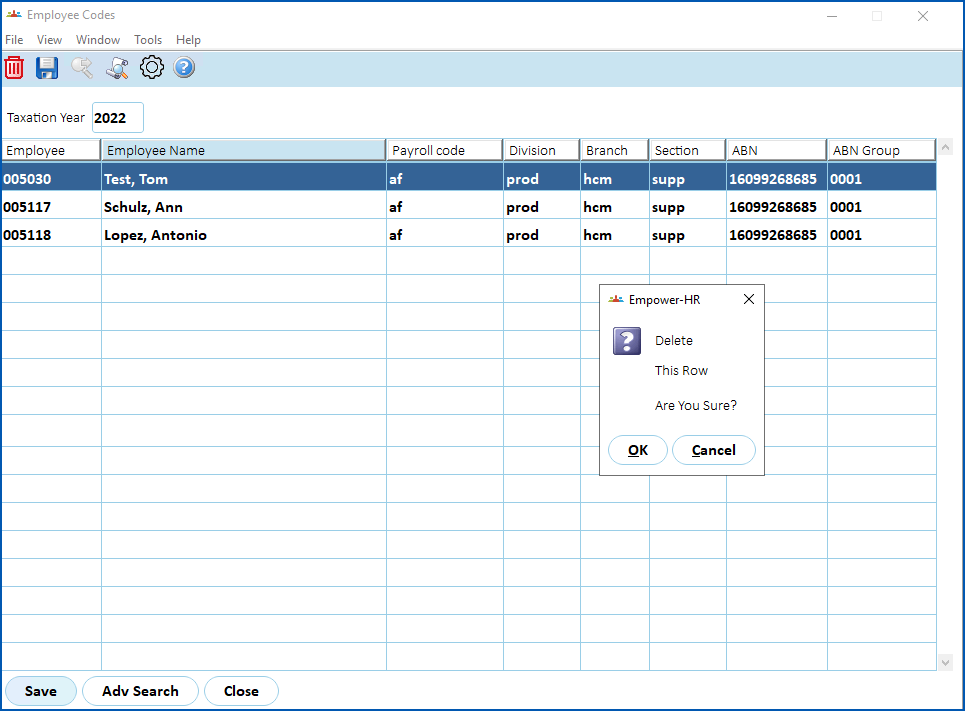
1. When your employee selections are done and you're ready to proceed, click **Save** and then click **Close**.
2. At the **STP Update Event - Phase 2** details screen, click **Save** to run the report.
| Next topic
[STP reconciliation](/articles/ehr-user-guide/stp-reconciliation) |
| --- |
© 2023 Fusion5. All rights reserved.