---
title: "Run a sub-query"
id: "run-a-sub-query"
project: "EHR User Guide"
url: "https://help.cloud5.com.au/articles/ehr-user-guide/run-a-sub-query"
updated: 2026-10-19T00:54:09Z
---
# Run a sub\-query
You can use any existing public, or private query (you have created), in a sub-query.
Sub-queries can only be used in combination with the following **Operators**:
* **in** / **not in** - If you use these operators, you must select a field in **Operand 1**.****
* **exists** / **not exists** - If you use these operators, you must set **Operand 1** to **not applicable**.
To run a sub-query:
1. At the **Filter**tab in Query Manager, click **Advanced Filter**.
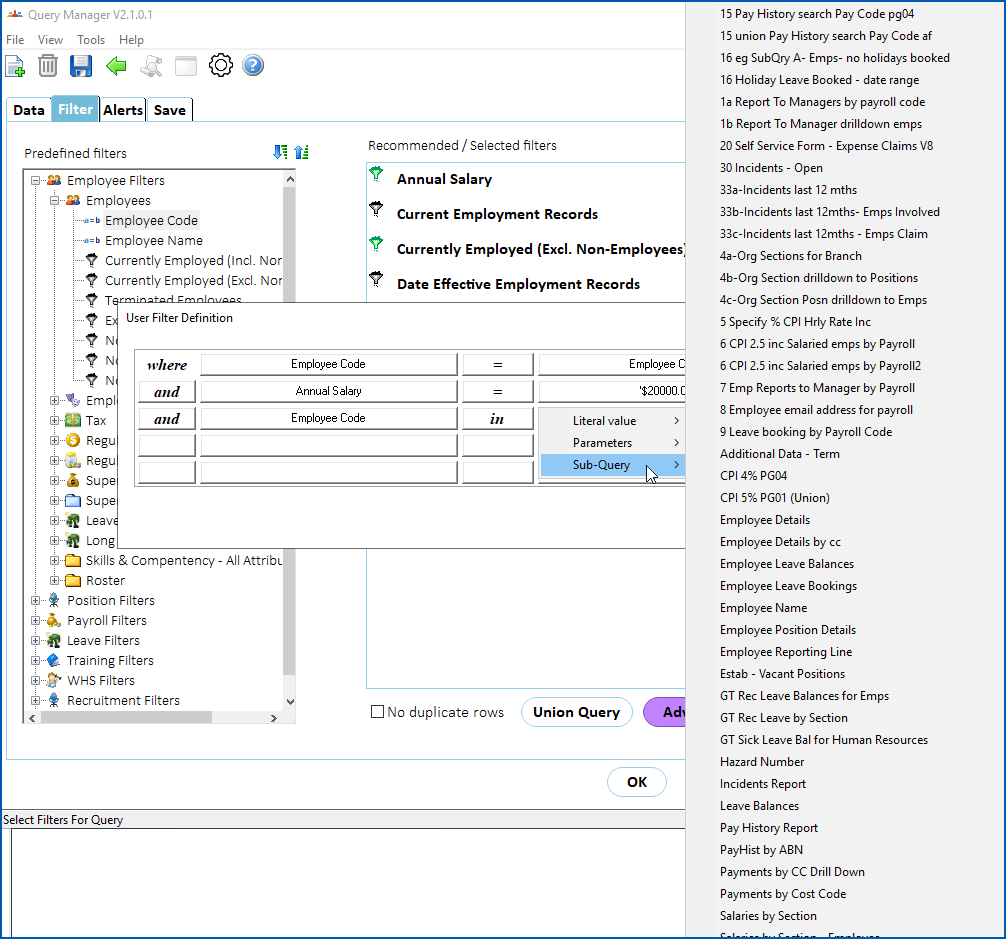
2. EmpowerHR displays the **User Filter Definition** screen. Make your selections. In the following example, we select **in** as the **Operator**, then in **Operand 2**, click **Sub-Query**. EmpowerHR displays a list to choose from.
1. When you make a selection from the list, EmpowerHR displays the **Define Sub-Query Field** screen.
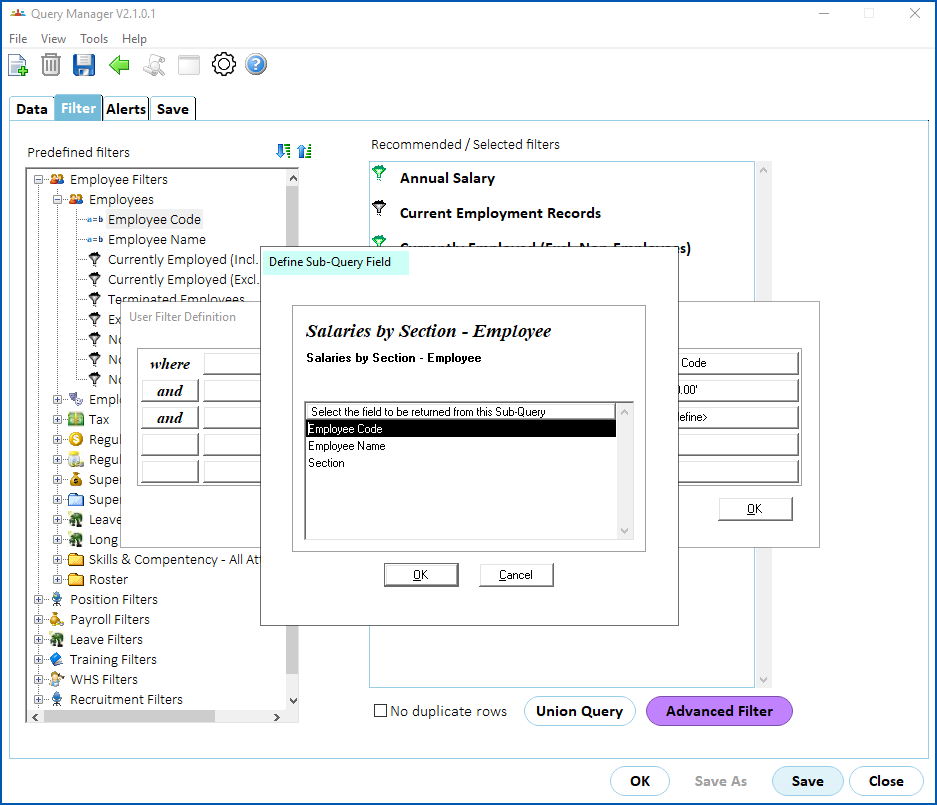
1. At **Define Sub-Query Field**, select a field and then click **OK**. EmpowerHR displays the sub-query selection in **Operand 2** as:
* @ symbol
* query name
* selected field in the case of a **in** / **not** query, *or* **any** instead of a field in the case of a **exists** / **not** **exists** query
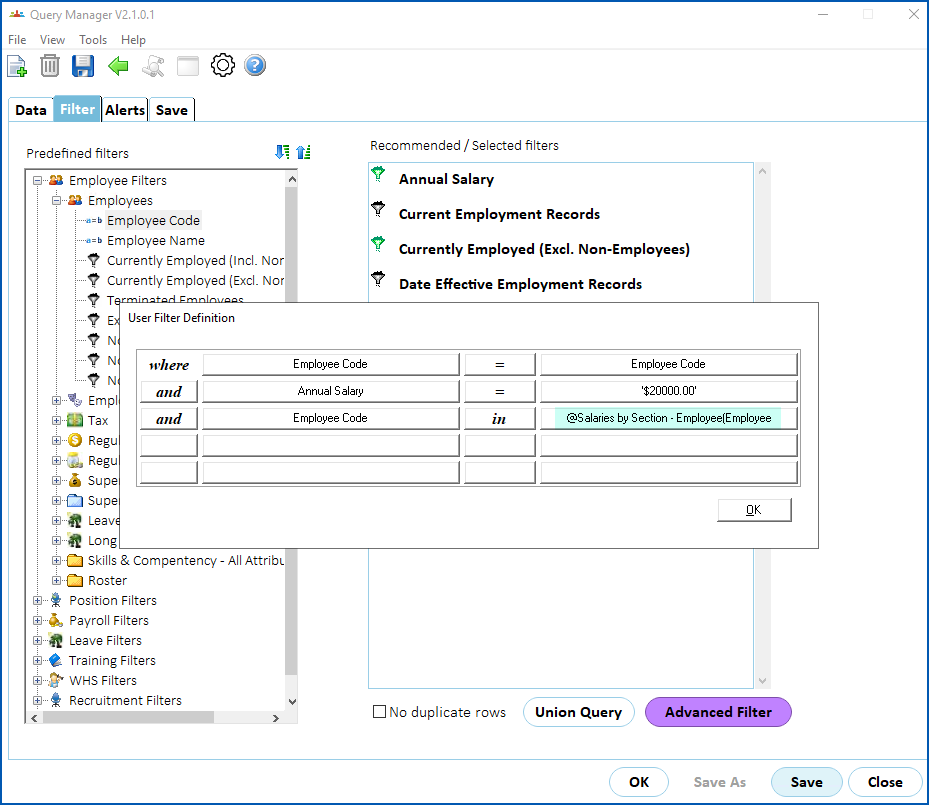
1. Click **OK**.
2. At the **Filter** tab, click **OK** to run the query.
| Next topic
[Use calculated fields](/articles/ehr-user-guide/use-calculated-fields) |
| --- |
© 2023 Fusion5. All rights reserved.