---
title: "Review and update generated pay details"
id: "review-and-update-generated-pay-details"
project: "EHR User Guide"
url: "https://help.cloud5.com.au/articles/ehr-user-guide/review-and-update-generated-pay-details"
updated: 2026-10-19T00:53:22Z
---
# Review and update generated pay details
EmpowerHR allows you to review and, if required, update **schx** pay batches generated during the Christmas pay process should you need to resolve calculation issues.
|  | Any changes you make to the **schx** batch hours also appear in the **[Pay Data Entry Audit](/articles/ehr-user-guide/view-audit-records)** screen. |
| --- | --- |
To review and update generated pay details:
1. Go to **Tasks** > **Payroll** > **Pay Data Entry** > **Pay Data Entry by Employee**.
2. At the **Pay Data Entry by Employee** summary screen, select the payroll and then click **Next Level**.
3. EmpowerHR displays the **Data Entry by Employee Batch** screen, with **schx** transactions for the relevant work dates.
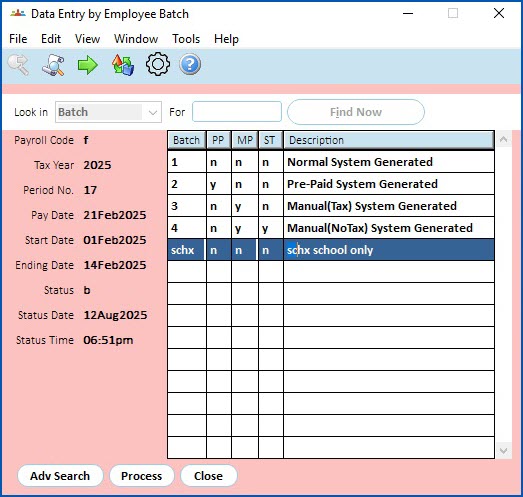
1. You can delete a transaction, or change or zero the hours.
|  | Deleting or zeroing schx hours affects ordinary hours recalculation differently depending on whether the pay period includes Term 1 start and Christmas holidays. |
| --- | --- |
| Next topic
[Update formula values](/articles/ehr-user-guide/update-formula-values) |
| --- |
© 2023 Fusion5. All rights reserved.