---
title: "Reverse a gathered movement"
id: "reverse-a-gathered-movement"
project: "EHR User Guide"
url: "https://help.cloud5.com.au/articles/ehr-user-guide/reverse-a-gathered-movement"
updated: 2026-10-19T00:53:24Z
---
# Reverse a gathered movement
Use the following method to delete a position movement that:
* *has* been gathered (processing flag **/** is set to **y**)
The only way to remove this type of movement is to reverse (cancel) and housekeep (delete) the record.
As a general rule:
* don't reverse active movements (where the **Act** column is set to **y**), as these have genuine pay outcomes
* use reversals to clean up inactive records (where the previous history isn't needed)
* when you reverse a movement and do housekeeping, EmpowerHR does *not* automatically make pay adjustments. If pay needs to be adjusted after reversing the movement, you need to do so manually.
|  | If you do find you need to delete a movement that has already been paid, take great care. It's very important both employee position and employee payment records correlate. |
| --- | --- |
## Reverse a position movement
To reverse a position movement: 
1. Go to **Tasks** > **Employees** > **Position Movement** > **Reverse Movement / Salary**.
2. At the **Reverse Movement/Salary** summary screen, in **Employee Code**:
1. enter the code if you know it, *or*
2. click **Window**, find and double-click the code to add it to the field
3. Press **Tab**. EmpowerHR displays all the employee's position movement records.
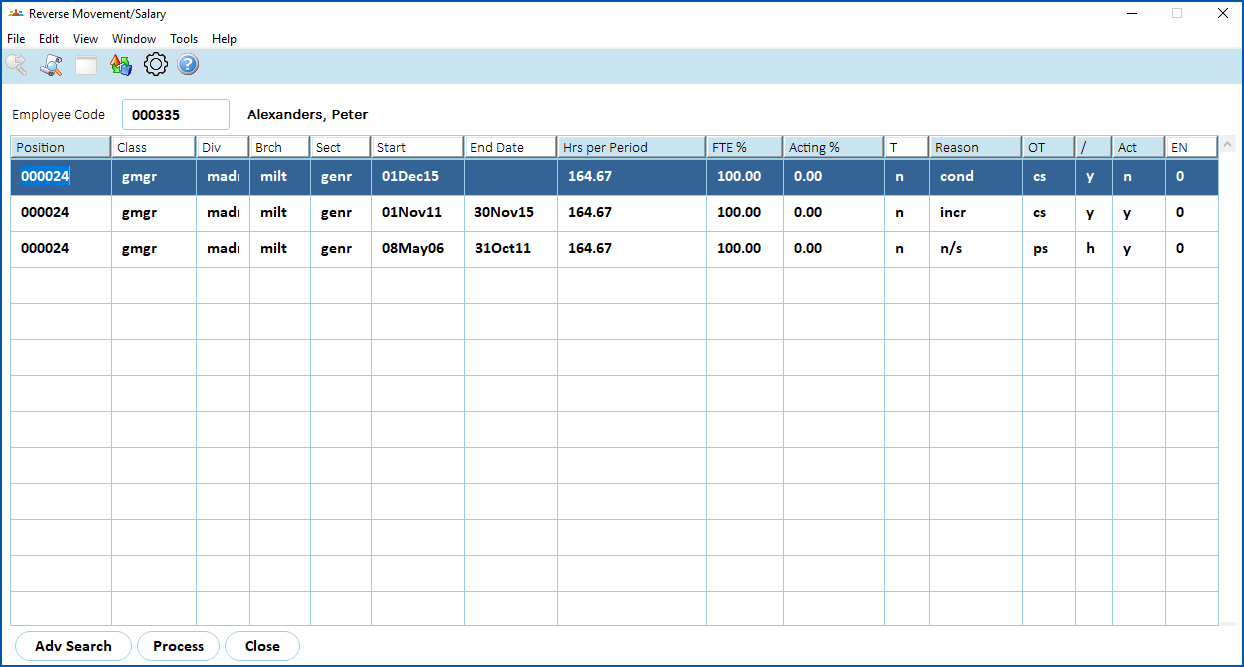
1. Select the movement you want to reverse, and then click **Process**.
2. EmpowerHR displays a summary of the movement in the **Reversal Input – Delete** screen.
3. Click **Save**.
4. When the system asks if you are sure you want to reverse the movement, click **OK**.
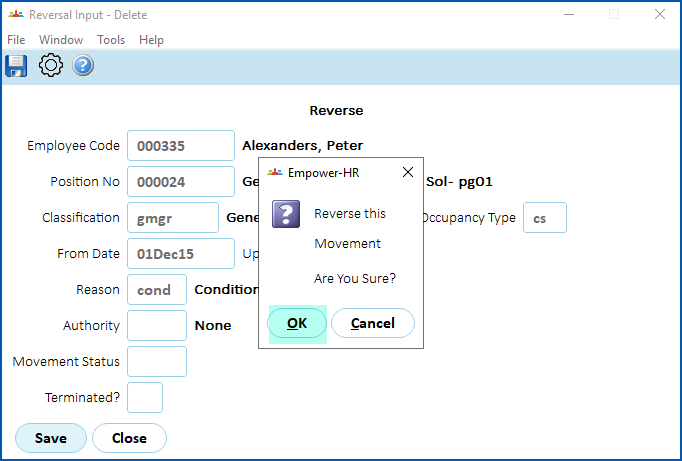
1. EmpowerHR completes the reversal, displays the **Reverse Movement/Salary** summary screen, where on the:
1. reversed movement, the **End Date** displays today's date, and the **/** processing flag is changed to **c** (cancelled)
2. previous record, the **End Date** is removed
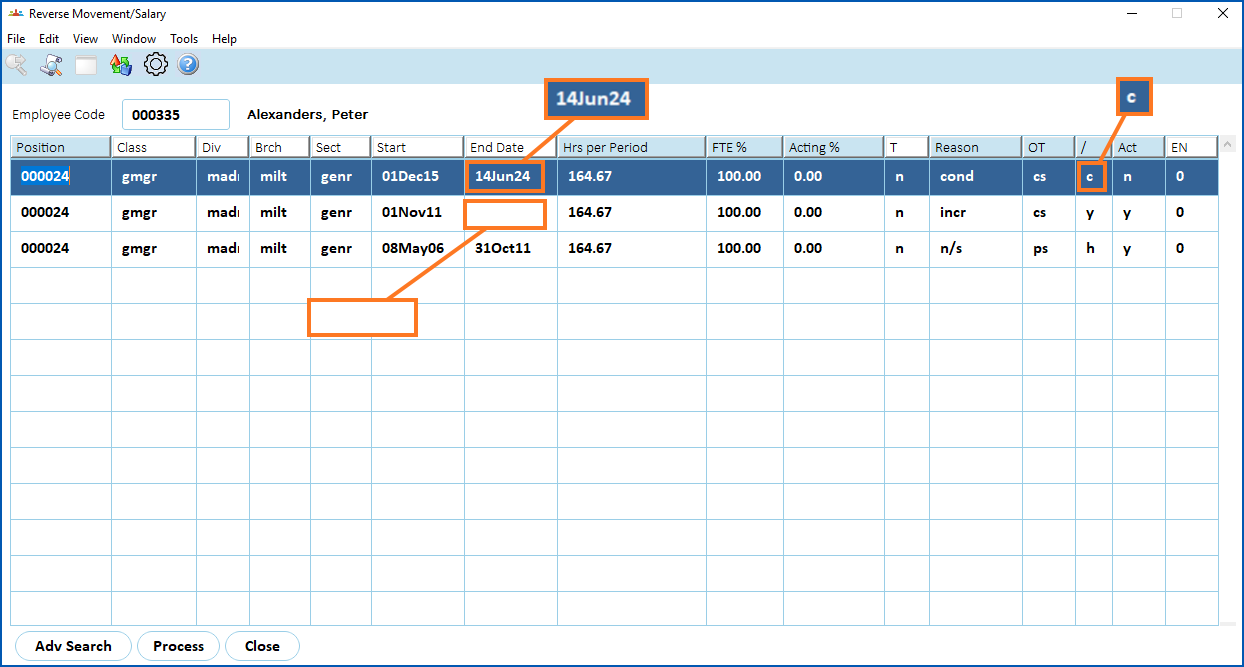
1. Now, use the following procedure to delete the reversed (cancelled) movement record.
## Delete a reversed (cancelled) movement record
To delete a cancelled position movement record:
1. Go to **Tasks** > **Employees** > **Position Movement** >**Housekeeping**.
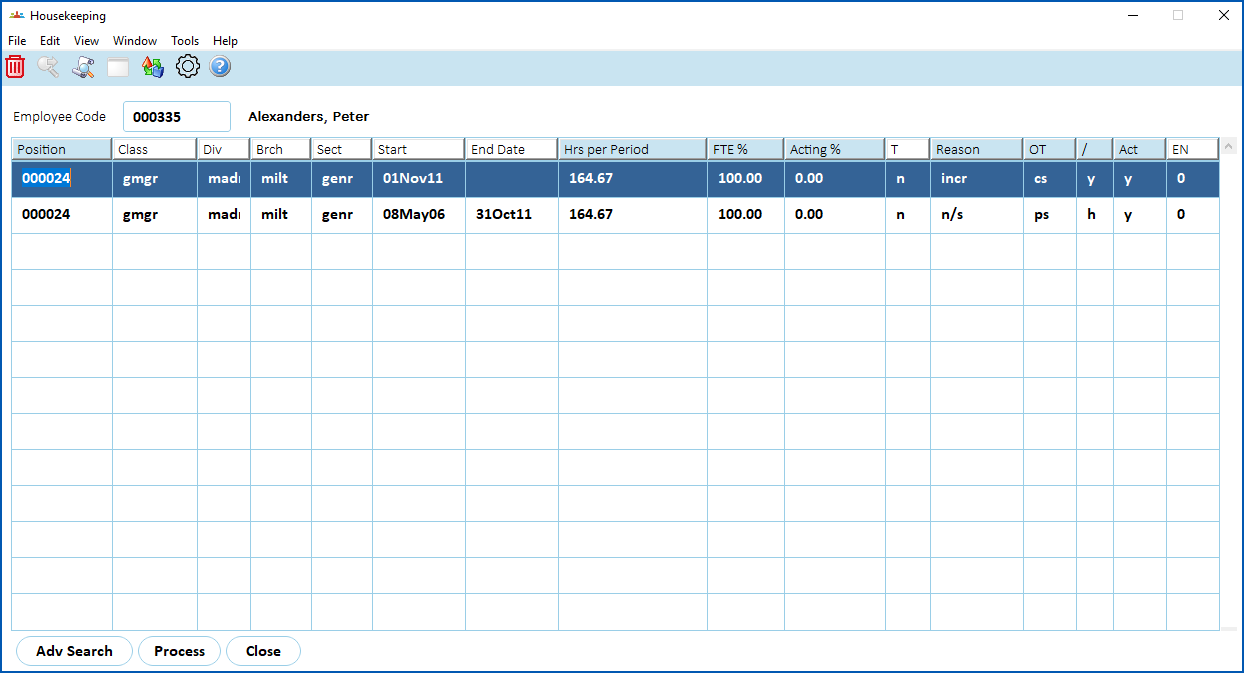
2. At the **Housekeeping** summary screen, the **Employee Code** defaults to the employee you reversed a position movement for, and EmpowerHR displays the position records including the just-cancelled movement.
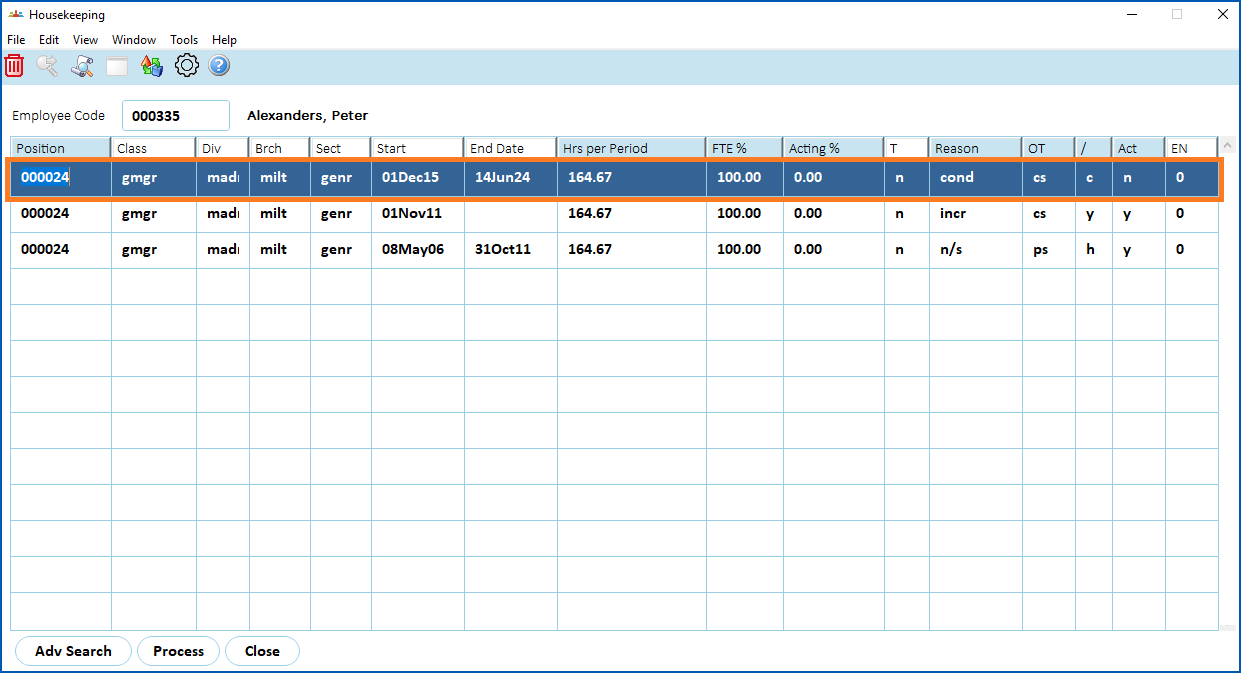
1. Select the cancelled movement, and then click **Delete**.
2. EmpowerHR displays the **Position Movement Information** screen with details of the original movement.
3. Click **Save**.
4. When the system asks if you are sure you want to delete the record, click **OK**.
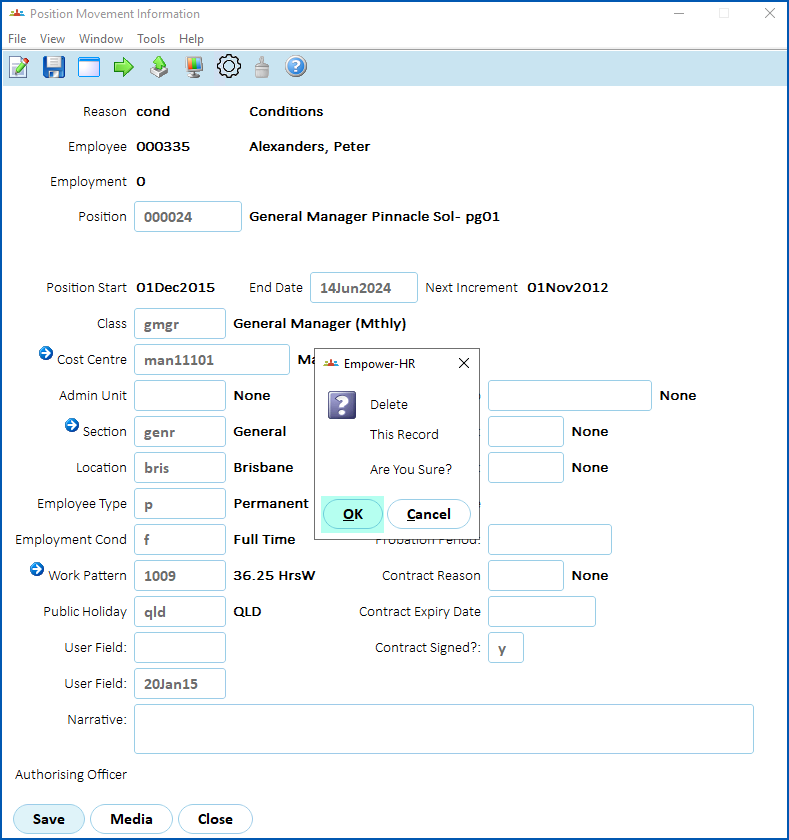
1. EmpowerHR deletes the record, and it is no longer listed on the **Housekeeping** summary screen.
| Next topic
[Delete an auto-generated movement](/articles/ehr-user-guide/delete-an-auto-generated-movement) |
| --- |
© 2023 Fusion5. All rights reserved.