---
title: "Remuneration enquiry configuration"
id: "remuneration-enquiry-configuration"
project: "EHR User Guide"
url: "https://help.cloud5.com.au/articles/ehr-user-guide/remuneration-enquiry-configuration"
updated: 2026-10-19T00:52:41Z
---
# Remuneration enquiry configuration
## Remuneration enquiry
The Remuneration Enquiry screen in self service shows the Total Employment Costs (TEC) for each employee.
To build the screen, EmpowerHR uses remuneration elements to specify the breakdown and totalling for:
* wages/salaries
* allowances
* super
* on-costs
Remuneration elements allow you to logically group related payment codes, and also define groups of remuneration elements to represent total figures for summary purposes.
The Remuneration Elements screen and related detail screens allow you to customise the Total Remuneration Enquiry and the Individual Remuneration self service screens.
### Salary/wages
For **salaried** employees, the annual salary is either on the classification or the employee’s Pay Screen. If there is a:
* Variation Amount, EmpowerHR converts it to an annual figure and adds it to the annual salary
* Variation Percent, EmpowerHR also applies it to the annual salary
For **hourly** paid employees, EmpowerHR determines an annual figure by multiplying the base hours by the hourly rate, then converting the amount to an annual figure.
|  | Variation Amount and Variation Percent do not apply to hourly paid employees. |
| --- | --- |
### Regular allowances
For each:
* **hourly** regular allowance triggered by the **pay by exception** payment code, EmpowerHR obtains the annual amount if the amount is not zero. Otherwise, EmpowerHR obtains the internal rate and converts it from an hourly to an annual figure.
* **fixed** regular allowance triggered by the **pay by exception** payment code, EmpowerHR obtains the annual amount if the amount is not zero. Otherwise, EmpowerHR obtains the per period amount and converts it to an annual figure.
### Regular transactions
For:
* each **percentage calc** regular transaction, EmpowerHR obtains the percentage and the pay element code.
* other regular transactions, EmpowerHR obtains the period amount and converts it to an annual figure. The amount may be on the payment code or the classification element instead of the regular transaction record.
## Set up the remuneration enquiry feature
To set up the remuneration enquiry feature:
1. Create the remuneration elements and remuneration element groups your organisation needs. See [remuneration element codes](/articles/ehr-user-guide/remuneration-element-codes) for instructions.
2. Use the following steps to run the **Remuneration Data Extract** background job:
1. Go to **Background Jobs** > **Daily Processing** > **Remuneration Data Extract**.
2. At:
* **Employee Code**, enter the employee code or click **Window**, find and double click the code to add it to the field (or else, enter **%** for all employee codes)
* **Payroll Code**, enter the payroll code or click **Window**, find and double click the code to add it to the field
* **Date**, enter the As At date
3. Click **Save** to start the extract job.
## View the remuneration enquiry screen
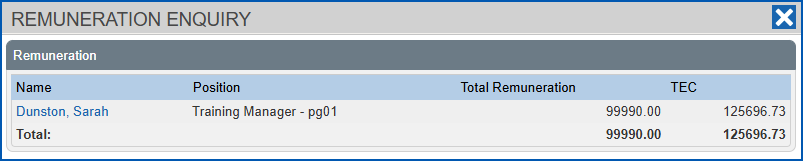
The Remuneration Enquiry (accessed by clicking Remuneration on the Staff Management screen as shown in the following instructions) is based around the cost to the business for an employee.
To view the Remunerations Enquiry screen in MSS:
1. Go to **Staff Management**.
2. Search for the employee you want to enquire on.
3. Click **Remuneration**. EmpowerHR displays the **Remuneration Enquiry** screen.
| Next topic
[Fixed remuneration enquiry configuration](/articles/ehr-user-guide/fixed-remuneration-enquiry-configuration) |
| --- |
© 2023 Fusion5. All rights reserved.