---
title: "Relief and payments reporting"
id: "relief-and-payments-reporting"
project: "EHR User Guide"
url: "https://help.cloud5.com.au/articles/ehr-user-guide/relief-and-payments-reporting"
updated: 2026-10-19T00:53:14Z
---
# Relief and payments reporting
## Run a relief and payments report
To run a relief and payments report: 
1. Go to **Relief and Payments** > **Reports**.
2. At the **Reports** screen, make your selections including:
1. if you manage more than one section, select a section from the **Sections** list
2. enter the date range for the report
3. open **Reports**, and then select the report you want to run
4. select an output type from the **Output Format** dropdown list
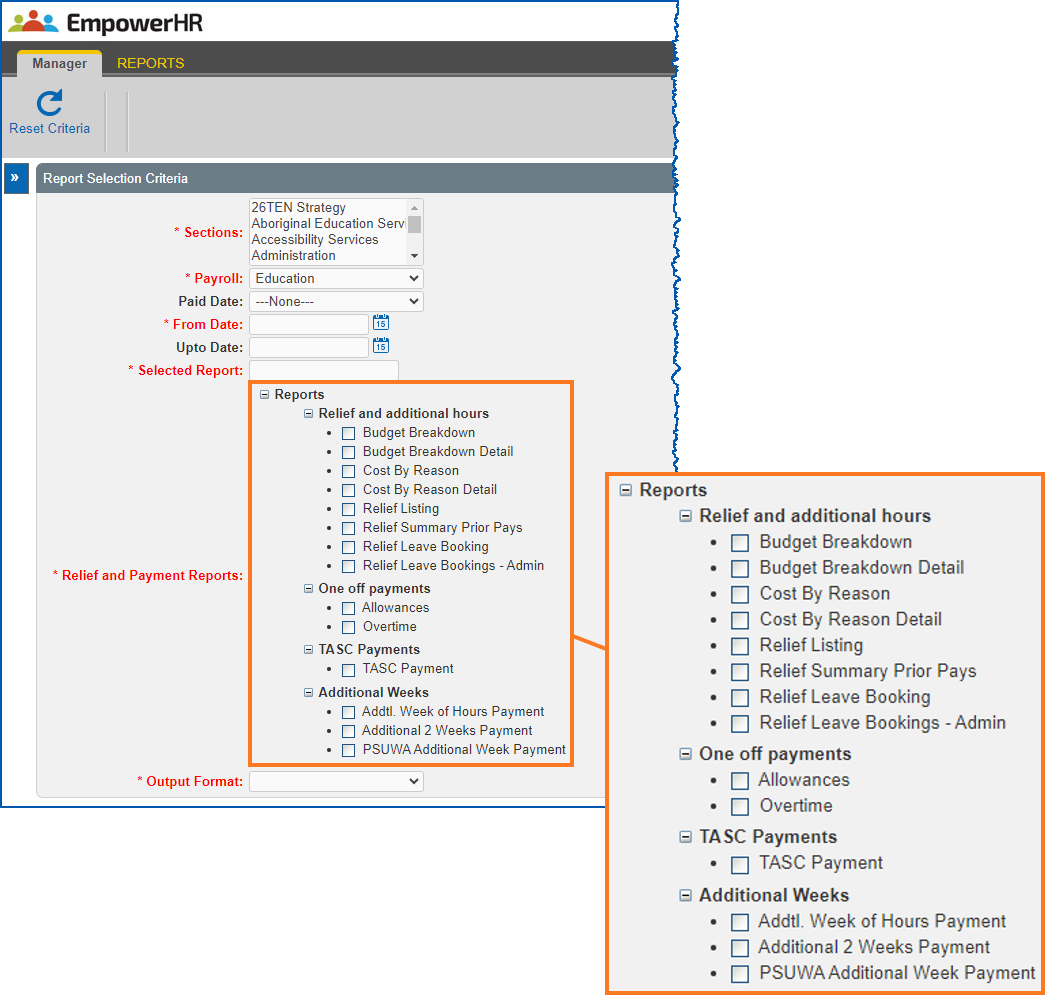
1. Click **Run Report** A window displays the report output (for example, PDF), or downloads the report (for example, comma-separated values/Excel file) - depending on your chosen output type.
| Next topic
[Related system data](/articles/ehr-user-guide/related-system-data) |
| --- |
© 2023 Fusion5. All rights reserved.