---
title: "Relief/absence booking event"
id: "relief-absence-booking-event"
project: "EHR User Guide"
url: "https://help.cloud5.com.au/articles/ehr-user-guide/relief-absence-booking-event"
updated: 2026-10-19T00:53:28Z
---
# Relief/absence booking event
## Set notification times on relief/absence booking event
When an employee creates a request for relief payment, they select an official relief reason.
Some official relief reasons are set up to require a leave request/booking. In such cases, EmpowerHR sends a notification when the relief payment request is finalised but the leave request/booking hasn't been created. Here's how to set notification times on the event code, zrpl (relief/absence booking) to remind the relevant people to create the leave request/booking.
To set notification times on event code, **zrpl**: 
1. Go to **Administration** > **Automatic Event Management** > **Auto Event Definition**.
2. At the **Auto Event Definition** summary screen, select the **zrpl** event.
3. Click **Open**.
4. At the **Auto Event Definition** (zrpl) detail screen, in:
1. **Advance Notice in Days**, enter the number of days' advanced notice to give the employee once the relief payment request is finalised
2. **Reminder Notice in Days**, enter **7** to send a reminder notice to the employee after 7 days
3. **Escalate Days prior / post Event**, enter **14** to send a reminder notice to the employee, section manager, and principal after 14 days
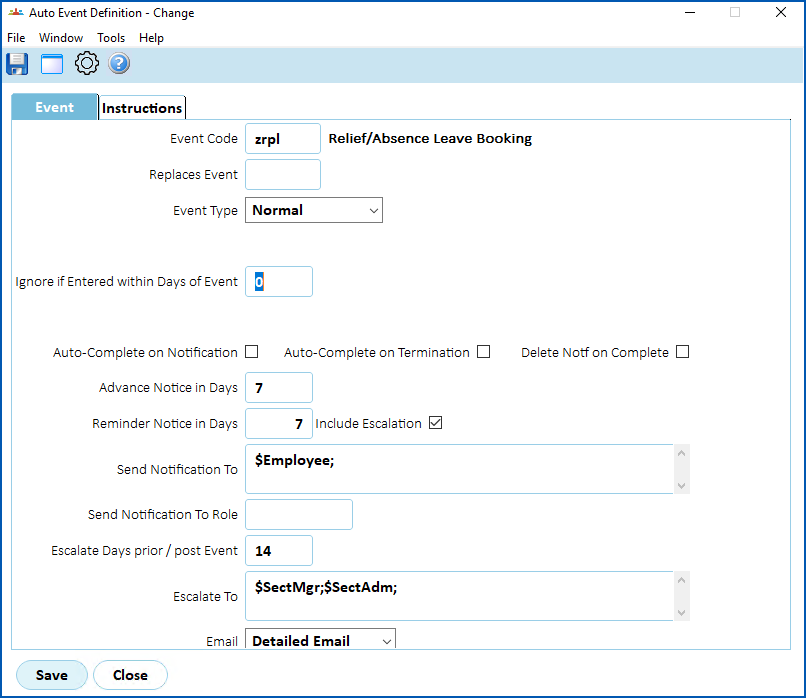
1. Click **Save**.
|  | Once the leave request/booking is created, EmpowerHR marks the event as complete. |
| --- | --- |
| Next topic
[RWVP and TRB registration data](/articles/ehr-user-guide/rwvp-and-trb-registration-data) |
| --- |
© 2023 Fusion5. All rights reserved.