---
title: "Register & manage self service forms"
id: "register-manage-self-service-forms"
project: "EHR User Guide"
url: "https://help.cloud5.com.au/articles/ehr-user-guide/register-manage-self-service-forms"
updated: 2026-10-19T00:54:08Z
---
# Register & manage self service forms
When employees enter data in a self service form, you can allow Query Manager to retrieve the data by registering the form. You can also set which fields you want to use, change field names, and change descriptions when you register the form.
## Register a self service form
|  | If a self service form’s definition changes, there is no impact on the results of a pre-existing query. However, you do need to individually register each new version of the form.
The information Query Manager retrieves relates to the specific version of the form used in the query and only includes data employees entered at the time the version was current. |
| --- | --- |
To register a self service form:
1. Go to **Administration** > **System Security** > **Query Manager Administration**.
2. EmpowerHR displays the **Query Manager - Administrator** screen.
3. Click **Tools**,****and then select **Register Self-Service Form** from the menu.
4. EmpowerHR displays the **Query Manager - Register Self-Service Form for use** screen.
5. Select a self service form from the **Select a Form to Register** dropdown list.
6. EmpowerHR displays details about the form's fields.
7. To:
1. select particular fields to collect data from, click the checkbox on the row for each field, *or*
2. collect data from all the form's fields, click the **Select / Deselect ALL fields** checkbox
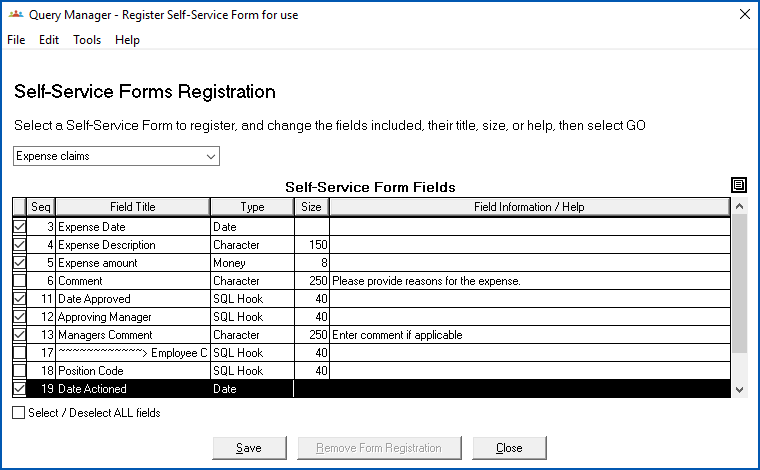
1. Make changes to the fields, as required (for example, to avoid exceeding the maximum record size, as explained in the following table). For each field, you can choose to change the following attributes:
1. **Field Title**
2. **Size**
3. **Field Information/Help**
| Maximum record size | Selecting a large number of fields may result in exceeding the maximum record size in the system. EmpowerHR displays an error message when this occurs. |
| --- | --- |
| How to overcome limits | To overcome limits, you can do any, or all, of the following:
- de-select any fields you don't really need
- reduce the field Size returned for character fields
- de-select selector fields (registration automatically includes descriptions for any selector fields in Query Manager catalogues. Selector description fields are 40 characters so removing any can reduce the record size).
- change the field name and descriptive help text in Query Manager's field catalogue
|
1. Click **Save**.
2. Once the self service form is registered, the system creates catalogue entries which are controlled by Query Manager security templates. See [manage query & folder templates](/articles/ehr-user-guide/manage-query-folder-templates) for what to do next.
|  | Because self service forms are associated with employees, the **Self-Service Forms** folder is a sub-folder of the **Employees** folder. |
| --- | --- |
## Remove a field from a registered self service form
If you want to remove a field from a registered self service form, you must first remove the field from any queries currently using it.
To remove a field from a registered self service form:
1. Go to **Administration** > **System Security** > **Query Manager Administration**.
2. EmpowerHR displays the **Query Manager - Administrator** screen.
3. Click **Tools**,****and then select **Register Self-Service Form** from the menu.
4. EmpowerHR displays the **Query Manager - Register Self-Service Form for use** screen.
5. Select the self service form from the **Select a Form to Register** dropdown list.
6. EmpowerHR displays details about the form's fields, and highlights any fields currently used by a query.
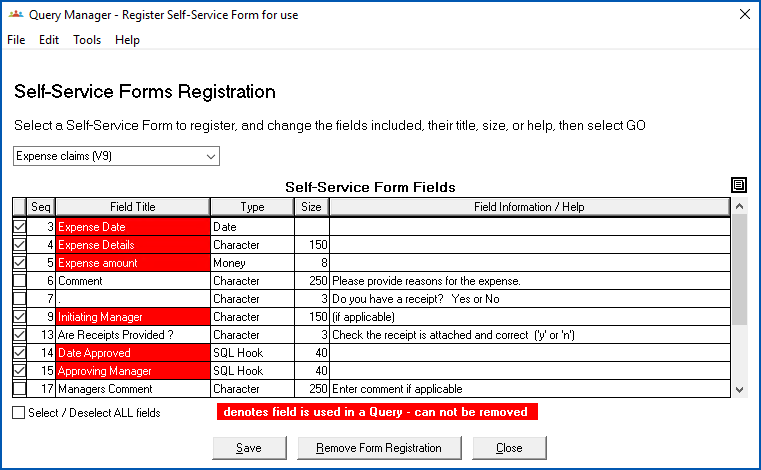
1. Clear the checkbox on the row displaying the field you want to remove*.*
|  | If the field is highlighted, go to Query Manager and remove the field from any queries currently using it. |
| --- | --- |
1. Click **Save**.
## De-register a self service form
If you want to de-register a self service form, you must first delete any query using the form, or remove any references to the form from within the queries.
|  | EmpowerHR displays only user-defined fields on the **Query Manager - Register Self-Service Form for use** screen.
EmpowerHR also creates Catalogue for a number of system-defined fields (for example, Form Description, Form Sequence No. etc). While you cannot change or delete these fields, their use in a query still prevents you from de-registering the form. |
| --- | --- |
To de-register a self service form:
1. Go to **Administration** > **System Security** > **Query Manager Administration**.
2. EmpowerHR displays the **Query Manager - Administrator** screen.
3. Click **Tools**,****and then select **Register Self-Service Form** from the menu.
4. EmpowerHR displays the **Query Manager - Register Self-Service Form for use** screen.
5. Select the self service form from the **Select a Form to Register** dropdown list.
6. EmpowerHR displays details about the form's fields.
7. Click **Remove Form Registration**.
8. When the system prompts you, click **OK** to confirm the de-registration.
| Next topic
[Basic query manager](/articles/ehr-user-guide/basic-query-manager) |
| --- |
© 2023 Fusion5. All rights reserved.