---
title: "Record an employee redeployment"
id: "record-an-employee-redeployment"
project: "EHR User Guide"
url: "https://help.cloud5.com.au/articles/ehr-user-guide/record-an-employee-redeployment"
updated: 2026-10-19T00:53:09Z
---
# Record an employee redeployment
To record an employee redeployment: 
1. Go to **Tasks** > **Employees** > **Position Movement** > **Redeployment**.
2. At the **Redeployment**summary screen, in **Employee Code**:
1. enter the code if you know it, *or*
2. click **Window**, find and double-click the code to add it to the field
3. Press **Tab**. EmpowerHR displays all the employee's position movement records.
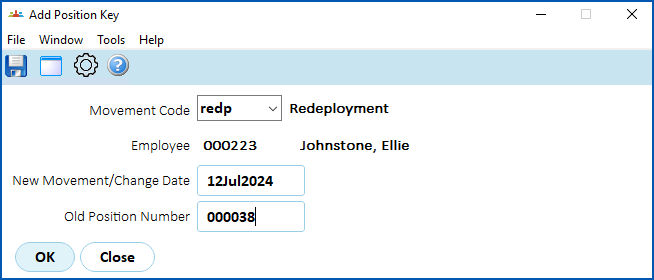
4. Click **New**. The **Add Position Key** screen displays. At:
1. **Movement Code**, if the redeployment code is set up (for example, **redp**), EmpowerHR displays the code by default. Press **Tab**.
2. **New Movement/Change Date field**, enter the date the redeployment is to occur, and then press **Tab**.****
5. EmpowerHR displays the employee's current position number in the **Old Position Number** field. Do not change this field!
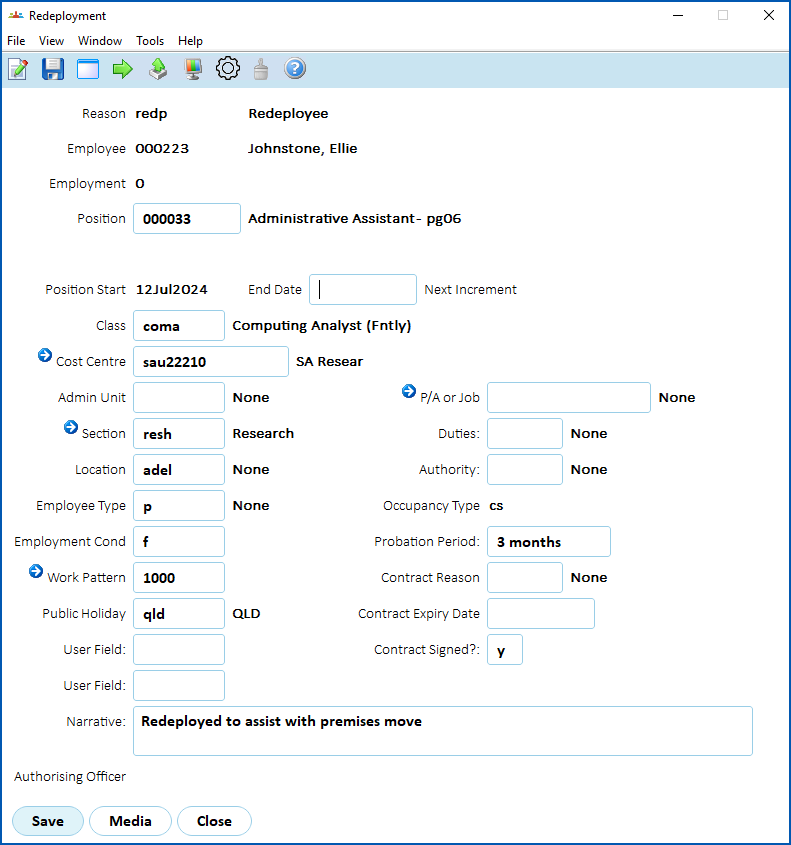
1. Press **Tab**. The **Redeployment** detail screen displays where the **Position** field defaults to the employee's current position number.
2. At the **Position** field, enter the number of the position the employee is redeploying to, and then press **Tab**.
3. Depending on the transaction rules associated with the movement reason code, information from the new and/or previous movement displays by default. The transaction rules also determine the fields you can change with this movement reason.
4. Make any changes as required.
5. Enter explanatory notes in the **Narrative** field so anyone accessing the record can see at a glance why it was created.
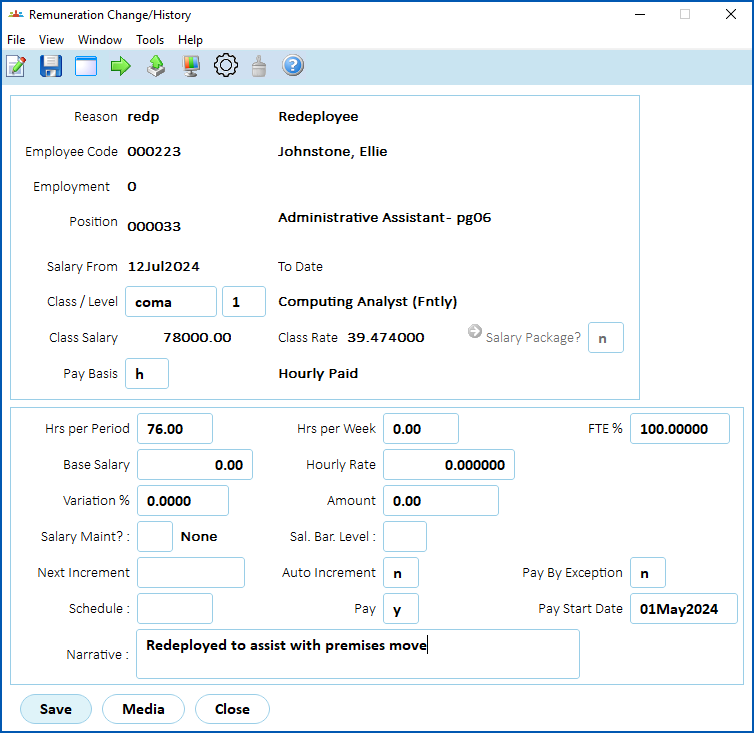
1. Click **Save**. The **Remuneration Change/History**screen displays.
2. Again, the transaction rules associated with the movement reason code determine which fields show default information and which fields you can change.
3. Enter explanatory notes in the **Narrative** field so anyone accessing the record can see at a glance what happened in the movement.
1. Click **Save**.
| Next topic
[Record an employee promotion](/articles/ehr-user-guide/record-an-employee-promotion) |
| --- |
© 2023 Fusion5. All rights reserved.