---
title: "Qualification level codes"
id: "qualification-level-codes"
project: "EHR User Guide"
url: "https://help.cloud5.com.au/articles/ehr-user-guide/qualification-level-codes"
updated: 2026-10-19T00:54:18Z
---
# Qualification level codes
EmpowerHR uses the **Demographic** **Qualification Lvl**control table in the [enhanced employee demographics feature](/articles/ehr-user-guide/employee-demographics-information-enhanced).
## Create or update qualification level codes
To create or update a qualification level code:
1. Go to **Control Tables** > **Employee** > **Demographic** **Qualification Lvl**.
2. At the **Demographic Qualification Lvl** summary screen, click:
1. **New** to create a new code, *or*
2. **Open** to update an existing code
3. At the **Demographic Qualification Lvl**detail screen, complete or change the fields using the following table as a guide.
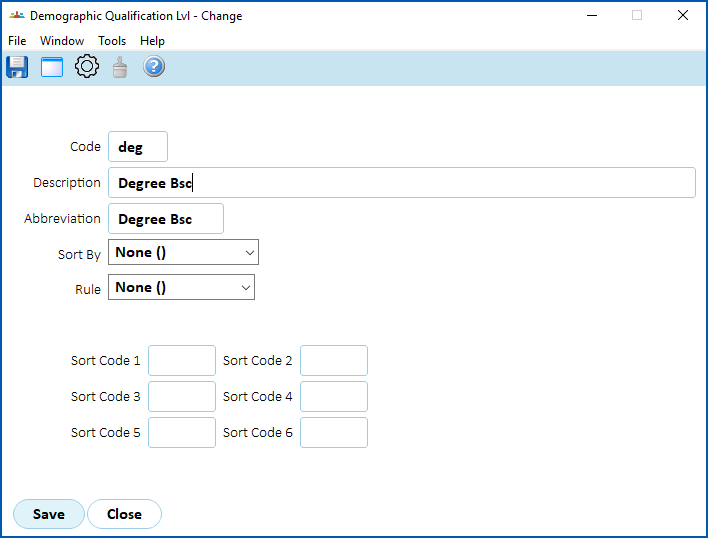
| **At this field...** | **Do this...** |
| --- | --- |
| Code | If:
- adding a new code to the table, enter the code (up to 8 characters)
- updating an existing code, you cannot change this field
|
| Description | Enter/change the full description (up to 30 characters). |
| Abbrev | Enter/change the abbreviation (up to 10 characters). |
| Sort By | Select a sorting option from the dropdown list:
- [ ] (blank) = there is no sort order in the selector
- Alphabetic (A) = the sort order is alphabetical
- Number (N) = the sort order is by the Number you assign
|
| Number | If you selected **Number (N)** in the **Sort By** field, enter a value in the **Number** field to indicate the position in the selector. |
| Rule | Select a rule from the dropdown list:
- None = no rules attached
- Default (DV) = the default value. The value displays in the selector and is a valid selection. This means a user can save the screen with the default value. You may want a description that says ---Not provided---
- P/holder (PH) = a placeholder displays in the selector and is an invalid selector if the user does not change the value. This means a user can't save the screen until they've made a selection. You may want a description that says ---Please select---
|
| Sort Code 1 -
Sort code 6 | N/A |
1. Click **Save**.
| Next topic
[Workplace modification codes](/articles/ehr-user-guide/workplace-modification-codes) |
| --- |
© 2023 Fusion5. All rights reserved.