---
title: "Procedure data configuration"
id: "procedure-data-configuration"
project: "EHR User Guide"
url: "https://help.cloud5.com.au/articles/ehr-user-guide/procedure-data-configuration"
updated: 2026-10-19T00:54:19Z
---
# Procedure data configuration

Would you like to take advantage of this EmpowerHR customised integration feature? Start a discussion now - contact us by logging an [iHelp request](https://infusion.fusion5.com/ "https://infusion.fusion5.com/").
* * *
If you you want a negating pay record for autopay (PBE) employees, you need to:
* create a new pay element and add to it all the leave payment codes that will negate ordinary pay - see [pay element codes](/articles/ehr-user-guide/pay-element-codes) for instructions
* set up the **Procedure Data** screen, as shown in the following instructions
To set up the **Procedure Data** screen:
1. Go to **Administration** > **User Configurable Calculations** > **Procedure Data.**
2. At the **Procedure Data**summary screen, click **Find Now**.
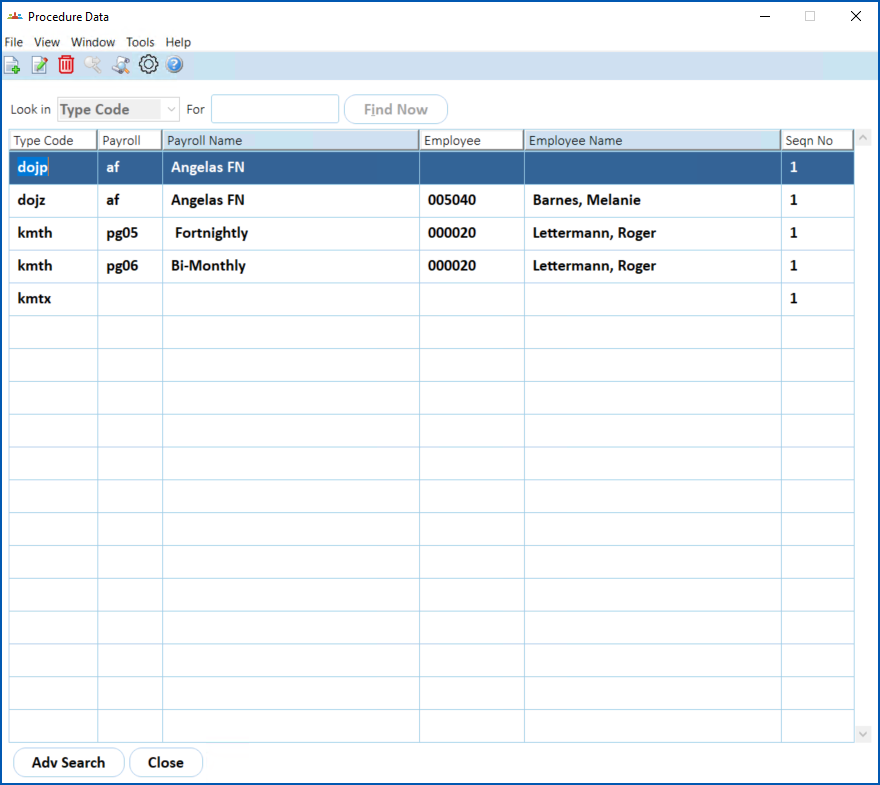
1. Click **New**.
2. At the **Procedure Data** details screen, make the following entries:
| **At this field...** | **Do this...** |
| --- | --- |
| Type | Enter **dojp** |
| Payroll | Enter the payroll code, for example, **pg04** |
| Text Field 1 | Enter the pay element code that contains all the leave payment codes that will negate ordinary pay.
|  | You can screen paint this field to display as, for example, **Leave Pay Element.**Screen painting lets you customise a screen to suit your organisation's needs. For example, you can use screen painting to change a field label name, etc. |
| --- | --- | |
| Text Field 2 | Enter the autopay payment code for when autopay is paid. It is the pay by exception (PBE) code that will be used in the negation.
|  | You can screen paint this field to display as, for example, **Autopay Payment Code.**Screen painting lets you customise a screen to suit your organisation's needs. For example, you can use screen painting to change a field label name, etc. |
| --- | --- | |
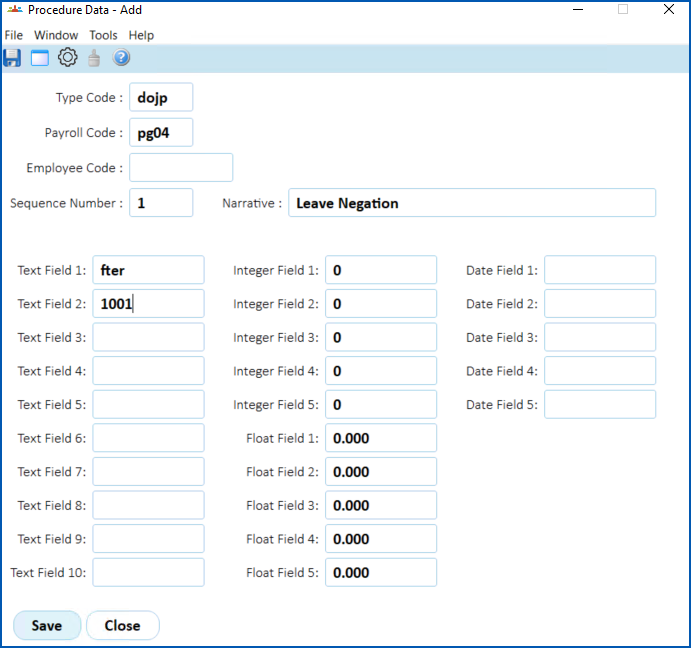
1. Click **Save**.
2. Repeat this procedure starting from step 3 until you have created a record for every payroll.
| Next topic
[Leave element codes](/articles/ehr-user-guide/leave-element-codes) |
| --- |
© 2023 Fusion5. All rights reserved.