---
title: "Position movement (FWA)"
id: "position-movement-fwa"
project: "EHR User Guide"
url: "https://help.cloud5.com.au/articles/ehr-user-guide/position-movement-fwa"
updated: 2026-10-19T00:53:35Z
---
# Position movement \(FWA\)
Accepting an FWA request creates two position movements:
* The FWA movement applies the new arrangement from the proposed start date.
* The reversion movement returns the employee to their original setup the day after the end date.
EmpowerHR creates both automatically when you process the request. Any cost centre changes made by earlier approvers carry through into the movement.
## Processing the position movement
After you click **Accept** on the Flexi Work Request Acceptance screen, EmpowerHR steps you through three screens with details pre-filled from the request. Work through them in order:
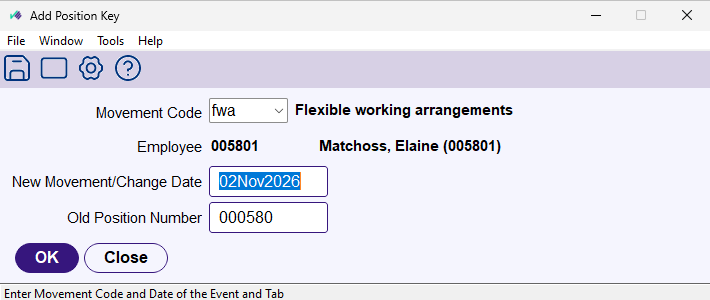
1. At the **Add Position Key** screen, check that the Movement Code is **fwa**, then click **OK**.
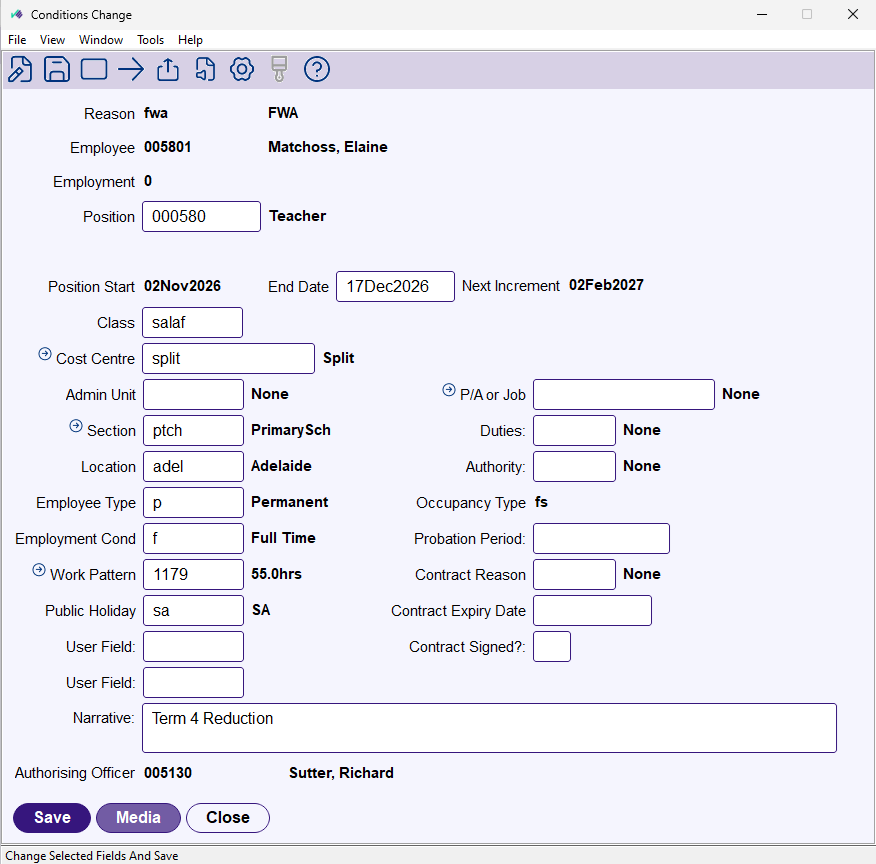
2. At the **Conditions Change** screen, check the new hours and work pattern. Add a narrative if you want, then click **Save**.
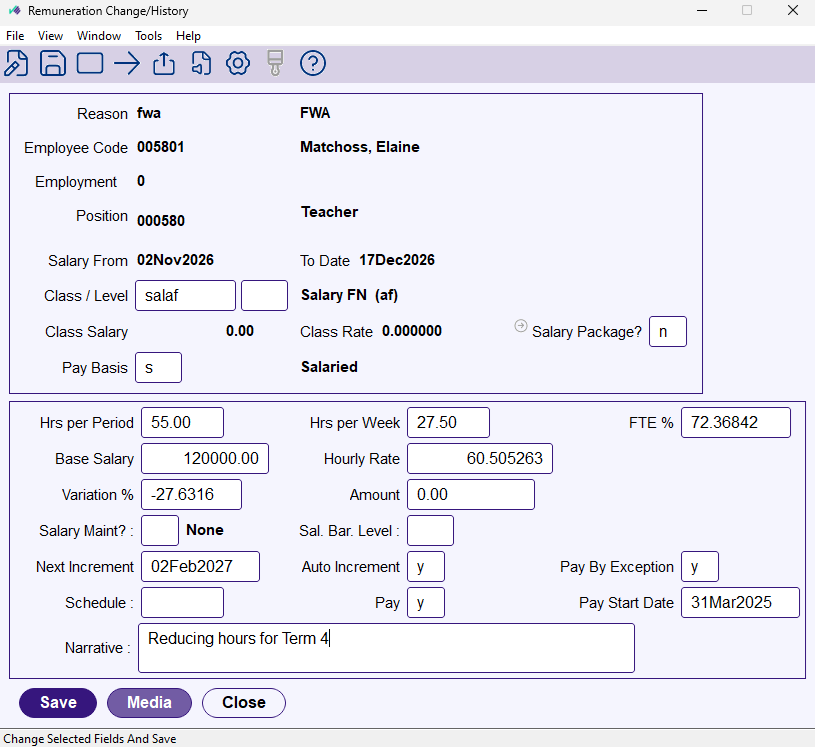
3. At the **Remuneration Change/History** screen, check the recalculated FTE% and hourly rate. Click **Save**.
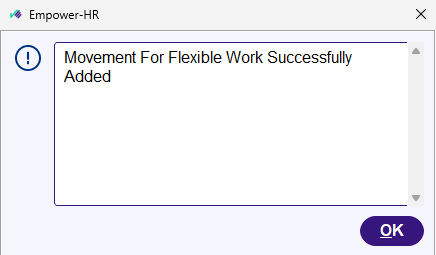
4. EmpowerHR confirms both movements have been added.
For field-level detail on these screens, see **[Record an employee conditions change](/articles/ehr-user-guide/record-an-employee-conditions-change)** in the EHR User Guide.
## After processing
The FWA and reversion records appear together in the employee's position history.
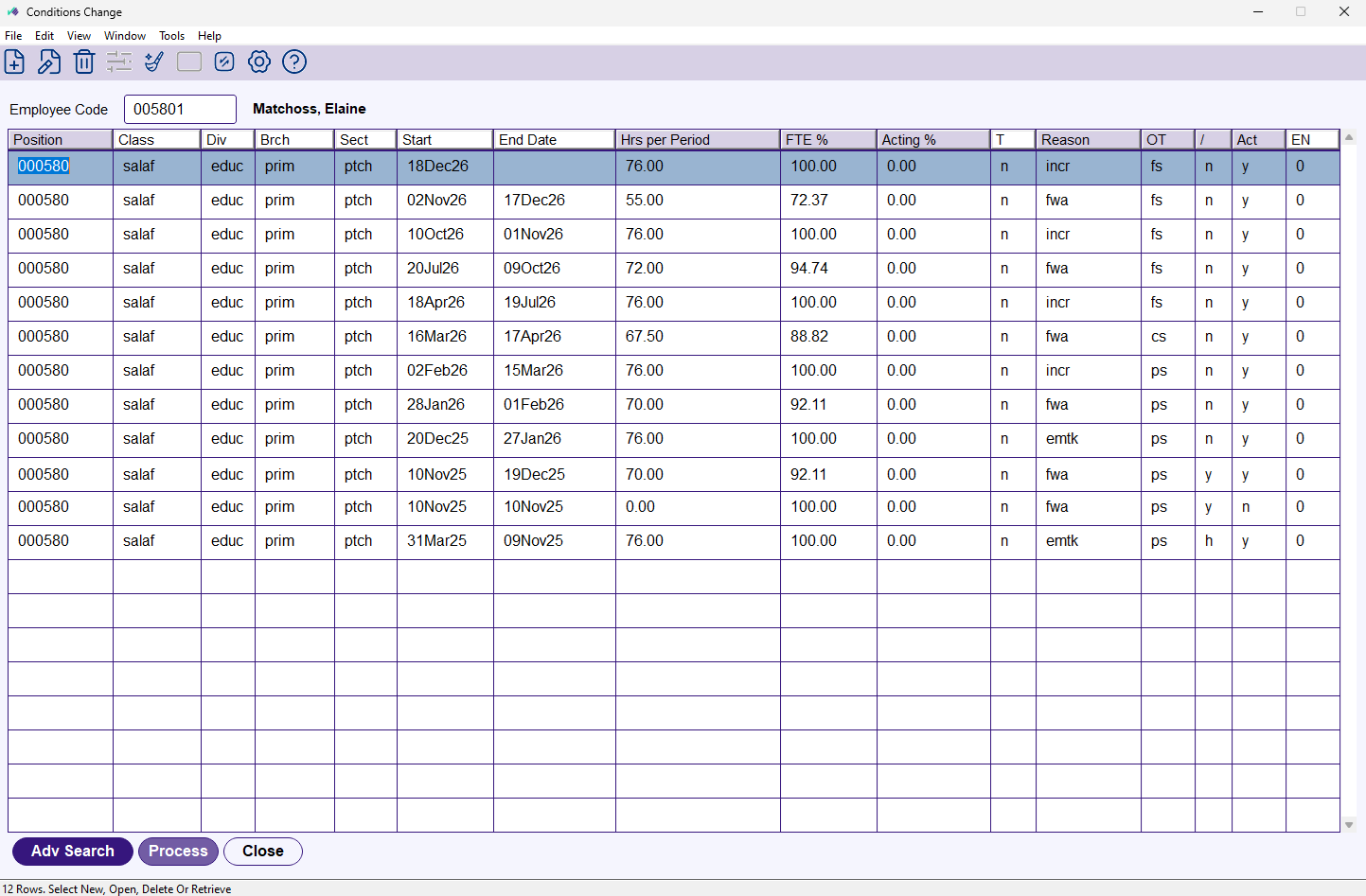
The employee's new arrangement takes effect from the proposed start date. Payroll calculations and leave accruals use the new hours and work pattern from then on. EmpowerHR sends a notification to the employee and completes the workflow. When the end date arrives, the reversion applies automatically.
## Movement reason
The **fwa** code needs the right transaction rules, or Desktop shows an error. See [Position movement configuration (FWA)](/articles/ehr-user-guide/position-movement-configuration-fwa) for setup, and [Employee position movements](/articles/ehr-user-guide/employee-position-movements)in the EHR User Guide for general information about movement reasons and transaction rules.
| Next topic
[Offboarding](/articles/ehr-user-guide/offboarding) |
| --- |
© 2023 Fusion5. All rights reserved.