---
title: "Pay leave loading"
id: "pay-leave-loading"
project: "EHR User Guide"
url: "https://help.cloud5.com.au/articles/ehr-user-guide/pay-leave-loading"
updated: 2026-10-19T00:53:05Z
---
# Pay leave loading
Leave loading can be paid:
* via a leave booking (if the leave type has loading associated with it)
* via an Individual Leave Loading Request (for example, if you pay leave loading annually)
|  | Leave loading can also be paid using the linked payment code feature, or via pay data entry (PDE). However, in these cases, it's not possible to enquire about the payments on the leave loading screens. |
| --- | --- |
## Pay leave loading via a leave booking
After saving a [leave booking](/articles/ehr-user-guide/make-a-leave-booking), the next screen EmpowerHR displays depends on whether the installation option called **compulsory payment of loading on recreation leave (llcp)** is set****to **y** (yes) or **n** (no). The following procedures demonstrate what to do in each case.
### Pay leave loading when the compulsory leave option (llcp) is set to y
To pay leave loading via a leave booking when the compulsory leave option (**llcp**) is set **y** (yes):
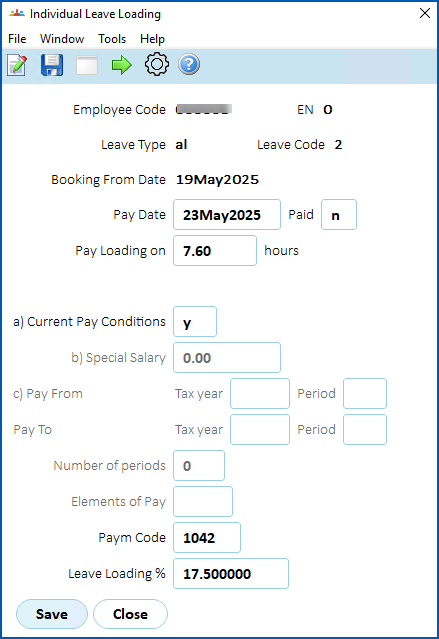
1. After saving the leave booking, EmpowerHR displays the **Individual Leave Loading** screen.
2. If you:
1. don't want to make changes, click **Close**. EmpowerHR generates the loading payment. No further action is required.
2. want to make changes, click **Open**.
|  | You can change pay conditions, however, you cannot change the number of hours which is fixed. |
| --- | --- |
1. Make changes to pay conditions, using the following table as a guide.
| **Field** | **Description** |
| --- | --- |
| Current Pay Conditions | When set to **y** (yes), EmpowerHR uses the employee's pay at the time of loading payment.
When set to **n** (no), other fields can be edited:
- Special Salary, or
- Pay From Tax Year/Pay To Tax Year
|
| Special Salary | When **Current Pay Conditions** is set to **n** (no), the **Special Salary** field can be edited to enter a different salary for EmpowerHR to use for loading payment. |
| Pay From Tax Year
Pay To Tax Year | When **Current Pay Conditions** is set to **n** (no) and the **Special Salary** field is blank, the **Pay From Tax Year**and **Pay To Tax Year** fields can be edited to enter a range of pay periods for generating an average hourly rate. |
| Elements of Pay | If generating an average hourly rate, you can enter the pay element that contains the relevant payment codes for the calculation. |
1. Click **Save**.
### Pay leave loading when the compulsory leave option (llcp) is set to n
To pay leave loading via a leave booking when compulsory leave option (**llcp**) is set **n** (no):
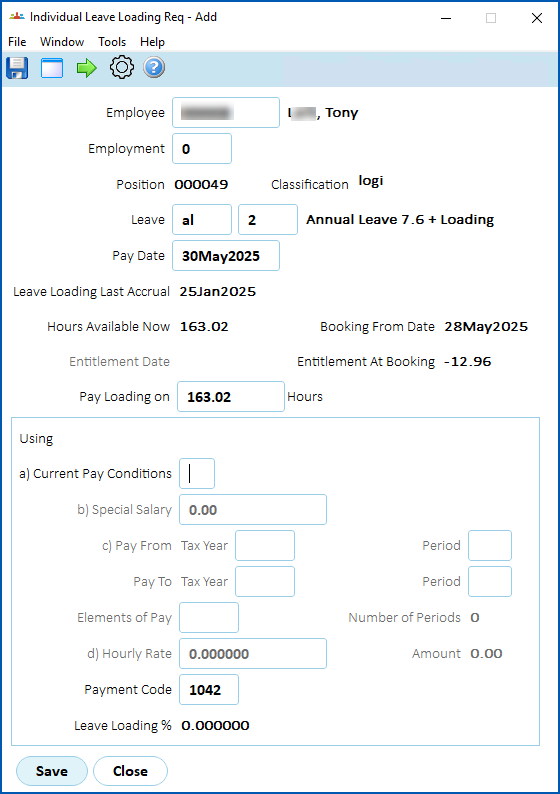
1. After saving the leave booking, EmpowerHR displays the **Individual Leave Loading Req** screen.
2. If you:
1. don't want to make changes, click **Close**. EmpowerHR generates the loading payment. No further action is required.
2. want to make changes, you'll find every field is available to change.
1. Make changes to pay conditions, using the following table as a guide.
| **Field** | **Description** |
| --- | --- |
| Pay Date | The **Pay Date** can be changed, if required. |
| Pay Loading on | The default value in the **Pay Loading on** field depends on how your organisation's payroll is set up. It is either **Entitlement At Booking** value, or the leave hours booked. |
| Current Pay Conditions | At the **Current Pay Conditions** field, enter **y** (yes), or **n** (no).
When set to **y** (yes), EmpowerHR uses the employee's pay at the time of loading payment.
When set to **n** (no), other fields can be edited:
- Special Salary, or
- Pay From Tax Year/Pay To Tax Year
|
| Special Salary | When **Current Pay Conditions** is set to **n** (no), the **Special Salary** field can be edited to enter a different salary for EmpowerHR to use for loading payment. |
| Pay From Tax Year
Pay To Tax Year | When **Current Pay Conditions** is set to **n** (no) and the **Special Salary** field is blank, the **Pay From Tax Year**and **Pay To Tax Year** fields can be edited to enter a range of pay periods for generating an average hourly rate. |
| Elements of Pay | If generating an average hourly rate, you can enter the pay element that contains the relevant payment codes for the calculation. |
1. Click **Save**.
|  | When the compulsory leave option (**llcp**) is set to **n** (no), EmpowerHR only allows the creation of one leave loading record for an employee in any single pay period. If you need to add more leave loading records, see [change or delete leave loading](/articles/ehr-user-guide/change-or-delete-leave-loading). |
| --- | --- |
## Pay leave loading via an individual leave loading request
If you don't pay leave loading when you make a leave booking, you can pay the loading directly using the Individual Leave Loading Request screen.
For example, you might pay leave loading as a lump sum at the end of the year. In this case, make sure the installation option called **compulsory payment of loading on recreation leave (llcp)******is set****to **n** (no).
To pay leave loading directly via the Individual Leave Loading Request screen:
1. Go to **Tasks** > **Leave** > **Leave Bookings** > **Individual Leave Loading Req**.
2. The **Individual Leave Loading Req** screen displays.
3. In the:
1. **Employee** field, enter the employee ID
2. **Leave** field, enter the leave type
3. **Pay Date** field, enter the pay period date
4. Press **Tab**. EmpowerHR populates the **Pay Loading on** field with the total loading hours for the selected leave type. Change this amount if necessary.
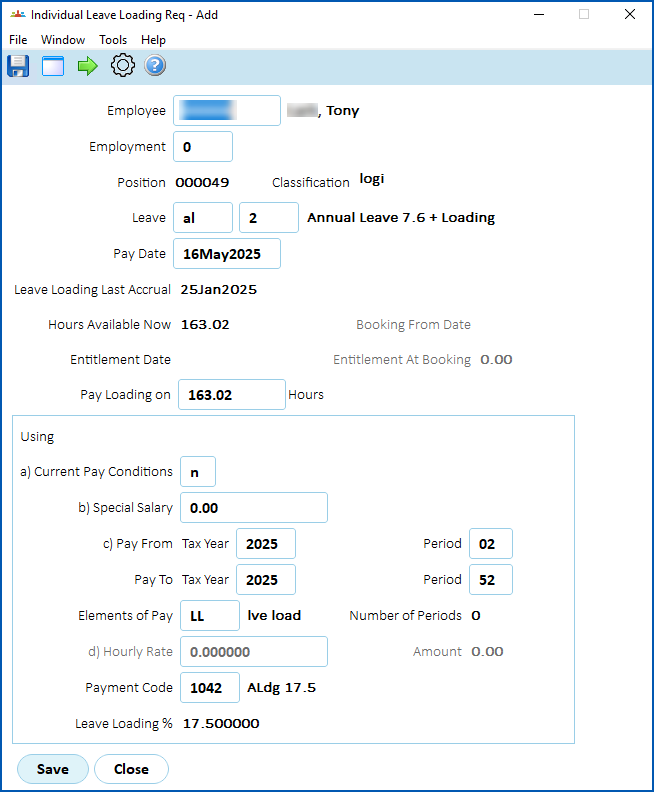
1. Complete the pay conditions, using the following table as a guide.
| **Field** | **Description** |
| --- | --- |
| Current Pay Conditions | At the **Current Pay Conditions** field, enter **y** (yes), or **n** (no). When you enter:
- y (yes), EmpowerHR uses the employee's pay at the time of loading payment
- n (no), you can make entries in:
- Special Salary, or
- Pay From Tax Year/Pay To Tax Year
|
| Special Salary | When **Current Pay Conditions** is set to **n** (no), in the **Special Salary** field, you can enter a different salary for EmpowerHR to use for loading payment. |
| Pay From Tax Year
Pay To Tax Year | When **Current Pay Conditions** is set to **n** (no) and the **Special Salary** field is blank, in the **Pay From Tax Year** and **Pay To Tax Year** fields, you can enter a range of pay periods for generating an average hourly rate. |
| Elements of Pay | If generating an average hourly rate, you can enter the pay element that contains the relevant payment codes for the calculation. |
1. Click **Save**.
| Next topic
[Change or delete leave loading](/articles/ehr-user-guide/change-or-delete-leave-loading) |
| --- |
© 2023 Fusion5. All rights reserved.