---
title: "Pay element codes"
id: "pay-element-codes"
project: "EHR User Guide"
url: "https://help.cloud5.com.au/articles/ehr-user-guide/pay-element-codes"
updated: 2026-10-19T00:53:57Z
---
# Pay element codes
Pay elements provide a way to group payment codes so EmpowerHR can apply processing to the group when calculating an employee's pay.
For example:
* you group payment codes for accruing leave by hours worked. If your organisation uses timesheet-driven leave, EmpowerHR relies on a pay element to know which payment codes to produce accruals on
* you're unlikely to want to calculate superannuation on *all* payment codes associated with an employee’s pay - meal allowances is a good example
So tell EmpowerHR which payment codes apply by defining pay elements.
## Create a pay element code
To create a payment element code:
1. Go to **Control Tables**> **Payment** > **Pay Element Codes**.
2. At the **Pay Element Codes** summary screen, click **New**.
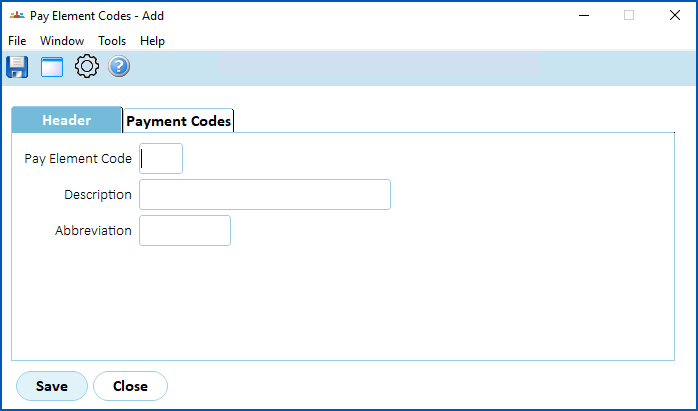
3. At the **Pay Element Codes** detail screen, on the **Header** tab, complete the fields:
1. **Payment Element Code -** type the code (4 alphanumeric characters)
2. **Description** - type the full description (up to 30 characters)
3. **Abbreviation** - type the abbreviated description (up to 5 characters)
1. Click the **Payment Codes** tab.
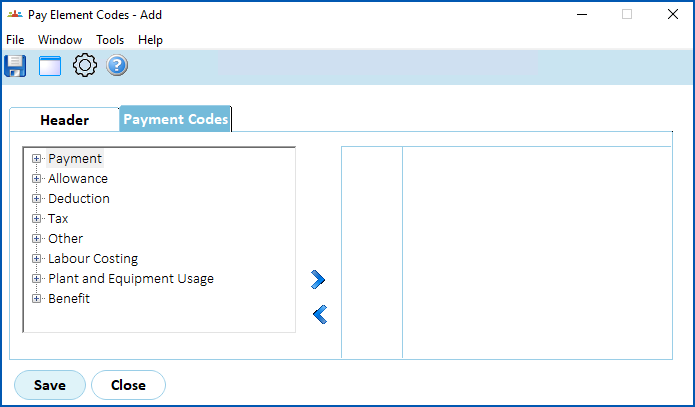
2. Find and select a payment code, and click **Move Right** to add it the pay element. Repeat this step until you’ve added all the payment codes you want.
3. Click **Save**.
| Next topic
[Payment codes](/articles/ehr-user-guide/payment-codes) |
| --- |
© 2023 Fusion5. All rights reserved.