---
title: "Other payment categories codes"
id: "other-payment-categories-codes"
project: "EHR User Guide"
url: "https://help.cloud5.com.au/articles/ehr-user-guide/other-payment-categories-codes"
updated: 2026-10-19T00:54:23Z
---
# Other payment categories codes
## Create other payment categories codes
To create an other payment categories code:
1. Go to **Control Tables** > **Relief and Payments** > **Payments** > **Other Payment Categories**.
2. At the **Other Payment Categories** summary screen, click **Find Now** to list all existing other payment categories codes.
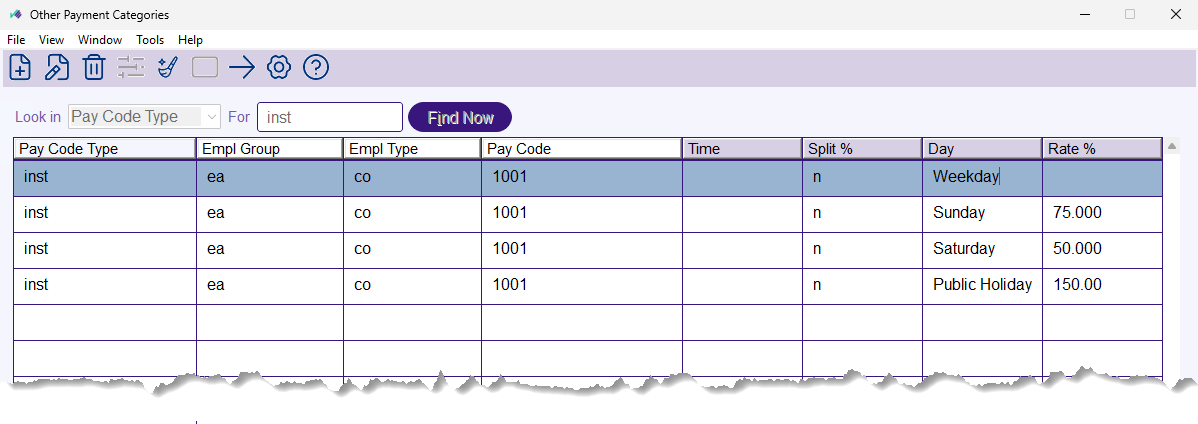
3. Click **New**.
4. At the **Other Payment Categories** detail screen, make your entries in the [other payment categories code fields](/articles/ehr-user-guide/other-payment-categories-code-and-class-fields).
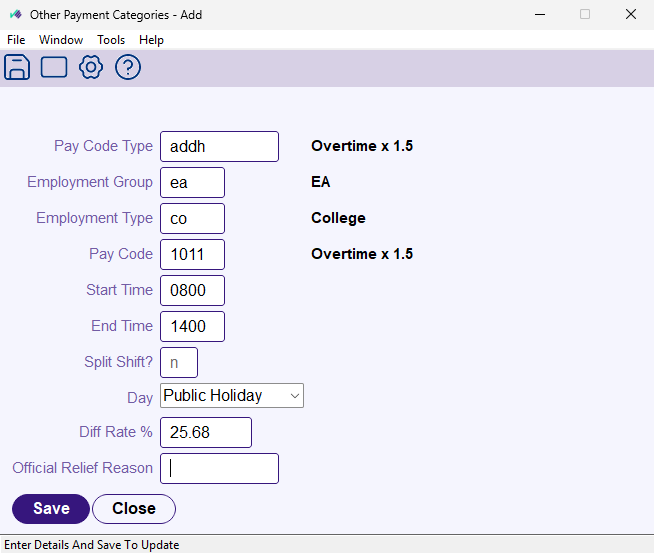
1. Click **Save**.
|  | When a request is paid, EmpowerHR applies the rate for the day the work falls on, and a public holiday is paid at the public holiday rate even when it falls on a weekend. |
| --- | --- |
## Manage classification level (other payment categories classification)
The Other Payments Categories Class screen allows you to manage classification levels. You access the screen by drilling down to the next level from the Other Payment Categories Screen.
EmpowerHR uses the other payment categories together with the classification data to determine the pay rate an employee is paid for relief and additional hours requests.
To manage the classification level (other payment categories classification):
1. Go to **Control Tables** > **Relief and Payments** > **Payments** > **Other Payment Categories**.
2. At the **Other Payment Categories** summary screen, click **Find Now** to list all existing other payment categories codes.
3. Select the other payment categories code you want to add classifications to, and then click **Next Level**.
4. The **Other Payment Categories Class** summary screen displays.
5. Click **Find Now** to list all existing other payment categories classification codes.
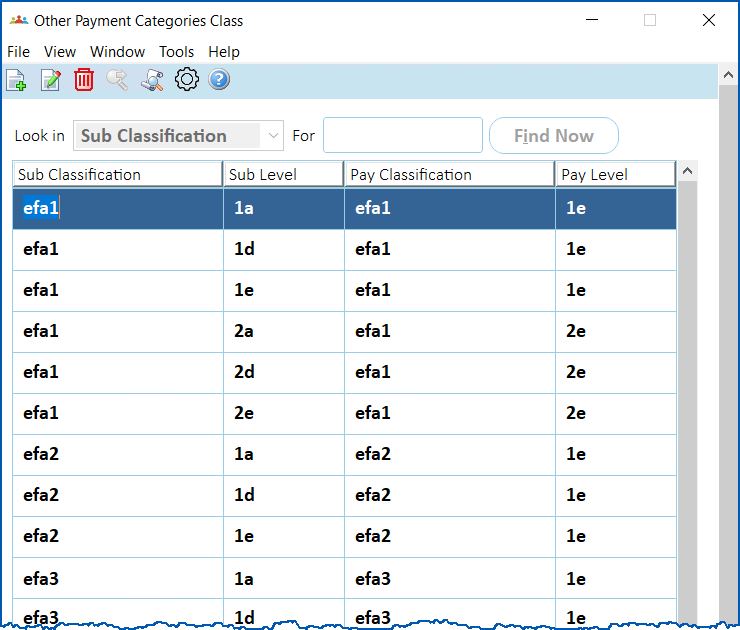
1. Click **New**.
2. At the **Other Payment Categories Class** detail screen, make your entries in the [other payment categories class code fields](/articles/ehr-user-guide/other-payment-categories-code-and-class-fields).
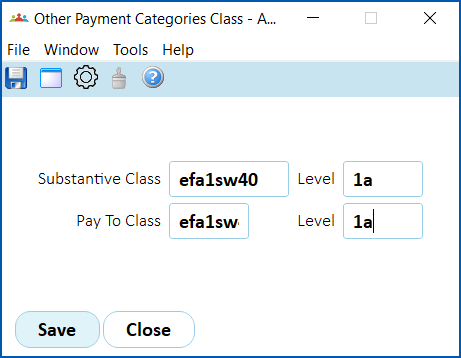
1. Click **Save**.
| Next topic
[Other payment categories and class code fields](/articles/ehr-user-guide/other-payment-categories-code-and-class-fields) |
| --- |
© 2023 Fusion5. All rights reserved.