To configure the Organisation Chart feature:
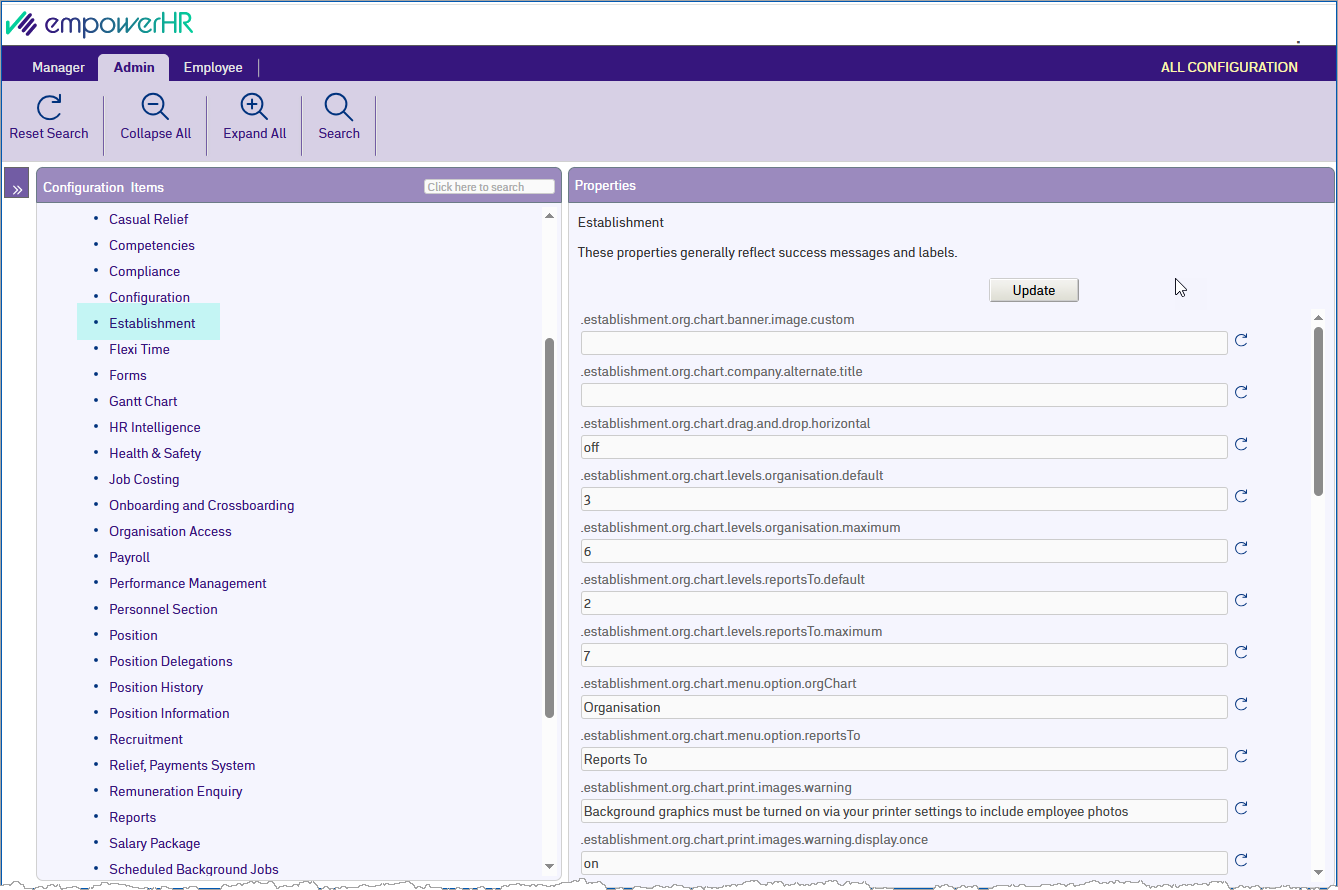
- Go to Administration > Configuration > All Configuration.
- At Configuration Items, expand Self Service Properties.
- Expand Modules, and then expand Establishment.
- In Properties, make the changes you want to the properties using the following table as a guide.
| To... | Do this... | ||
|---|---|---|---|
Change the company logo in the banner | Set .establishment.org.chart.banner.image.custom to the logo file name (for example, abcd.jpg). The recommended height of the logo image is 40 pixels.
| ||
Change the company name in the banner | Enter the name in .establishment.org.chart.company.alternate.title. When this property is blank, the company name defaults to the one stored in EmpowerHR desktop. | ||
Allow users to drag and drop the organisation chart | Set .establishment.org.chart.drag.and.drop.horizontal to on. This property is set to off by default. | ||
Set the number of levels to display in the Organisation Chart | Enter the number of levels you want in .establishment.org.chart.levels.organisation.default The default is 3 levels. | ||
Set the maximum number of levels to display in the Organisation Chart | Enter the number of levels you want (to appear in the Display dropdown list) in .establishment.org.chart.levels.organisation.maximum The default is 6 levels. | ||
Change the Organisation option name in the Change charts dropdown | Change the text to the name you prefer in .establishment.org.chart.menu.option.orgChart The default is Organisation. | ||
Change the Reports To option name in the Change charts dropdown | Change the text to the name you prefer .establishment.org.chart.menu.option.reportsTo The default is Reports To. | ||
Change the Acting text in the Occupant Details panel | Change the text in .establishment.org.chart.reportsTo.details.panel.acting The default is Acting. | ||
Change the Substantive text in the Occupant Details panel | Change the text in .establishment.org.chart.reportsTo.details.panel.substantive The default is Substantive. | ||
Change the text for vacant reports on position cards | Change the text in .establishment.org.chart.reportsTo.vacant The default is Vacant. | ||
Change the error wording when an unexpected error occurs during a search | Change the wording in .establishment.org.chart.search.error The default is Unable to perform search. | ||
Allow users to drill down to positions and people when they reach the section level in Organisation mode | Set .establishment.org. chart.section.showPositions.showOccupants to on. This property is set to off by default. |

- Click Update.
© 2023 Fusion5. All rights reserved.