---
title: "Normal/timesheet-driven leave"
id: "normal-timesheet-driven-leave"
project: "EHR User Guide"
url: "https://help.cloud5.com.au/articles/ehr-user-guide/normal-timesheet-driven-leave"
updated: 2026-10-19T00:53:53Z
---
# Normal/timesheet\-driven leave
## Allocate normal/timesheet-driven leave
You can only allocate accruing leave types to an employee. EmpowerHR allows all employees to access non-accruing leave types without the need to allocate them.
To allocate normal leave/timesheet-driven (hours worked) leave to an employee:
1. Click **Employee Information**. The **Employee Information** screen displays.
1. Find the employee you want.
2. Click **Leave**.
3. If the employee has:
1. leave allocated, the **Allocate Employee Leave** summary screen displays. Go to step 5.
2. no leave allocated yet, the **Allocate Employee Leave** detail screen displays. Go to step 6
1. At the **Allocate Employee Leave** summary screen, click **New**.
1. At the **Allocate Employee Leave** detail screen, make your selections and entries in the [allocate employee leave fields](/articles/ehr-user-guide/allocate-employee-leave-fields).
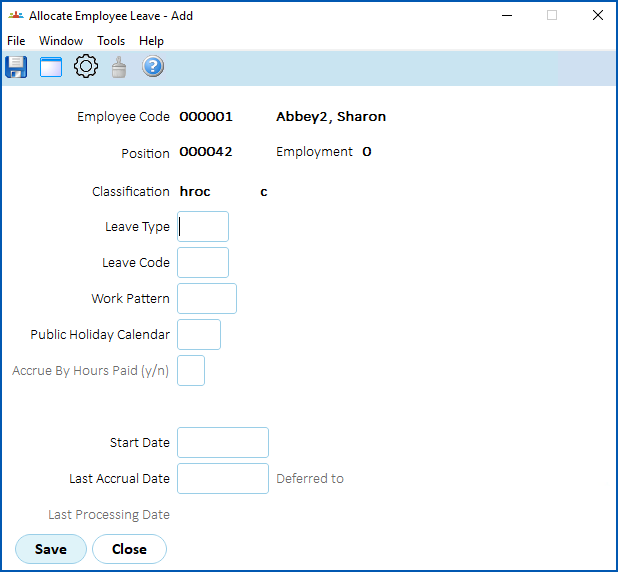
1. Click **Save**.
2. The next steps to take depend on the type of leave rule you are allocating. Use the instructions in the following table as a guide.
| **If the leave rule is for...** | **Do this...** |
| --- | --- |
| Normal accruing leave | The **Update Employee Leave Rules** screen displays.
Make changes, if required (for example, where the employee has prior service which changes the accrual anniversary date). Then click **Save**.
*or*
If no changes are required, click **Close**.
|  | The fields on this screen are the same as those when creating the leave rule. For a description of each of the fields, see [accruing leave type - leave rules sequence fields](/articles/ehr-user-guide/leave-rules-sequence-fields/a/acclveruleseq). |
| --- | --- | |
| Leave accrued by hours worked
(such as timesheet-driven leave with multiple sequences on the leave rule) | The **Employee T/S Leave Sequence** screen displays.
Make changes, if required, and then click **Save**.
*or*
If no changes are required, click **Close**.
|  | The fields on this screen are the same as those when creating the leave rules. For a description of each of these fields, see [timesheet-driven leave type - timesheet leave rule sequence fields.](/articles/ehr-user-guide/leave-rules-sequence-fields/a/TSDLruleseq) |
| --- | --- | |
##
| Next topic
[Allocate employee leave fields](/articles/ehr-user-guide/allocate-employee-leave-fields) |
| --- |
© 2023 Fusion5. All rights reserved.