---
title: "Non-employee detail fields"
id: "non-employee-detail-fields"
project: "EHR User Guide"
url: "https://help.cloud5.com.au/articles/ehr-user-guide/non-employee-detail-fields"
updated: 2026-10-19T00:54:17Z
---
# Non\-employee detail fields
Here's how to complete the detail fields for an individual who is
* a paid non-employee, *or*
* an unpaid non-employee, *or*
* an external trainee (non-employee)
|  | You'll find not all fields are required for every type of non-employee. For example, payroll information for unpaid non-employees, etc. |
| --- | --- |
| **At this field...** | **Do this...** |
| --- | --- |
| **Personal Details** |
| Employee | If your organisation uses EmpowerHR to automatically generate the employee code, press **Tab** and the field displays the new code
Otherwise, enter the employee code. |
| Family Name | Enter the individual's family name. |
| First Name | Entered the individual's first name. |
| Preferred Name | If the individual has a name different to their first name, enter the preferred name.
Otherwise, leave this field blank. |
| Birth Date | Enter the individual's birth date. |
| Sex | Enter the code for the individual's gender. |
| Cessation/Termination Date | Nothing. You use this field when terminating a non-employee. |
| Status | Nothing. EmpowerHR displays the default status. |
| Date | Press **Tab** to set the date to today's date, *or*
Enter a different date, and then press **Tab**. |
| Date Comm Agency | Nothing. By default, this field matches your entry in the **Date** field. |
| **Address and emergency contact details** |
| Residential Address Line 1
Residential Address Line 2 | Enter the individual's street address, making sure you:
- include the house/unit/apartment number
- exclude the suburb/town, state, and postcode (these are separate fields)
|
| Residential Suburb/Town | Enter the individual's home suburb or town. |
| Residential State/Territory | Nothing. EmpowerHR completes the individual's home state or territory based on the **Residential Postcode** you enter. |
| Residential Postcode | Enter the postcode for the individual's residence. |
| Phone Number | Enter the individual's home phone number. |
| Private E-mail | Enter the individual's private email address. |
| Emergency Contract Name | Enter the name of the individual's emergency contact. |
| Contact Phone Number | Enter the emergency contact's phone number. |
| **Position details** |
| Position | Click **Window** to display a list of codes to choose from, find and double-click a code to add it to the field.
Press **Tab**. |
| Org Level 1
Org Level 2
Org Level 3
Division
Branch
Section | Nothing. EmpowerHR populates these fields based on the selected position. |
| Non Emp Type | Click **Window** to display a list of codes to choose from, find and double-click a code to add it to the field.
This field is optional. |
| Cost Centre | Nothing. After you select a **Position** code and press **Tab**, EmpowerHR populates this field. |
| Location | Nothing. Leave this field blank. |
| Type | Click **Window** to display a list of codes to choose from, find and double-click a code to add it to the field.
This field is optional. |
| Admin Unit | Click **Window** to display a list of codes to choose from, find and double-click a code to add it to the field.
This field is optional. |
| Internal Phone Number | Enter the individual's phone number, if required. |
| Business E-mail | Enter the individual's business email address. |
| Non Empl. User Name | Enter the individual's username. |
| **Payroll and tax details** |
| Pay | Enter:
- y (yes) to allow the individual to receive pay, or
- n (no) to prevent the individual from receiving any pay
|
| Pay Start Date | Enter the individual's start date as shown in the **Date Comm Agency** field. The individual cannot be paid before this date, preventing future-commencing individuals from being paid too early. |
| Payroll Code | Click **Window** to display a list of codes to choose from, find and double-click a code to add it to the field. |
| Pay Method | Click **Window** to display available codes to choose from, find and double-click a code to add one of the following to the field:
- d (direct debit), or
- c (cheque)
|
| Employment Cond | Click **Window** to display a list of codes to choose from, find and double-click a code to add it to the field. |
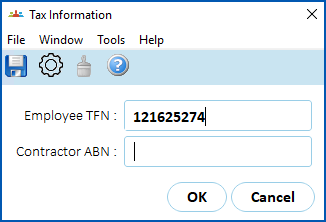
| Employee TFN/Contractor ABN | Click **arrow**.
At the **Tax Information** pop-up, enter a valid TFN  or ABN , and then click **OK**.
TFN = Tax File NumberABN = Australian Business Number
 |
| Tax Scale | Click **Window** to display a list of codes to choose from, find and double-click a code to add it to the field. EmpowerHR populates the **Tax Treatment** field based on the tax scale you choose. |
| Flat Tax Rate | Enter a rate to generate a fixed percentage tax amount, if required.
Otherwise, leave this field blank.
|  | You cannot use this field if you have selected a**Tax Scale**. |
| --- | --- | |
| Tax Treatment | EmpowerHR populates this field based on the **Tax Scale** you choose.
You can change it if required by entering a valid six-character code. |
| Income Stream | Click **Window** to display a list of codes to choose from, find and double-click a code to add it to the field. Payment types are grouped by income stream. |
| Country Code | Nothing. This field is not required. |
| Payer ABN Id | Select the payer's ABN from the dropdown list. This is used for payment summaries and reporting. |
| Next topic
[Terminate a non-employee](/articles/ehr-user-guide/terminate-a-non-employee) |
| --- |
© 2023 Fusion5. All rights reserved.