---
title: "Media"
id: "media"
project: "EHR User Guide"
url: "https://help.cloud5.com.au/articles/ehr-user-guide/media"
updated: 2026-10-19T00:54:27Z
---
# Media
EmpowerHR allows you to make various types of media available from a screen that has a Media button.
Examples of types of media include:
* Word document
* Excel spreadsheet
* Crystal report
* Media (video) player
* URL
## Create a media type
Before you create a new media type, talk to your organisation's network administrator and ask them about providing an environment variable. The environment variable sets (for EmpowerHR) where the media program resides on the client machine. You will need this information when you create the new type.
To create a new media type:
1. Go to **Administration** > **Screen Management** > **Media Types**.
2. At the **Media Types** summary screen, click **Find Now** to display a list of existing types.
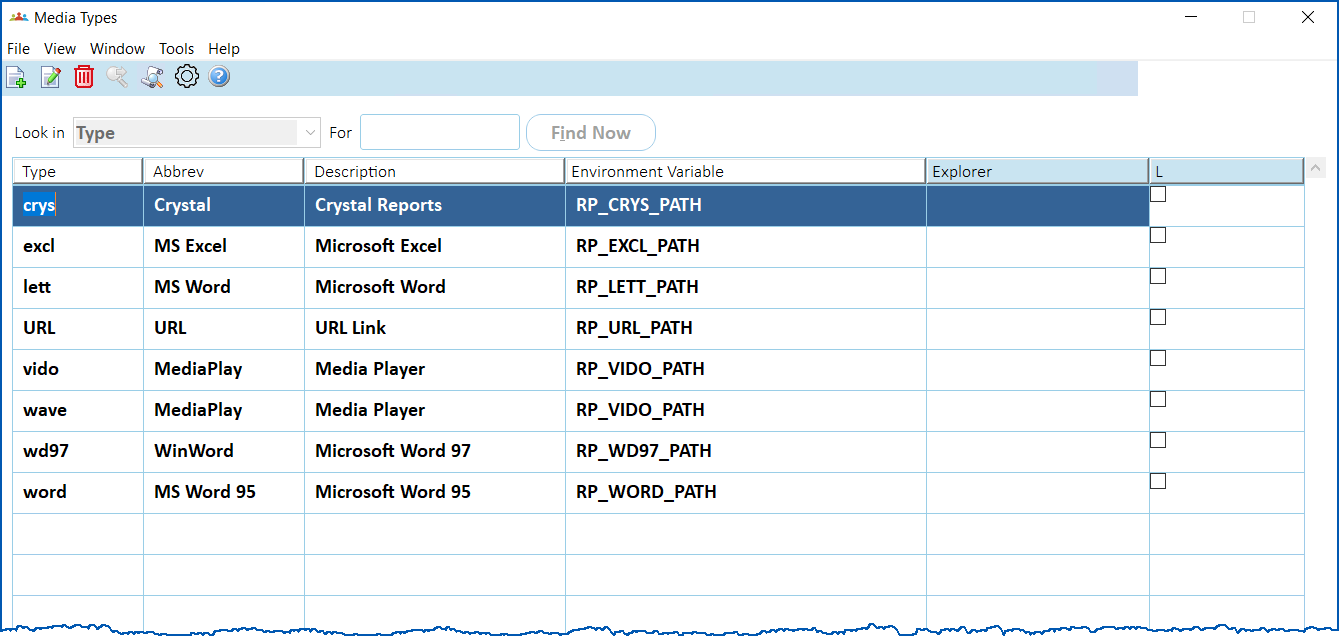
1. Click **New**.
2. At the **Media Types**detail screen, complete the fields using the following table as a guide.
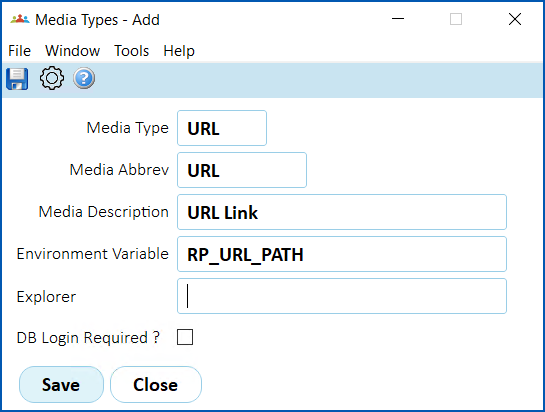
| **At this field...** | **Do this...** |
| --- | --- |
| Media Type | Enter the type of media. |
| Media Abbreviation | Enter an abbreviation for the media. |
| Media Description | Enter a description of the media |
| Environment Variable | Enter the global variable set up by your network administrator. |
| Explorer | Leave this field blank. |
| DB Login Required? | Not used. |
1. Click **Save**. The new media type is now available to use when you add a media item to a screen.
## Add media items to a screen
To add a media item to a screen:
1. Go to the screen you want to add the item to. It must be a screen that has the **Media** button.
2. Click **Media**.
3. The **Media** screen displays.
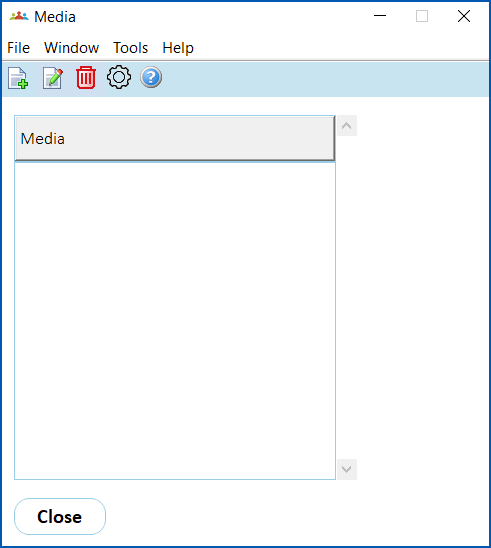
1. Click **New**.
2. At the **Media - Add** screen, in the:
1. **Media Type** field, select a type from the dropdown list
2. **Media Description** field, enter a description
3. **Media Input field**, enter the full pathname for the media item if you know it, or else click **Window** if you're not sure.
|  | The pathname must not contain spaces and cannot be longer than 50 characters. |
| --- | --- |
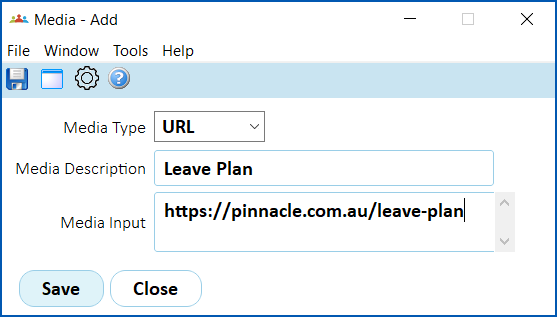
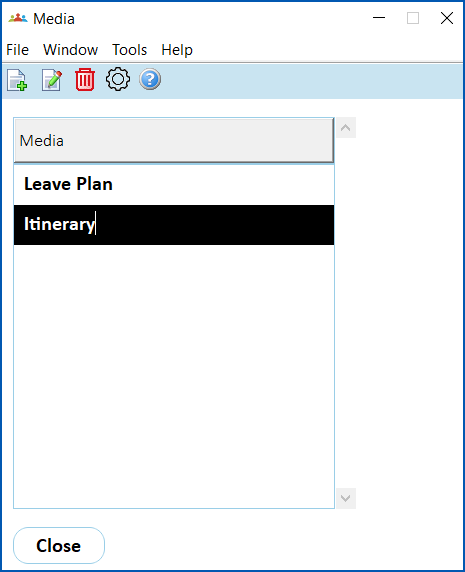
1. Click **Save**. The media item is listed on the **Media** screen. In the following example, we've added two media items, a URL for the organisation's Leave Plan, and a Word document (Itinerary).
## View media items attached to a screen
To view media items attached to a screen:
1. Go to the screen that has the media items attached.
2. Click **Media**.
3. The **Media** screen displays a list any attached media items.

1. Double-click the media item you want to view.
2. The item displays. For example, if the item is a URL, the URL opens in your browser. If the item is a Word document, the document opens.
| Next topic
[Standard letters and templates](/articles/ehr-user-guide/standard-letters-and-templates) |
| --- |
© 2023 Fusion5. All rights reserved.