---
title: "Map casual classification"
id: "map-casual-classification"
project: "EHR User Guide"
url: "https://help.cloud5.com.au/articles/ehr-user-guide/map-casual-classification"
updated: 2026-10-19T00:52:48Z
---
# Map casual classification
A configuration procedure allows you to map an employee's classification to a corresponding casual classification code and level when casual relief hours are paid.
|  | You must install the **caspyproc** procedure in your environment. If you need further assistance, contact us by logging an [iHelp request](https://infusion.fusion5.com/). |
| --- | --- |
EmpowerHR's pay calculation process checks for any casual relief payment code entries in Pay Data entry.
Payment codes used for casual relief hours are nominated on a pay element. The pay element used is held in the installation setting, **casual increment pay element (sch2)**.
Define the following user configuration records:
* **casp** record for each casual relief hours payment code
* **caso** record for each classification/level that needs to be mapped
## Add a casp record for each payment code used to pay casual relief hours
To add a casp record:
1. Go to **Administration** > **User Configurable Calculations** > **Procedure Data**.
2. At the **Procedure Data** summary screen, click **Find Now** to list all existing procedures.
3. Click **New**.
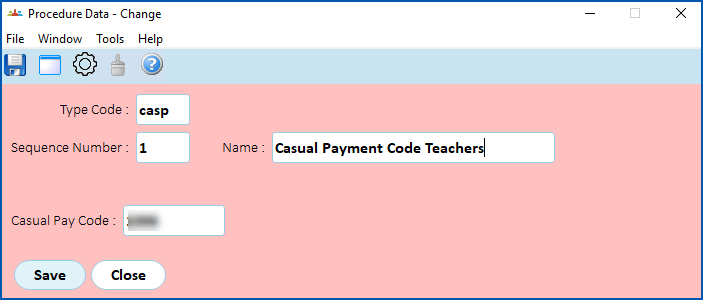
4. Complete the fields, using the following table as a guide.
| **At this field...** | **Do this...** |
| --- | --- |
| Type Code | Enter **casp**. This identifies the type of procedure record as casp. |
| Sequence Number | Enter a unique sequence number for the type code. |
| Narrative | Enter text to describe the record, if you wish (optional). For example, **Payment code - Teachers** |
| Casual Pay Code | Enter the payment code for the casual relief hours. |
1. Click **Save**.
## Add or update a caso record for each classification/level code
Use the following steps to add or update a caso configuration procedure record for each classification/level code that is mapped to a corresponding casual classification/level code.
To add or update a caso record:
1. Go to **Administration** > **User Configurable Calculations** > **Procedure Data**.
2. At the **Procedure Data** summary screen, click **Find Now** to list all existing procedures.
3. Click:
1. **New** to add a new record, *or*
2. **Open** to change an existing record
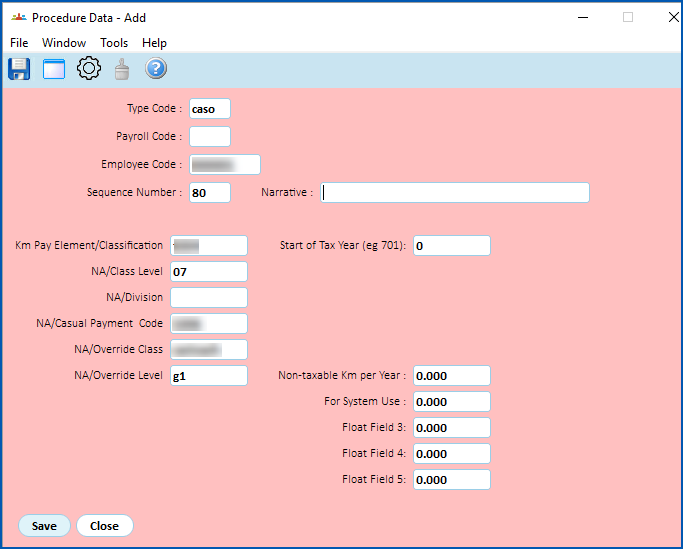
4. At the **Procedure Data (add)** details screen, make your entries in the fields, using the following table as a guide.
| **In this field...** | **Do this...** |
| --- | --- |
| Type Code | Enter **caso**. This identifies the type of procedure record as caso. |
| Employee Code | If the employee has a classification and level that maps to a specific casual classification and level different to general mapping of the classification and level code, then enter the employee code.
Otherwise, leave this field blank. |
| Sequence Number | Enter a unique sequence number for the type code. |
| Narrative | Enter text to describe the record, if you wish (optional). For example, **Class/Level mapping** |
| Classification | Enter the classification code to change. |
| Level | Enter the level code to change. For example, **07** |
| State (Division) | Enter the organisational structure **Division** code (optional).
|  | If you enter a **Division** code, the procedure only maps the classification if the PayRef2 section specified for the Casual Pay hours are in that Division of the Organisation Structure. |
| --- | --- | |
| Casual Pay Code | Enter the payment code that EmpowerHR will correct (if different) when mapping the classification and level. If EmpowerHR finds a different payment code in Pay Data Entry, it changes the code to this casual pay code. |
| Override Class | Enter the classification code to use to pay the casual hours. For example, **casteach** |
| Override Level | Enter the level code to use to pay the casual hours. |
1. Click **Save**.
## What you need to know about entering casual relief hours in pay data entry
|  | As well as casual employees, part-time employees may work casual relief hours. |
| --- | --- |
In Pay Data Entry:
* to make sure EmpowerHR allocates the correct cost, enter the school (section) code in the **Pay Ref 2** field
* you can use the **Reference 1** (free text) field to record a reason and the employee code of the employee being relieved
* when entering casual relief hours, use the casual relief payment codes so EmpowerHR applies classification code mapping where the employee's default classification needs to be mapped to a corresponding casual classification code
* enter a work date with the casual relief hours as separate a record for each day worked. This ensures EmpowerHR uses the correct date effective classification rate. This is also important if the employee is incrementing based on term days worked.
|  | Where you override the classification and level in pay data entry, EmpowerHR still checks the classification/level against the casual pay mapping table to see if it is to be mapped to a casual classification/level. |
| --- | --- |
## What are user configurable calculations?
User Configurable calculations:
* run automatically during the Pay Calculations process. No user intervention is required
* override Class, Level and Payment Code with values for each Division
The **Pay Data Entry Reference 2** field describes the school (section) where the casual relief work was done. Where the school’s Division code is in the **State (Division)** field, if specified on the **caso** record, then the user configurable pay calculation process overrides the:
* Classification and Level with the **Override Class** and **Override Lev** **el**
* payment code with the casual payment code
The Calculation incident report then shows a message to show classification mapping has occurred during the pay calculation process.
| Next topic
[Set up employees (teachers)](/articles/ehr-user-guide/set-up-employees-teachers) |
| --- |
© 2023 Fusion5. All rights reserved.