---
title: "Manually take on service/leave history"
id: "manually-take-on-service-leave-history"
project: "EHR User Guide"
url: "https://help.cloud5.com.au/articles/ehr-user-guide/manually-take-on-service-leave-history"
updated: 2026-10-19T00:53:26Z
---
# Manually take on service/leave history
This topic shows how to manually take on service/leave history for LSL purposes - for LSL by days/weeks and LSL by hours.
## Manually take on LSL (days/weeks)
You can record prior service for LSL purposes and accurately adjust accrual date and accrual amounts.
To manually take on service/leave history:
1. Go to **Tasks** > **Leave** > **Leave TakeOn** > **LSL History/Take-on**.
|  | If you have just [allocated LSL to an employee](/articles/ehr-user-guide/lsl-allocate-lsl-to-an-employee) and clicked **Save**, the **LSL History/Take-on** screen automatically displays. |
| --- | --- |
1. At the **LSL History/Take-on** summary screen, do one of the following:
1. enter a leave type code in the **For**field to enquire on a specific LSL rule, *or*
2. leave the **For**field blank to enquire on all LSL rules
2. Click **Find Now**. The results are displayed.
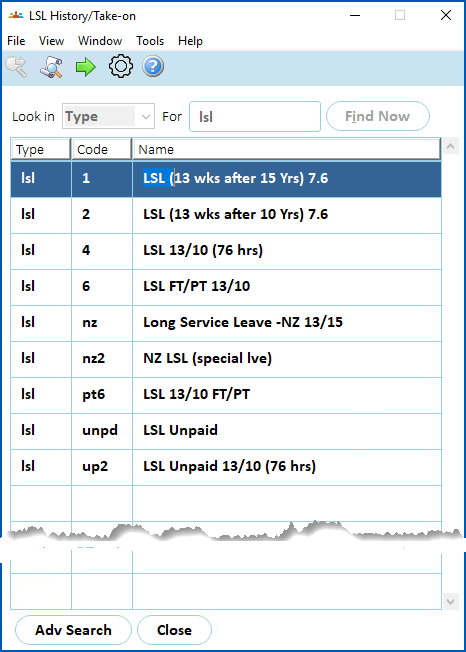
1. Select a row and click **Next Level**.
2. The **LSL History/Take-on** detail screen displays, listing existing take-on or leave history records.
3. Click the next available row, and then make your entries in the [take-on service/leave history fields](/articles/ehr-user-guide/take-on-service-leave-history-fields).
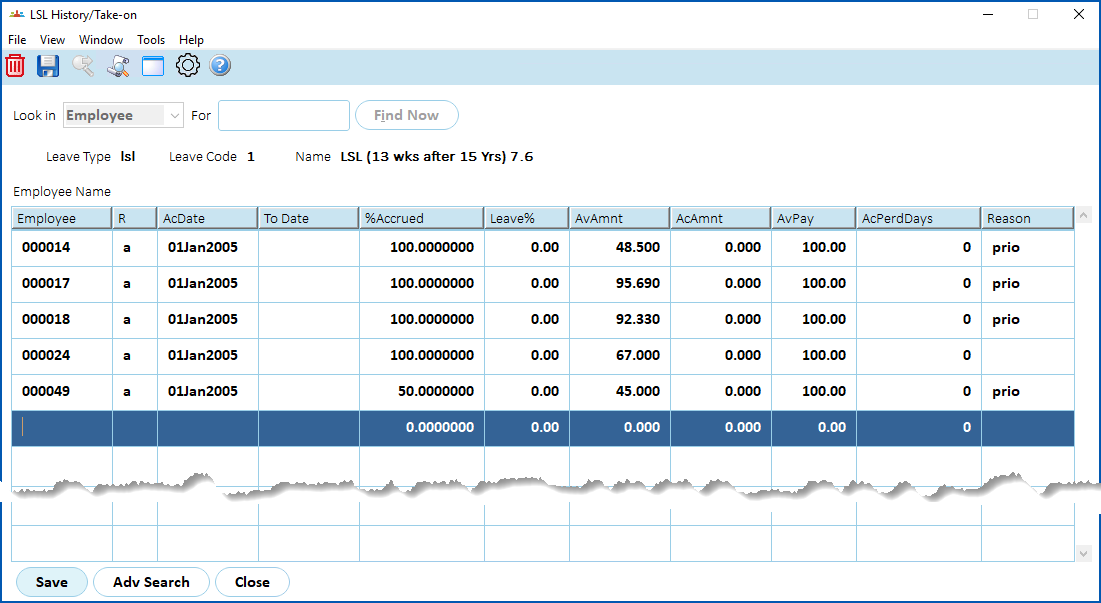
1. Click **Save**.
## Manually take on LSL (hours)
You can record prior service for LSL purposes and adjust an employee's ongoing balance.
To manually take on service/leave history:
1. Go to **Tasks** > **Leave** > **Leave TakeOn** > **LSL Hours** **History/Take-on**.
2. At the **LSL Hours History/Take-on** screen, select Type from the Look In dropdown list, and then do one of the following:
1. enter a leave type code in the **For**field to enquire on a specific LSL rule, *or*
2. leave the **For**field blank to enquire on all LSL rules
3. Click **Find Now**.
4. The**LSL Hours History/Take-on**screen displays, listing existing take-on or leave history records.
5. Click the next available row, and then make your entries in the [take-on service/leave history fields](/articles/ehr-user-guide/take-on-service-leave-history-fields).
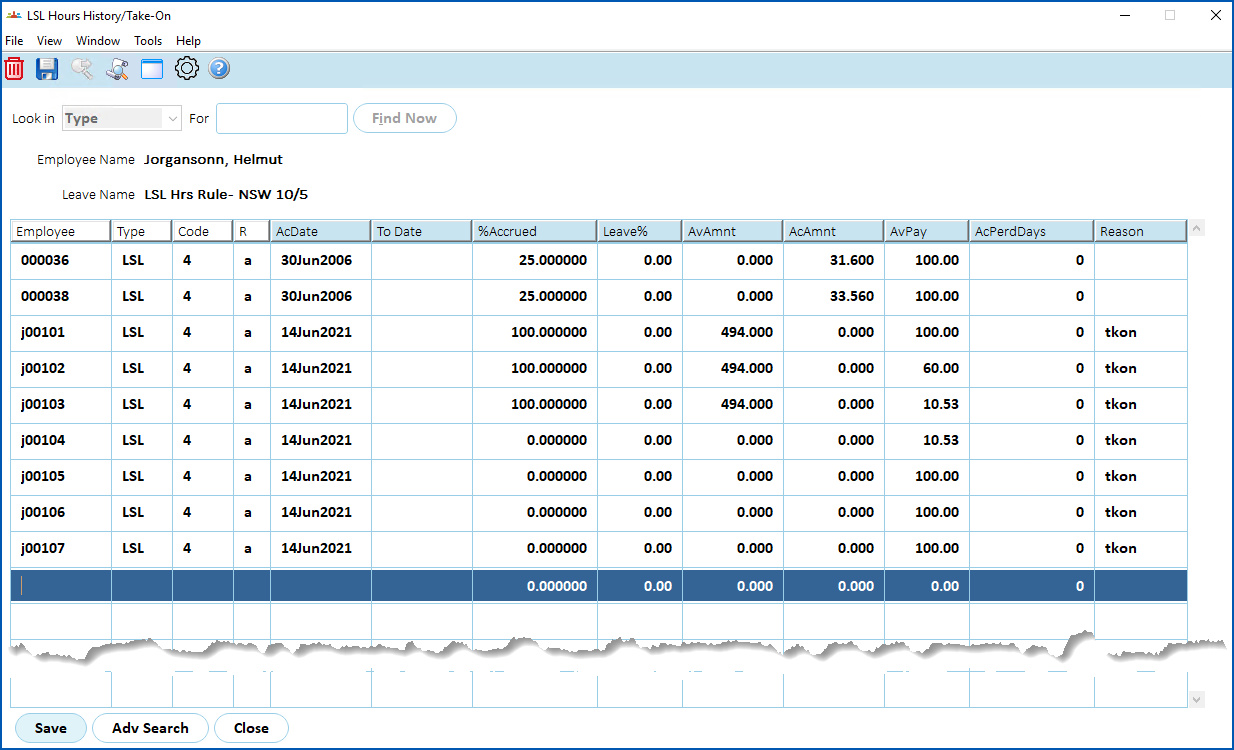
1. Click **Save**.
| Next topic
[Take-on service/leave history fields](/articles/ehr-user-guide/take-on-service-leave-history-fields) |
| --- |
© 2023 Fusion5. All rights reserved.