---
title: "Manager approval"
id: "manager-approval"
project: "EHR User Guide"
url: "https://help.cloud5.com.au/articles/ehr-user-guide/manager-approval"
updated: 2026-10-19T00:54:07Z
---
# Manager approval
## Action a request
To action an employee’s compliance registration request: 
1. When you log into MSS, if you have any registration requests to action, a Compliance Registrations alert appears in your Actions To Do box.
2. At the Actions To Do box, click Compliance Registrations.
3. At the Compliance Registrations to do list, click an action. Here's what you can do to action a request.
| **Click...** | **To...** |
| --- | --- |
| **Edit** | Add a message to the request before you action it. At the request details screen, enter a message in the **Message** field, and then click an action (**Accept**, **Redirect**, or **Return**). |
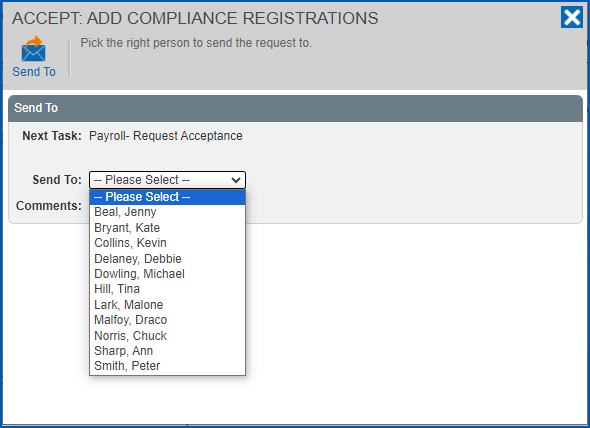
| **Accept** | Approve and forward the request to the next approver in the workflow. At the Accept dialogue box, the approver options depend on how the workflow has been set up.
The following example shows a list of individuals to choose from in the **Send To** dropdown list. They are payroll personnel assigned the role of approver who can action the request in the next workflow task.
 |
| **Redirect** | Send the request to another recipient. At the Redirect dialogue box, select the person you want to redirect the request to, and then click Send To
The request is removed from your Actions To Do list, and appears in the Actions To Do list of the person you redirected the request to for actioning. |
| **Return** | Return the request to the employee. At the Return dialogue box, enter comments as to why you’re returning the request, and then click Confirm.
The request is removed from your Actions To Do list, and appears in the employee’s Actions To Do list in ESS . Once the employee responds to the returned request, it appears again in your Actions To Do list for actioning.
ESS = Employee Self Service |
## Why does the birth date appear on the WWCC approval screen?
When actioning a WWCC registration, you may need to know the employee’s birth date to carry out a check in an external system. The WWCC approval screen automatically shows the employee’s birth date for this purpose.
Here’s an example of what you see on a WWCC registration request submitted by the employee…
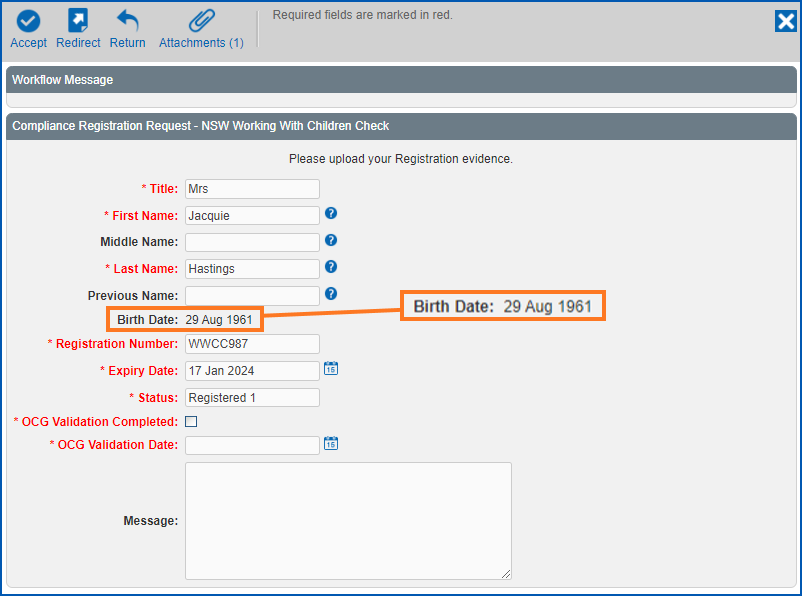
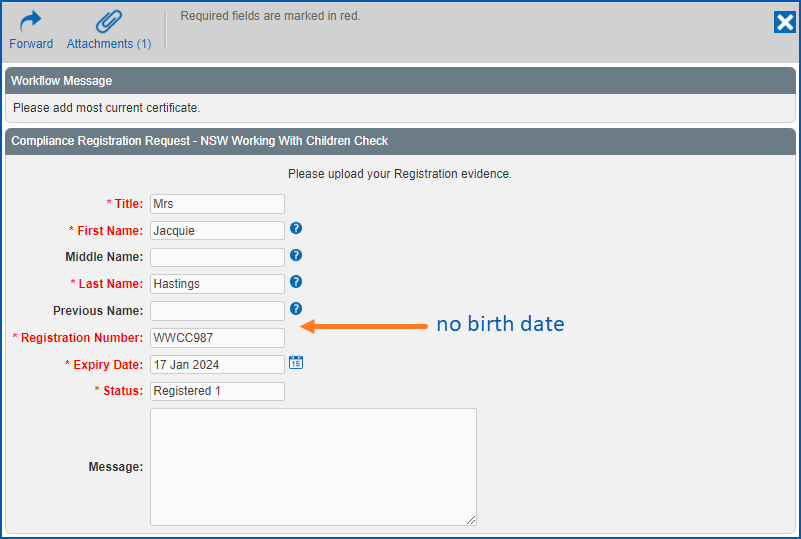
If you decide to return the request to the employee for any reason, intentionally, the employee won’t see the birth date as it was not on the request originally created and submitted for approval.
Here’s an example of what an employee sees on a returned request…
| Next topic
[Final approval](/articles/ehr-user-guide/final-approval) |
| --- |
© 2023 Fusion5. All rights reserved.