---
title: "Manage staff absences"
id: "manage-staff-absences"
project: "EHR User Guide"
url: "https://help.cloud5.com.au/articles/ehr-user-guide/manage-staff-absences"
updated: 2026-10-19T00:52:46Z
---
# Manage staff absences
## View employee absences
To view employee absences in the Staff Absence Calendar:
1. Go to **Staff** > **Staff Absences**.
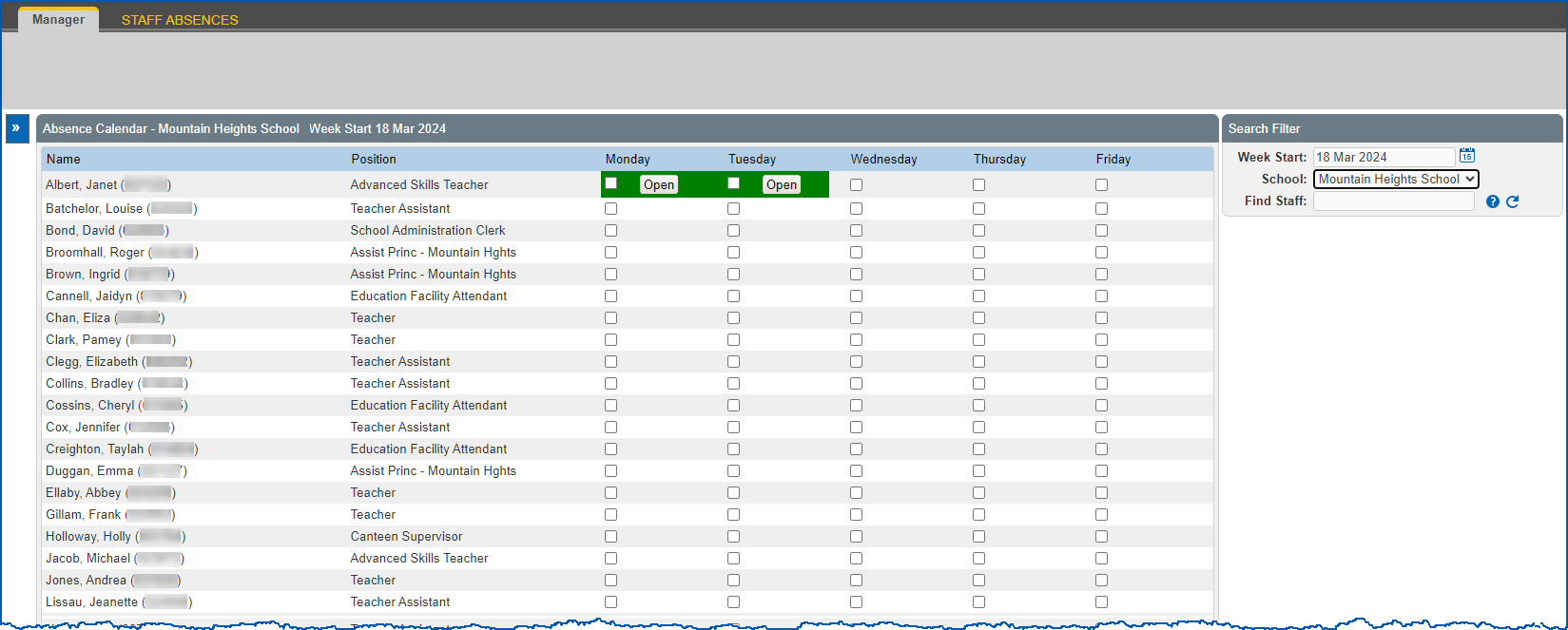
2. EmpowerHR displays the **Staff Absence Calendar**.
3. At the **Search Filter**, do the following:
1. If you want to view a week that's different to the default (current week), click **Date Lookup**, and then select a date.
2. Select a school/section from the **School** dropdown list. EmpowerHR displays absences for that school/section.
3. If you want to refine the search further to see a particular employee, enter the employee's surname in **Find Staff**, and then wait until the system responds with a list of employees with that surname. Select one from the dropdown list.
|  | Where an employees is in an acting position, only details of the days when they were *not* acting elsewhere are provided. |
| --- | --- |
1. EmpowerHR highlights in green any day where an employee was absent and has submitted a leave request.
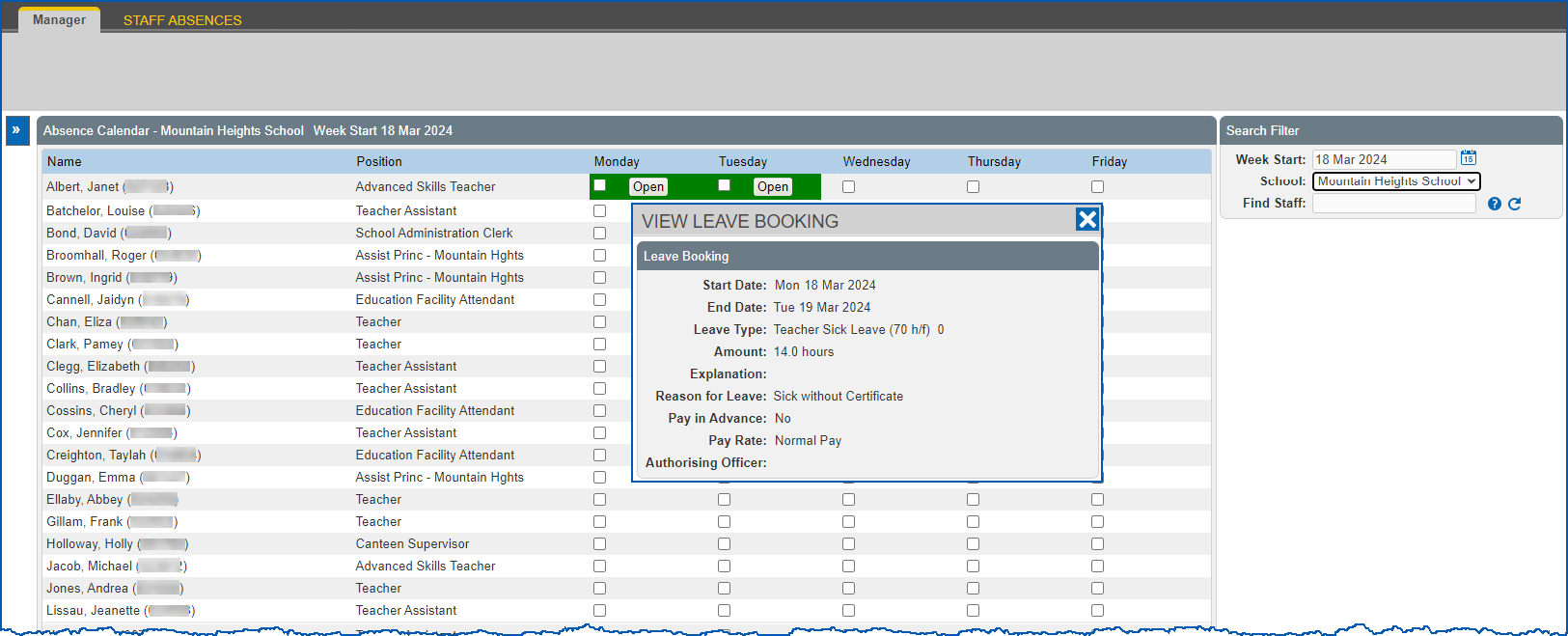
|  | If you want to see the leave request details, click **Open** and EmpowerHR displays the **View Leave Booking** window. Here's an example... |
| --- | --- |
1. Now use the following instructions to mark days where an employee was absent and did not submit a leave request.
Mark staff absences
To mark an employee's absence:
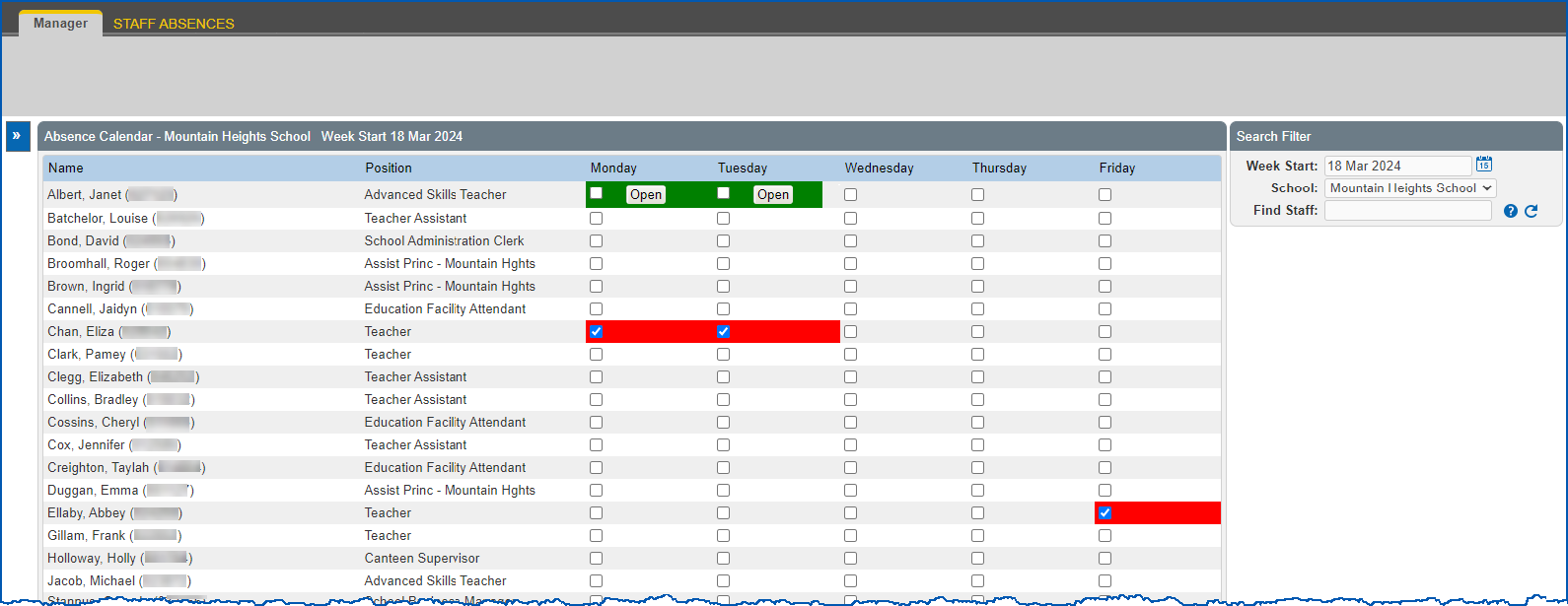
1. At the **Staff Absence Calendar**, identify any day where an employee was absent and did not submit a leave request.
2. Click that day's checkbox to mark it as an absence. EmpowerHR highlights the day in red.
1. The next time the **auto event processing** job runs, EmpowerHR sends the employee a reminder to create and submit a leave request. (See [example of absence leave reminder](/articles/ehr-user-guide/what-you-need-to-set-up-staff-absence-calendar/a/ExAbsLveRem)).
2. The reminder continues until either:
1. the employee submits a leave request, *or*
2. the nominated number of days have passed and the **automatic leave without pay** job submits a LWOP  request on the employee's behalfLWOP = leave without pay
### What does the automatic leave without pay job do?
When the **automatic leave without pay** job runs, EmpowerHR checks those employees marked as absent (red) against their:
* work calendars
* public holiday calendars
* school term calendars (EmpowerHR only checks school term calendars for school employees)
If an employee marked as absent was *not*meant to be working according to these calendars, EmpowerHR indicates this in the job report.
But, if an employee was expected to work, EmpowerHR:
* creates and submits a LWOP request for each day of absence. Like all leave types, the request is added to the **Actions To Do** list for approval.
|  | By default, the request skips the manager's approval step and goes to the next approver in the workflow. To have the manager approve it first, see [set installation option](/articles/ehr-user-guide/what-you-need-to-set-up-staff-absence-calendar/a/h2_425793240 "Click to open page in new window at 'Set installation option' section"). |
| --- | --- |
* changes the highlighting in the Staff Absences Calendar from red to green
EmpowerHR also generates a report to let you know the outcome of the job (available in the desktop at **Background Jobs** > **Requested Jobs** > **Requested Jobs**). Here's an example...
| Example of automatic leave without pay job report | In the following example, you can see where a LWOP request was created, plus absences where a request was not created because EmpowerHR identified the employee was not expected to work on the day.
A Leave Without Pay request was created for the following employees:
Chan, Eliza (000090) for 18 March 2024 at Mountain Heights School
A Leave Without Pay request was not created for the following absences:
Ellaby, Abbey (000090) for 22 March 2024 at Mountain Heights School - this is a public holiday based on their public holiday
Rowe, Niamh (000090) for 20 March 2024 at Mountain Heights School - this is non work day based on their work pattern
Watson, Devender (000090) for 18 March 2024 at Mountain Heights School - this is a non work day based on their school term calendar |
| --- | --- |
| Next topic
[Leave enquiries](/articles/ehr-user-guide/leave-enquiries) |
| --- |
© 2023 Fusion5. All rights reserved.