---
title: "Leave accruals and balances"
id: "manage-leave-accruals-and-balances"
project: "EHR User Guide"
url: "https://help.cloud5.com.au/articles/ehr-user-guide/manage-leave-accruals-and-balances"
updated: 2026-10-19T00:54:01Z
---
# Leave accruals and balances
## Manually adjust or transfer employee leave balances
You can manually adjust an employee’s leave balance. This is useful for transferring an employee's leave balance from one leave rule to another, or transferring leave balances between an individual's multiple employments.
To manually adjust or transfer an employee's leave balances: 
1. Go to **Tasks** > **Leave** > **Leave Bookings** > **Leave Transfers/** **Cancellations.**
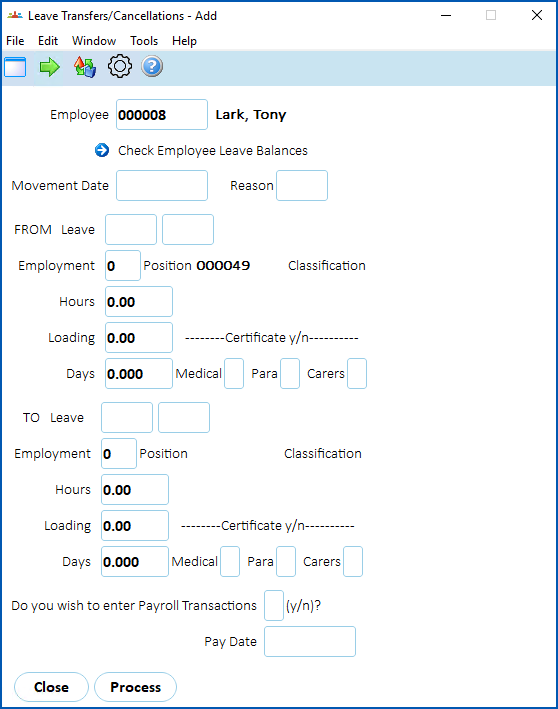
2. At the **Leave Transfers/Cancellations** detail screen, enter the employee number if you know it, or click **Window**, find and double-click the employee number to add it to the field.
1. If you:
1. want to view the employee's history, click **Check Employee Leave Balances**. Then click **Close** when you're done. Go to step 4.
2. don't want to view the employee's history, go to step 4.
1. At the **Leave Transfers/Cancellations** detail screen:
1. enter the **FROM Leave** type and the amount of hours to transfer
2. enter the **TO Leave** type and the amount of hours to transfer
3. if you want to access the **Pay Data Entry** screen, enter **y** (yes) for **Do you wish to enter Payroll Transactions** field. The **Pay Data Entry** screen displays so you can enter transactions relating to the leave transfer, for example, to pay out a leave entitlement.
2. Click **Process**.
## Manually take on an employee's leave balance
Being able to manually take on accruals is useful in a number of situations. For example:
* you may need to load an employee's opening balance after attaching the employee to a leave rule
* where a system-generated accrual has not accounted for a variation in hours
* where an employee has a carry-over from prior service
|  | You can only do:
- manual take-on for accruing leave types
- one take-on for the one date for each leave type. If you need to record another accrual for the same date, change the existing one.
|
| --- | --- |
To manually take on an employee's leave balances: 
1. Go to **Tasks** > **Leave** > **Leave Take-on** > **Leave History Take-on** **.**
2. At the **Leave History/Take-on** summary screen, enter the leave type in the **For** field (or leave the field blank to find all leave types), and then click **Find Now**.
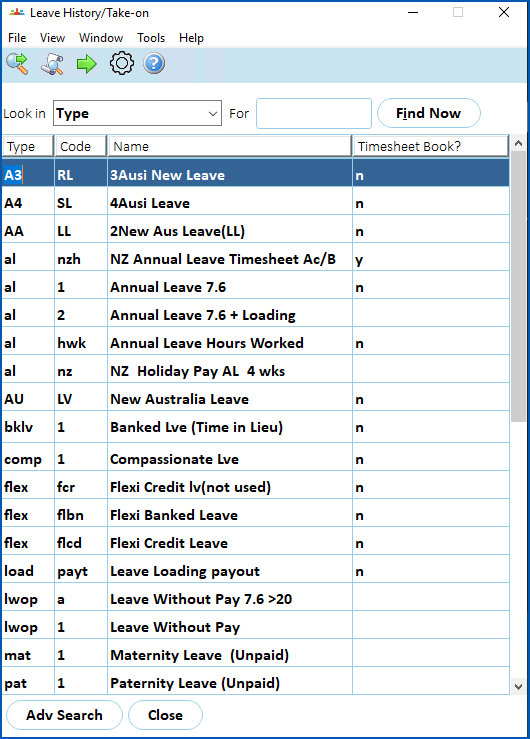
1. Select a leave type and then click **Next Level**. The **Leave History/Take-on**details screen displays.
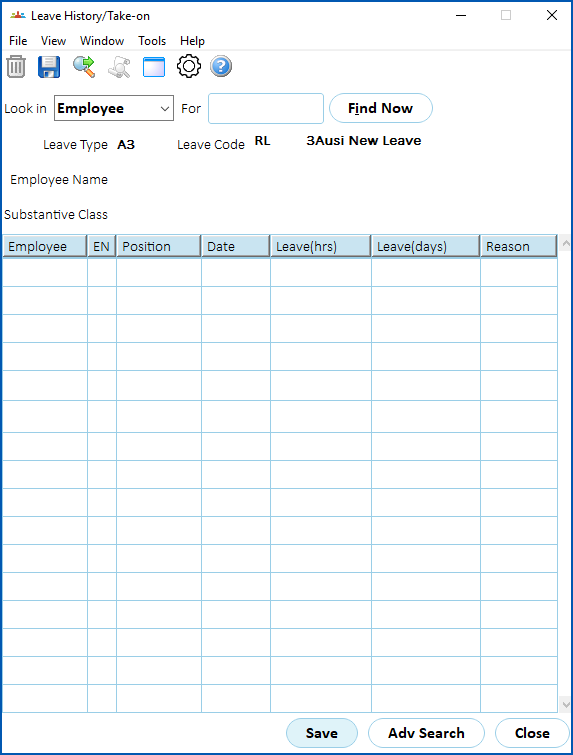
1. At the **Leave History/Take-on**details screen, click **Find Now** to display any previous take-ons.
2. At:
1. **Employee**, enter the employee code
2. **EN**, enter the employment number
3. The **Position Number** and **Last Accrual Date** automatically display default data. You can change the default **Last Accrual Date** if you want.
4. At either **Leave(hrs)** or **Leave(days)**, enter the amount to be subtracted. Whichever of the two fields you enter an amount, the other field automatically updates.
5. At **Reason**, type a reason for the manual accrual.
6. Click **Save**.
## Reduce leave balances (in bulk) for a group of employees
You can reduce employee leave entitlements as a group if the need ever arises.
|  | As the name implies, bulk processing is a powerful way to change many records. We recommend you have sound experience in using EmpowerHR before performing a bulk process. |
| --- | --- |
To reduce employee leave entitlements in bulk:
1. Go to **Tasks** > **Leave** > **Leave Bookings** > **Bulk Reduce Leave Entitlements** **.**
2. At the **Bulk Reduce Leave Entitlements** screen, enter the number of days, *or* the number of hours for the reduction.
3. Click **Adv Search** and find the records you want to apply the reduction to. For example, all employees attached to **al 1**
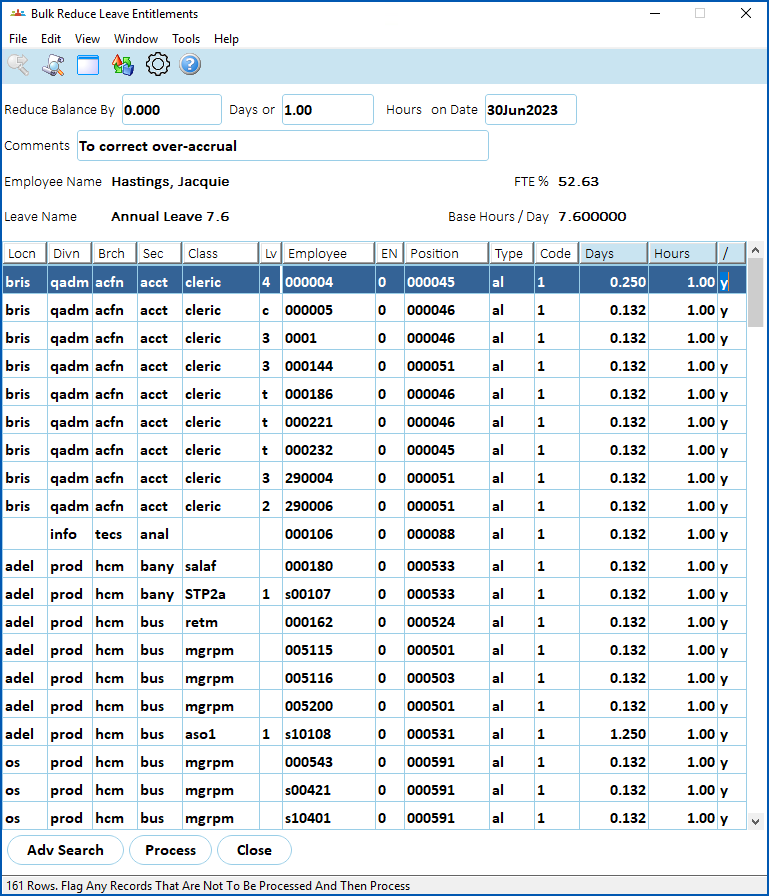
1. In the **Comments** field, type a reason for the reduction.
2. In the **/** (reduce leave?) column, change **y** (yes) to **n** (no) for any employee you want to omit from the bulk reduction.
3. Click **Process** to apply the entitlement reduction.
| Next topic
[Leave bookings](/articles/ehr-user-guide/manage-leave-bookings) |
| --- |
© 2023 Fusion5. All rights reserved.