---
title: "Make a LSL booking"
id: "make-a-lsl-booking"
project: "EHR User Guide"
url: "https://help.cloud5.com.au/articles/ehr-user-guide/make-a-lsl-booking"
updated: 2026-10-19T00:54:29Z
---
# Make a LSL booking
When an employee takes LSL, EmpowerHR:
* records their absence using long service leave bookings
* records a history of leave taken
* defines the length of the absence and debits the employee's leave credit
Once leave is booked, you can [change or delete](/articles/ehr-user-guide/change-reverse-delete-a-lsl-booking) it. You can view adjustments via the following screens:
* **Enquiries** > **Leave** > **Long Service Leave Browse** - (days/weeks)
* **Enquiries** > **Leave** > **LS Leave Hours Browse** - (hours)
## Book LSL for an employee with multiple employments
See [book LSL (multiple employments)](/articles/ehr-user-guide/add-leave-allocations-and-bookings-to-new-employment/a/BookLSLmulti) for what to do.
## Book LSL for an employee (days/weeks)
If you set the **Link to Pay** flag to **y** (yes) on a booking, EmpowerHR automatically calculates leave pay, basing the pay on:
* employee classification (pay rates)
* employee allowances where the LSL type is included in the Trigger
* employee FTE%
* leave% or average pay% on the leave booking
EmpowerHR deducts the amount of leave for each booking based on the:
* period booked
* employee’s work pattern
* leave% on the leave booking
To book LSL (days/weeks):
1. Go to **Tasks** > **Leave** > **Leave Bookin** **gs** > **Long Service Leave Bookings**.
2. At the **Long Service Leave Bookings** ****summary screen, find the employee you want for the LSL booking.
3. Select a row and then click **Next Level**.
4. At the **Long Service Leave Bookings** **(add)** detail screen, make your selections and entries in the [LSL booking fields](/articles/ehr-user-guide/lsl-booking-fields).
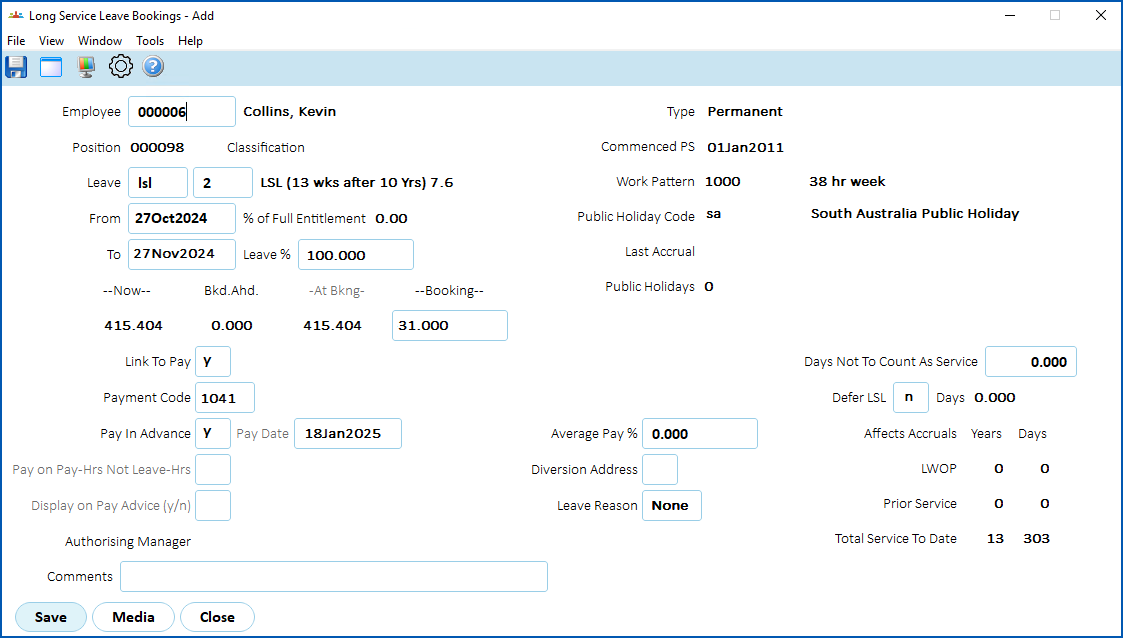
1. Click **Save**.
## Book LSL for an employee (hours)
When you book LSL for an employee (hours), EmpowerHR uses the employee's:
* work pattern to determine the working days and hours, instead of the work pattern on the LSL hours rule
* public holiday calendar to determine the days that don't count for leave if the Public Holiday Calendar field on the LSL hours rule is blank
To book LSL (hours):
1. Go to **Tasks** > **Leave** > **Leave Bookin** **gs** > **LS Leave Hours Bookings**.
2. At the **LS Leave Hours Bookings** ****summary screen, find the employee you want for the LSL booking.
3. Select a row and then click **New**.
4. At the **LS Leave Hours** **(add)** detail screen, make your selections and entries in the [LSL booking fields](/articles/ehr-user-guide/lsl-booking-fields).
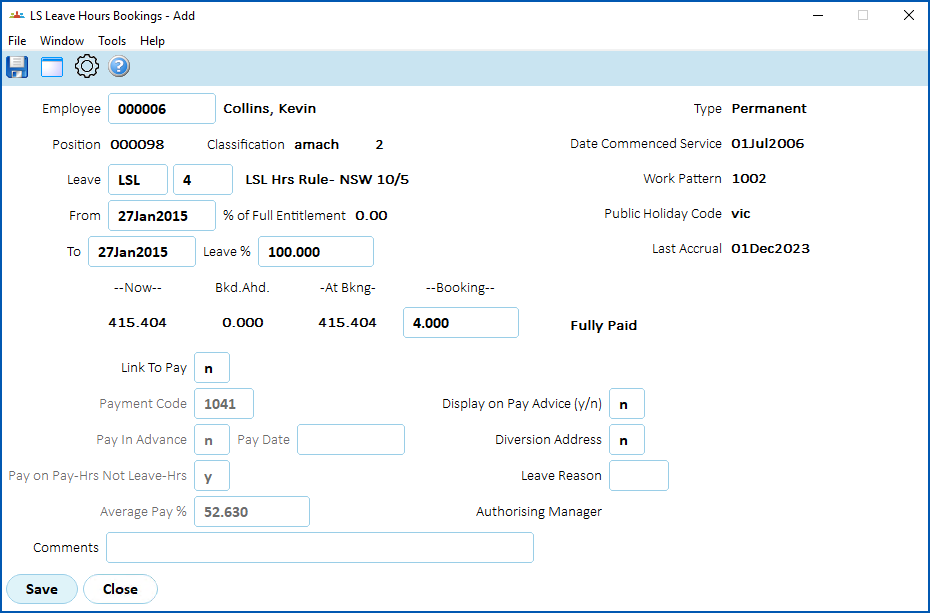
1. Click **Save**.
## Book LSL for a part-time/casual employee 
### Accruing LSL with defined accrual, based on length of service
If accrual is based on:
* calendar days and uses the **Average Pay %** field, you can book the elapsed time at a percentage of the current pay rate
* work days, you can book the days based on the work pattern of the leave and EmpowerHR correctly reduces the accrual. However, when you generate pay, a problem occurs with costing as EmpowerHR allocates extra hours to the leave pay and subtracts from the normal pay.
### Accruing LSL by FTE/hours (paid/unpaid) accrual, based on actual hours worked
There are two options available. You can:
* use the **Leave %** field to spread the booking out over a longer period, reducing the pay rate. For example, to continue the 60% employee at that percentage of their current FTE pay, enter **60%** in the **Leave %** field. You can ignore the unpaid balance or manually adjust it.
* book 60% of the booking period on the paid long service leave type, and 40% on the unpaid type. This is more time-consuming but provides more control over actual days booked.
| Next topic
[LSL booking fields](/articles/ehr-user-guide/lsl-booking-fields) |
| --- |
© 2023 Fusion5. All rights reserved.