---
title: "Maintain your personal details"
id: "maintain-your-personal-details"
project: "EHR User Guide"
url: "https://help.cloud5.com.au/articles/ehr-user-guide/maintain-your-personal-details"
updated: 2026-10-19T00:53:02Z
---
# Maintain your personal details
To maintain your personal details:
1. Go to **Personal Details**.
2. Check the information on each of the following tabs to make sure it is complete and current. Make changes, if required.
1. **General**
2. **Addresses**
3. **Emergency**
4. **Next of Kin**
3. Go to the **Contact** tab, and make sure your contact information is current. Providing the mobile and email address information on the **Contact** tab is your preferred message method EmpowerHR uses to notify you about a casual vacancy (SMS and/or email).
4. Make changes to the **Contact** tab, if required.
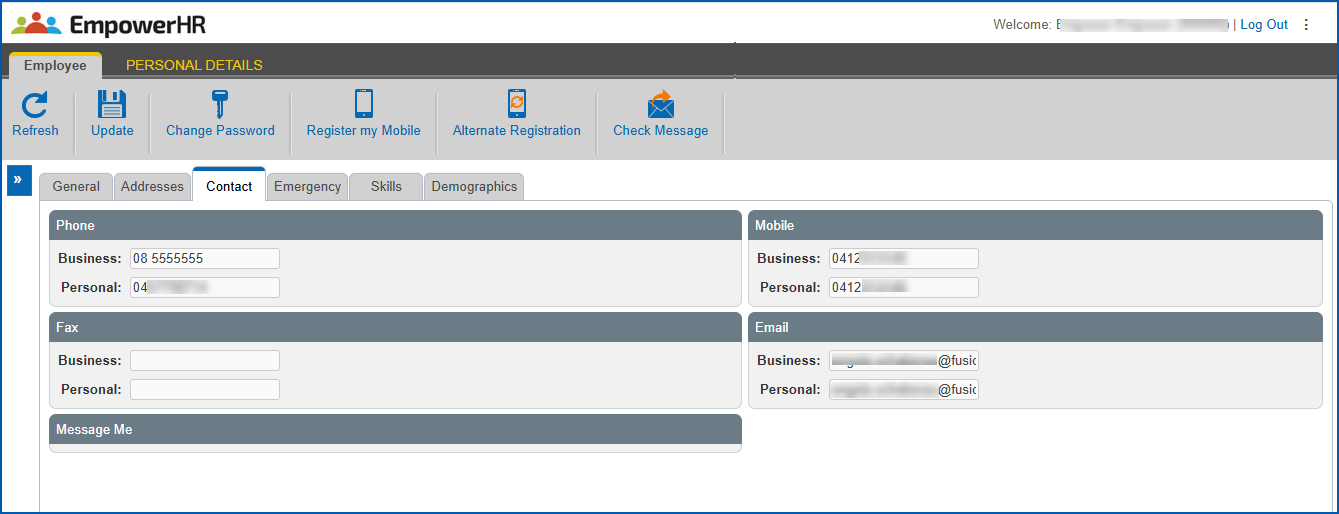
1. Click **Update**.
2. Click **Check Message** to make sure messaging is working correctly. EmpowerHR sends a test message to the mobile number(s)/email address(es) on your **Contact** tab..
|  | You can only use the **Check Message** button once in a session. |
| --- | --- |
1. To send a **Casual Relief**:
1. login page bookmark to your mobile phone, click **Register my Mobile**
2. login page URL to your mobile phone, click **Alternate Registration**
| Next topic
[Indicate your general availability](/articles/ehr-user-guide/indicate-your-general-availability) |
| --- |
© 2023 Fusion5. All rights reserved.