---
title: "Maintain organisation structure"
id: "maintain-organisation-structure"
project: "EHR User Guide"
url: "https://help.cloud5.com.au/articles/ehr-user-guide/maintain-organisation-structure"
updated: 2026-10-19T00:54:04Z
---
# Maintain organisation structure
Use the organisation restructure option when there is a structural change in the organisation, for example, when a division is abolished and you need to relocate that division to somewhere else. EmpowerHR automatically moves all positions and employees within the moving component, as a global change.
You can:
* move a section to another branch, move a branch (and all sections in the branch) to another division, and so on T
* use the cost centre code and location to move selected positions
* change a cost centre code across the whole organisation
In all cases, EmpowerHR maintains the integrity of the organisational structure as at an effective date.
A restructure can be a complex procedure, so we recommend careful planning. You may find the following screens useful to first identify the positions and employees the change will affect:
* [Establishment > Position Count - Position](/articles/ehr-user-guide/view-position-count-position)
* Employee > Head Count, Organisation
|  | If you're undertaking a major restructure, we strongly recommend you take a copy/backup of your production system and simulate the restructure in a test environment before committing the movements to the live production system. |
| --- | --- |
To maintain (change) the organisation structure:
1. Go to **Tasks** > **Organisation** > **Org Restructure**.
2. At the **Org Restructure - Add**screen, in:
1. **Effective Date**, enter the date****for the restructure. The date you enter can be a future date, backdated date, or today's date.
2. **Section**, enter the section code you want to restructure, or click **Window**, find and double-click the code to add it to the field
3. Press **Tab**. EmpowerHR populates the other current organisational level fields.
4. On the right-hand side of the screen, enter the **New Details** for the restructure - including section, branch, division, etc, and other relevant details such as cost centre.
5. Click **Process**.
6. EmpowerHR:
1. searches for the positions/employees that match the **New Details** you entered
2. counts the number of positions and people (employees) this change will affect, and then asks if you want to proceed with the update
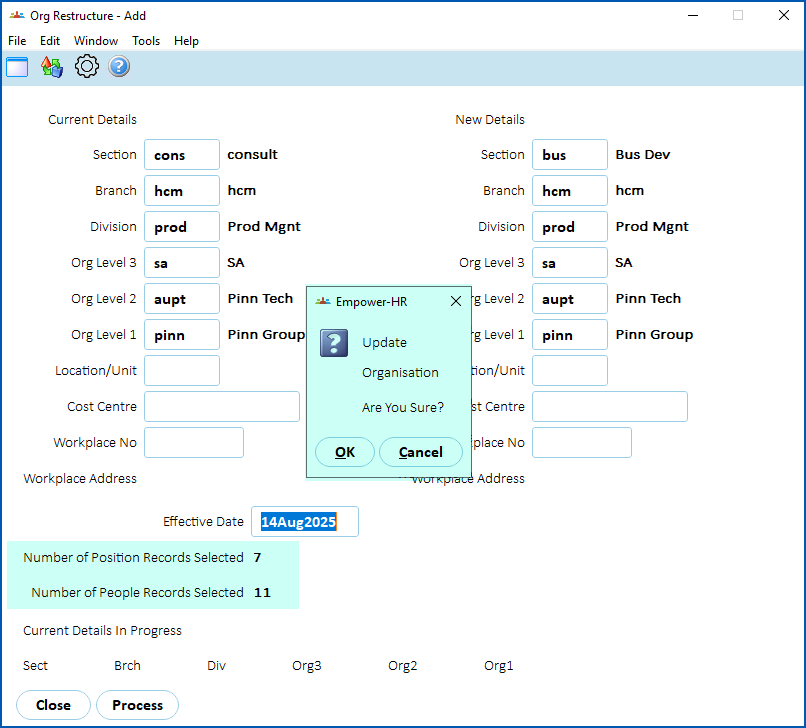
1. Check all information and, once you're confident the changes are correct, click on **Yes**.
|  | If any errors occur during the restructure, it may be because the sections you are dealing with has future movements pending. |
| --- | --- |
See also:
* [view organisation structure](/articles/ehr-user-guide/view-organisation-structure) to see how to carry out an org structure enquiry
| Next topic
[Set up access for users (organisation chart)](/articles/ehr-user-guide/set-up-access-for-users-organisation-chart) |
| --- |
© 2023 Fusion5. All rights reserved.