---
title: "Allocate LSL to an employee"
id: "lsl-allocate-lsl-to-an-employee"
project: "EHR User Guide"
url: "https://help.cloud5.com.au/articles/ehr-user-guide/lsl-allocate-lsl-to-an-employee"
updated: 2026-10-19T00:53:54Z
---
# Allocate LSL to an employee
Similar to normal leave types, you must allocate LSL to an employee before a booking can be made. Allocating LSL also allows you to accurately forecast leave liabilities.
## Allocate LSL to an employee (days/weeks)
To allocate LSL to an employee (days/weeks):
1. Go to **Tasks** > **Employees**> **Employee Informatio** **n** > **Employee Information**.
2. At the **Employee Information** summary screen, find and select the employee.
3. Click **Long Service Leave**
4. If the employee has:
1. no leave types allocated yet, the **Allocate Empl Long Serv Leave - Ad** **d** detail screen displays. Go to step 6.
2. leave types allocated, the **Allocate Empl Long Serv Leave** summary screen displays. Go to step 5.
1. At the **Allocate Empl Long Serv Leave**summary screen, click **New**.
1. At the **Allocate Employee Leave** detail screen, make your selections and entries in the [allocate employee LSL fields (days/weeks)](/articles/ehr-user-guide/allocate-employee-lsl-fields-days-weeks).
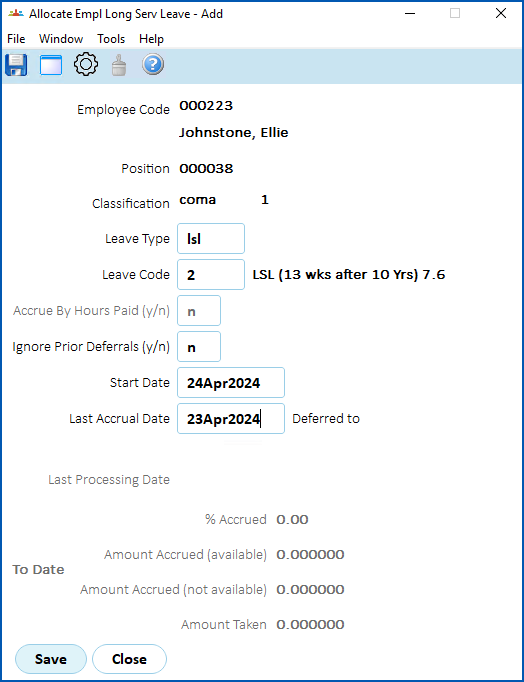
1. Click **Save**.
2. The **LSL History/Take-on** screen displays.
3. If, for LSL purposes, you:
1. need to record prior service, then see [manually take on service/leave history](/articles/ehr-user-guide/manually-take-on-service-leave-history) for instructions on what to do next.
2. don't need to record prior service, then click **Close** to close the **LSL History/Take-on** screen.
## Allocate LSL to an employee (hours)
To allocate LSL to an employee (hours):
1. Go to **Tasks** > **Leave**> **Leave Accruals and Rules** > **Employee LS Leave Hours**.
2. At the **Employee** **LS Leave Hours** summary screen, find the employee.
3. Click **New**.
4. At the **Employee LS Leave Hours (add)** detail screen, at:
1. **Leave Type**, enter the leave type if you know it, or click **Window**, find and double-click the leave type to add it to the field.
2. **Leave Cod** **e**, enter the leave code if you know it, or click **Window**, find and double-click the leave code to add it to the field.
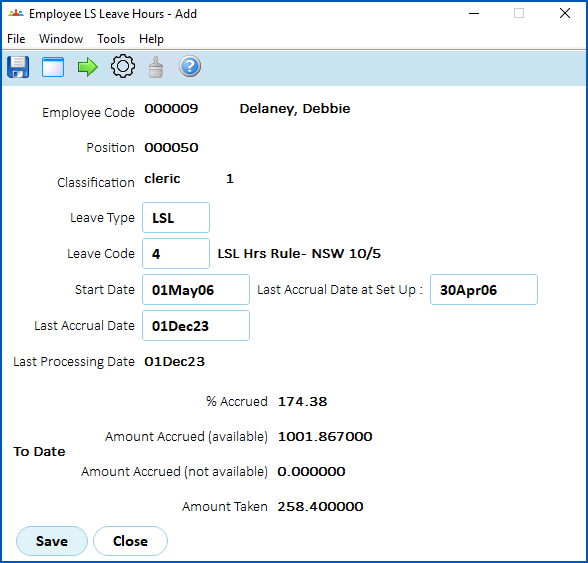
1. Click **Save**.
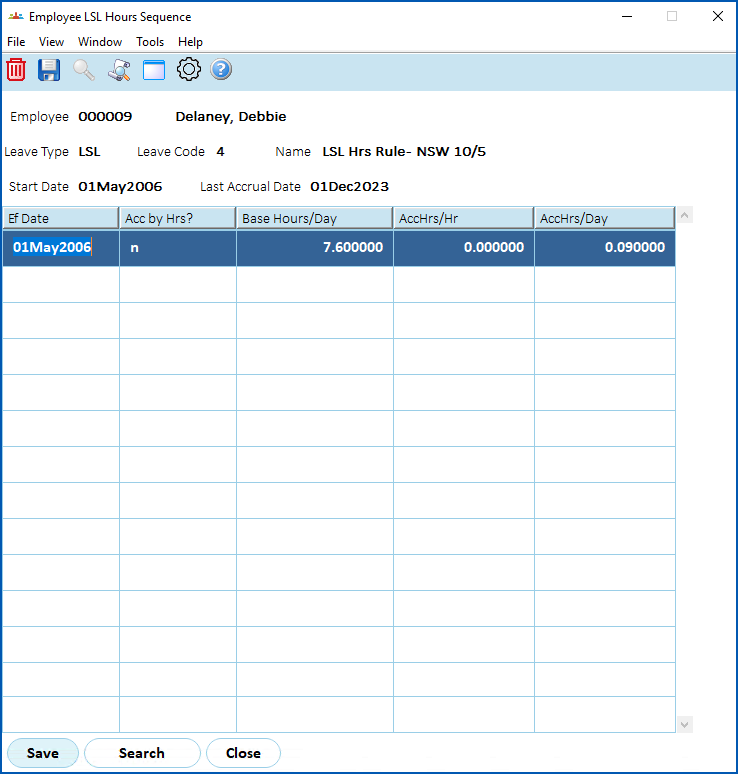
2. EmpowerHR displays the **Employee LSL Hours Sequence** screen.
3. At the **Employee LSL Hours Sequence** ****screen, make changes if required, using the following table as a guide.
| **At this field...** | **Do this...** |
| --- | --- |
| Ef Date | Nothing. This date defaults to the **Start Date** on the **Employee LS Leave Hours (add)** detail screen. You cannot change this date.
|  | If you create additional sequences, you must manually enter the **Ef Date**. If the **Acc by Hrs?** flag is set to **y** (yes), the date must be a period start date. |
| --- | --- | |
| Acc by Hrs? | If the employee's accruals are based on:
- hours worked, enter y (yes)
- FTE, enter n (no)
|
| Base Hours/Day
AccHrs/Hr
AccHrs/Day | At any of these fields, you can click **Window**, find and double-click the LSL hours constant to add it to the field. |
| Changing accrual amount | Where an employee changes working hours' conditions, for example, changes awards to different full-time hours per day, or to casual or variable working hours, you can record additional sequences in the **Employee LSL Hours Sequence** screen to vary the accrual amount of method. |
| --- | --- |
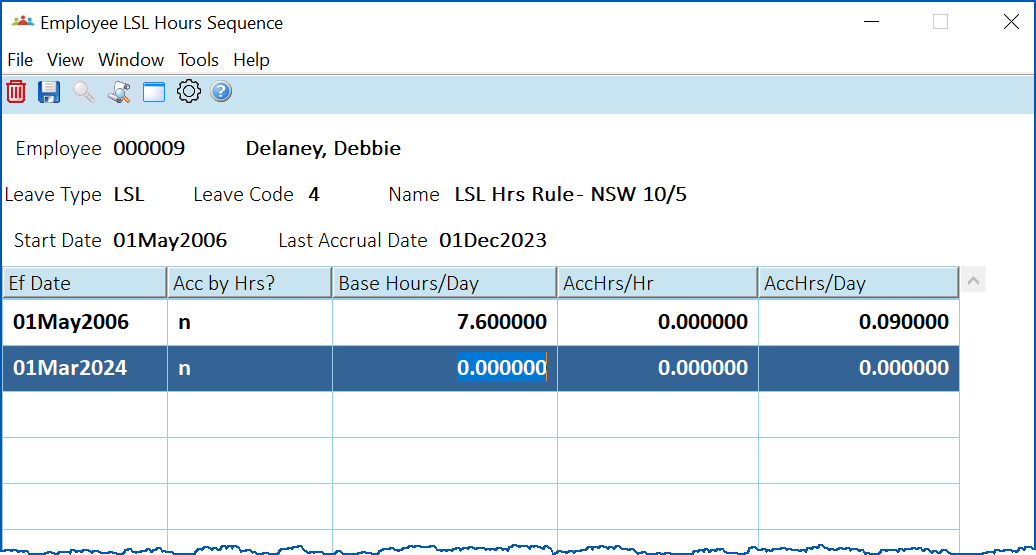
| Ceasing LSL accrual | Where LSL should *not* accrue, for example, when an employee is on LWOP , you can record additional sequences in the **Employee LSL Hours Sequence** ****screen (similar to normal leave) to cease accruals from an effective date.
LWOP = leave without pay
In the following example, Debbie will not accrue LSL from 01 March 2024. You can start the accruals again by adding another sequence.
|  | You may need to make a manual adjustment to the accruals if the employee has accrued past the new effective date. |
| --- | --- | |
1. Click **Save**.
| Next topic
[Allocate employee LSL fields (days/weeks)](/articles/ehr-user-guide/allocate-employee-lsl-fields-days-weeks) |
| --- |
© 2023 Fusion5. All rights reserved.