---
title: "LSL accruals and balances"
id: "lsl-accruals-and-balances"
project: "EHR User Guide"
url: "https://help.cloud5.com.au/articles/ehr-user-guide/lsl-accruals-and-balances"
updated: 2026-10-19T00:54:29Z
---
# LSL accruals and balances
## Manually transfer LSL (days/weeks) 
When maintaining employees' leave balances, you can use EmpowerHR to:
* transfer between one type of leave and another, for example, when an employee changes their annual leave types
* automatically account for changed weekly hours, if required
* add or deduct an accrual amount (in the same way as a [manual take-on](/articles/ehr-user-guide/manually-take-on-service-leave-history))
* together with Pay Data Entry, pay out leave
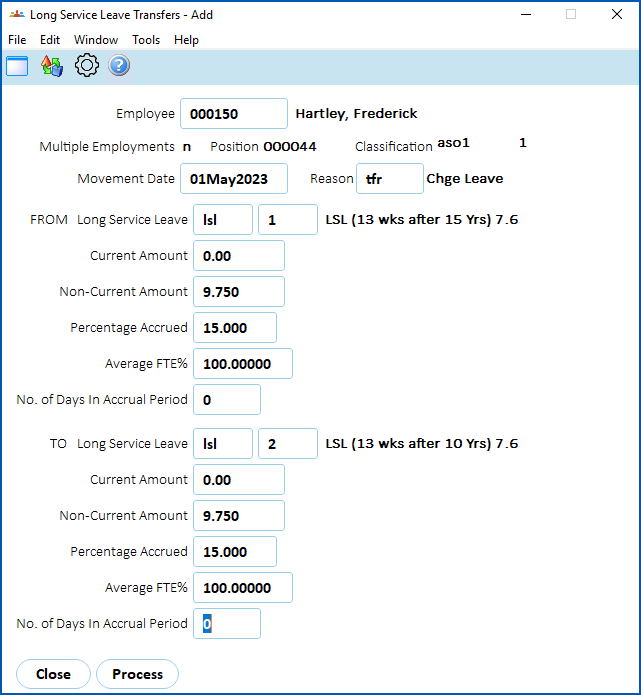
To transfer LSL (days/weeks):
1. Go to **Tasks** > **Leave** > **Leave Bookings**> **Long Service Leave Transfers**.
2. At the **Long Service Leave Transfers - Add** screen, make your selections and entries.
1. Click **Process**.
2. When EmpowerHR finishes, **Processing Successful** displays at the bottom of the****screen.
3. Click **Close**.
|  | You can also use the **LSL History/Take-On** screen to transfer LSL (days/weeks). The advantage of doing this is, if you get it wrong, you can adjust the figures until they are correct. See [manually take on service/leave history](/articles/ehr-user-guide/manually-take-on-service-leave-history) for instructions. |
| --- | --- |
## Transfer LSL (hours)
You can transfer employees to other LSL rules. For example, an employee moves from Victoria to South Australia where the **Years to Current**are different, and so the **Accrue %**per day is different. You simply use the **LSL Hours History/Take-on** screen to transfer the balance.
When transferring from one code to another, you can zero out accrual values from the original code and add them to the new code.
|  | To retain the history of the accruals and bookings, don't delete the old code from the employee’s records, and then you can still book any balance. |
| --- | --- |
See [manually transfer LSL (hours)](/articles/ehr-user-guide/manually-take-on-service-leave-history/a/TransLSLhours) for what to do.
## Take on LSL accrued in hours in bulk
If your organisation is implementing EmpowerHR for the first time and you need to take on LSL accrued in hours balances for employees, you can use a spreadsheet to do this. See [bulk upload new employees](/articles/ehr-user-guide/bulk-upload-new-employees) and [long service leave data file format](/articles/ehr-user-guide/long-service-leave-data-file-format)for more information. We recommend you also talk to your Fusion5 implementation consultant (log a request in [iHelp](https://infusion.fusion5.com/)).
| Next topic
[Make a LSL booking](/articles/ehr-user-guide/make-a-lsl-booking) |
| --- |
© 2023 Fusion5. All rights reserved.