---
title: "Leave booking payment codes"
id: "leave-booking-payment-codes"
project: "EHR User Guide"
url: "https://help.cloud5.com.au/articles/ehr-user-guide/leave-booking-payment-codes"
updated: 2026-10-19T00:53:54Z
---
# Leave booking payment codes
This topic applies if you use a time capture system.
|  | If you use a time capture system where some employees are on Pay By Exception (PBE), you also need to set up the **Procedure Data Screen** to avoid overpayment. See [procedure data configuration](/articles/ehr-user-guide/procedure-data-configuration) for instructions. |
| --- | --- |
## Codes you need to set up for leave bookings to be paid
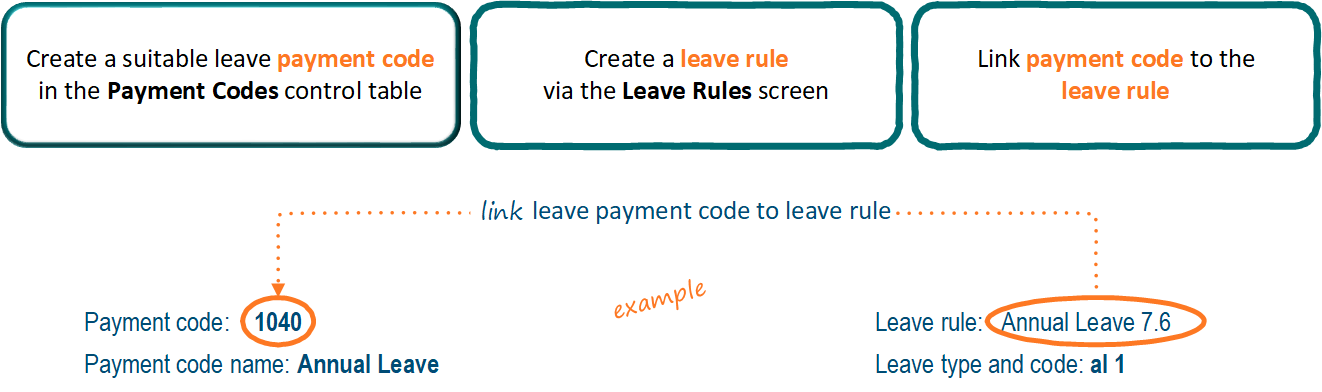
For EmpowerHR to record a period of absence as a booking which automatically adjusts the employee's entitlement, you must:
* create a **payment code** for the type of leave (if it doesn't already exist). See [payment codes](/articles/ehr-user-guide/payment-codes) for instructions.
* create a **leave rule**. See [normal leave rules](/articles/ehr-user-guide/normal-leave-rules) for instructions.
* link the **payment code** to the **leave rule**. See the following procedure for instructions.
## Link a payment code to a leave rule
|  | You can link one leave payment code to one or many leave rules. |
| --- | --- |
To link a leave payment code to a leave rule:
1. Go to **Control Tables** > **Payment** > **Leave Booking Payment Codes**.
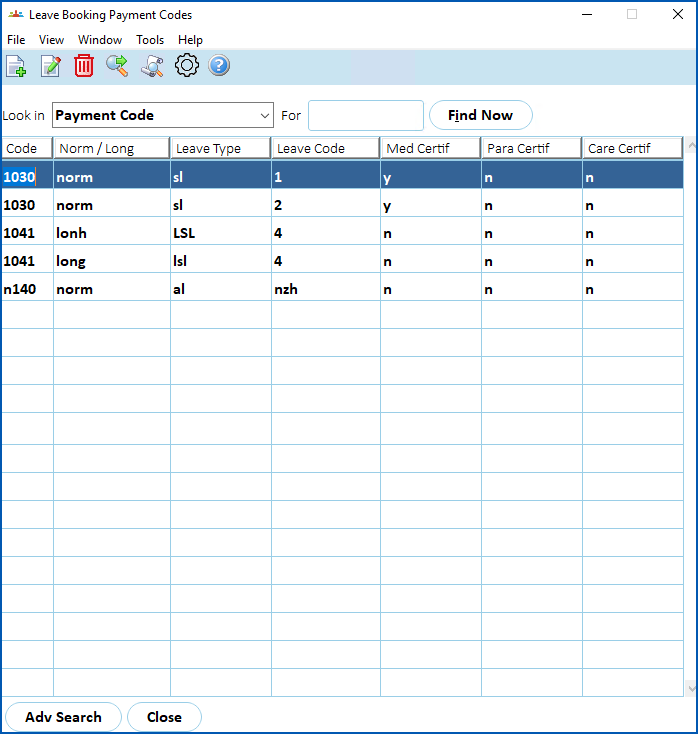
2. At the **Leave Booking Payment Codes** summary screen, click **Find Now**. In the following example, times entered against payment code 1030 will generate leave records for Leave Type sl (sick leave) and Leave Codes **1** and **2**.
1. Click **New**.
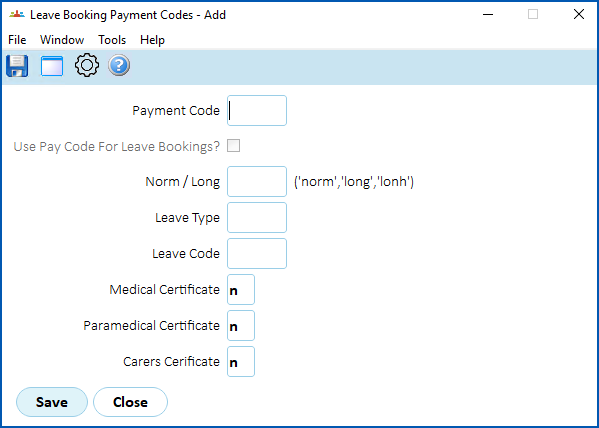
2. At the **Leave Booking Payment Codes**detail screen, make your selections and entries in the [leave booking payment code fields](/articles/ehr-user-guide/leave-booking-payment-code-fields).
|  | The entry you make in the **Payment Code** field is how you link the leave rule to the payment code. |
| --- | --- |
1. Click **Save**.
2. Repeat this procedure, starting at step 3, until you've linked the payment code to any other leave rules (if required) .
3. At the **Leave Booking Payment Codes** summary screen, click **Close**, when you are finished.
| Next topic
[Leave booking payment code fields](/articles/ehr-user-guide/leave-booking-payment-code-fields) |
| --- |
© 2023 Fusion5. All rights reserved.