---
title: "Leave accrual processes"
id: "leave-accrual-processes"
project: "EHR User Guide"
url: "https://help.cloud5.com.au/articles/ehr-user-guide/leave-accrual-processes"
updated: 2026-10-19T00:53:45Z
---
# Leave accrual processes
In this topic, you'll learn how to:
* run leave accruals
* reset leave accruals
## Run leave accruals
You can run (calculate) leave accruals:
* at any date
* for one employee
* for all employees
* by specific leave types
* by all leave types
To run (calculate) leave accruals:
1. Go to either of the following locations:
1. **Tasks**>**Leave Accruals and Rules**>**Calculate Accruals**.
2. **Background Jobs**>**Leave > Calculate Accruals (legjaccl)**
2. At **Calculate Accruals**, enter a date in the **Accrue UpTo Date** field, and complete any other fields.
|  | We recommend you:
- don't leave the screen blank (make no entries). If you do, EmpowerHR will run every accrual for every employee up to the current date.
- don't enter a future date as the Accrue Upto Date. You should enter a past date instead. Entering a future date will generate a warning as it can affect other functionality such as termination leave calculations.
|
| --- | --- |
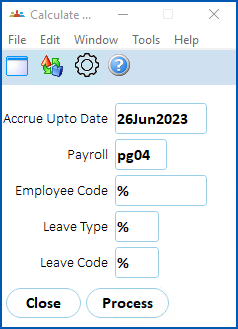
1. Click **Edit** and then select **Process**.
2. When EmpowerHR finishes, **Processing Successful** displays at the bottom of the **Calculate Accruals**screen.
3. Click **Close**.
## Reset leave accruals
|  | This procedure applies for both leave and long service leave accruals. |
| --- | --- |
If leave accruals show incorrectly, you can reset them to zero. EmpowerHR cancels all system-generated accruals for a selected employee and resets the last accrual date.
A few things to consider first...
| One at a time | You can only reset leave/LSL accruals for one employee and one leave type at a time. |
| --- | --- |
| Last accrual date reset | The last accrual date resets to the day before the employee's actual start date regardless of the leave start date. Check the date on the employee record (at the [allocate employee leave](/articles/ehr-user-guide/normal-timesheet-driven-leave) screen) and, if necessary, change it. |
| Minor error | If you find a leave accrual error is only minor, it's probably easier to manually correct the error rather than resetting the accruals. See [manually adjust or transfer employee leave balances](/articles/ehr-user-guide/manage-leave-accruals-and-balances/a/h2__1674752762) to learn how. |
To reset leave accruals to zero: 
1. Go to **Tasks** > **Leave** > **Leave Accruals and Rules** > **Reset Leave Accruals**.
2. At **Reset Leave Accruals** screen:
1. find the employee you want
2. if required, enter a different **Leave Basis** (this field is automatically populated with a default value)
3. enter the **Leave Type** (you can enter a normal or LSL leave type)
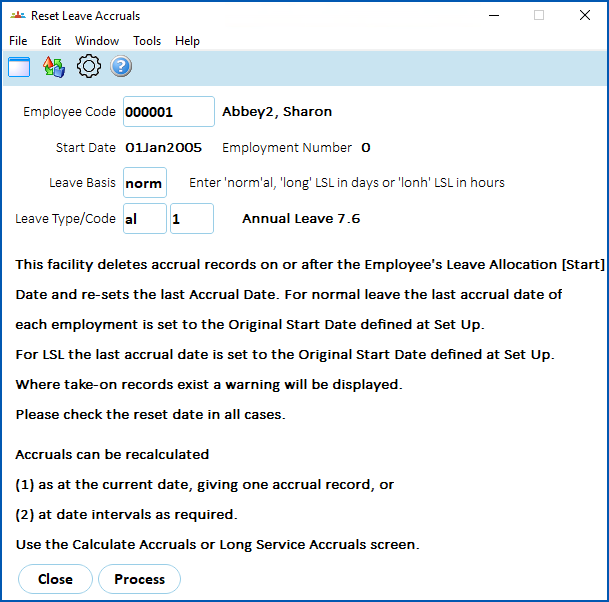
1. Click **Ed** **it** and then select **Process**. The following message displays.
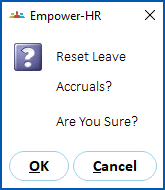
1. Click **OK**to proceed.
2. Click **Close**.
| Next topic
[Leave bulk upload processes](/articles/ehr-user-guide/leave-bulk-upload-processes) |
| --- |
© 2023 Fusion5. All rights reserved.