---
title: "Installation options"
id: "installation-options"
project: "EHR User Guide"
url: "https://help.cloud5.com.au/articles/ehr-user-guide/installation-options"
updated: 2026-10-19T00:53:54Z
---
# Installation options
## Set an installation option in Desktop
To set an installation option in Desktop:
1. Go to **Administration** > **Agency Management** > **Installation Options**.
2. At the **Installation Option** **s** summary screen, to narrow the list of options, apply one or more of the following filters:
1. select a **Category**, for example, **Empower Desktop**, *and/or*
2. select an **Option Group**, for example, **Leave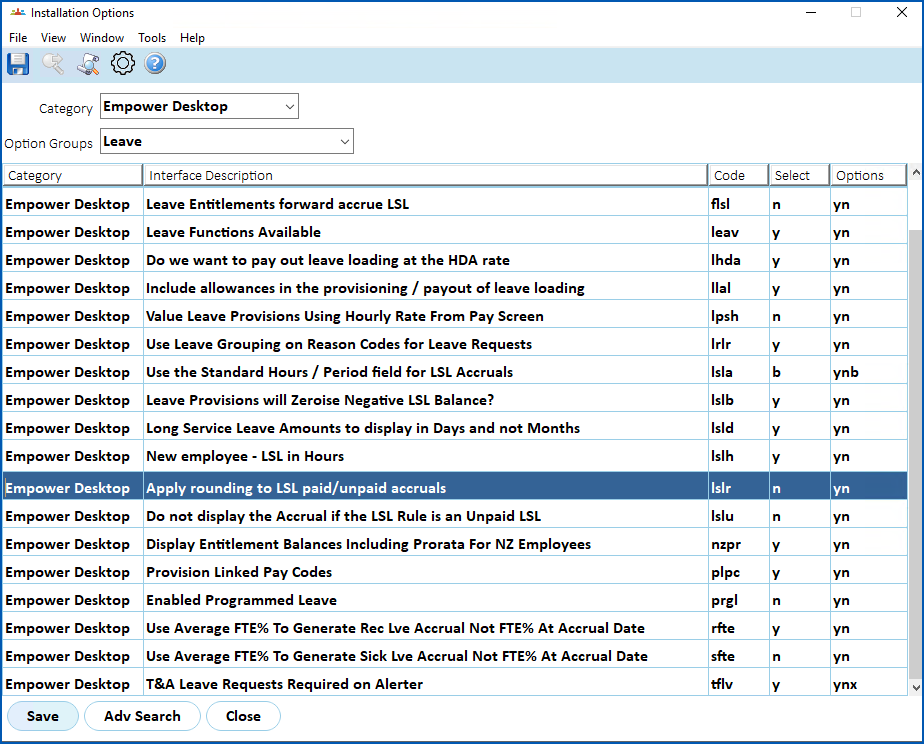**
3. Find the option you want to set. (See the following **Tips** for help.)
4. In the **Select** column, enter your selection. You'll see the available selections in the **Options** column. (See the following **Tips**for help.)
5. Click **Save**.
## Set an installation option in Self Service
You can set the same options in Self Service. Both platforms change the same option.
1. Go to **Administration > Configuration > All Configuration**.
2. Select an option group, for example, **Self Service >** **Leave**.
3. Select the option. Its description and settings appear on the right.
4. At **Choice**, select the setting.
5. Click **Update**.
## Tips
| Finding an installation option | Each installation option has a four-character code, for example, **lrlr**.
In Desktop, click the **Code** column heading to sort the list alphabetically. Click it again to reverse the order.
In Self Service, type the code in the search box above the **Configuration Items** list. |
| --- | --- |
| Setting the installation option | In Desktop, enter a valid setting in the **Select** column. The **Options** column shows the settings to choose from.
In Self Service, select a setting at **Choice**, then click **Update**.
We also describe the settings in the relevant topics throughout this User Guide, providing the context for their use. |
| Next topic
[Installation settings](/articles/ehr-user-guide/installation-settings) |
| --- |
© 2023 Fusion5. All rights reserved.