---
title: "Getting started (FWA)"
id: "getting-started-fwa"
project: "EHR User Guide"
url: "https://help.cloud5.com.au/articles/ehr-user-guide/getting-started-fwa"
updated: 2026-10-19T00:53:37Z
---
# Getting started \(FWA\)
To submit a flexible working arrangement request, go to **Requests > Flexible Working Arrangements** in your Self Service portal. This opens the Flexible Working Arrangement dashboard. From there, select **New Request** to open the form.
## Your current position
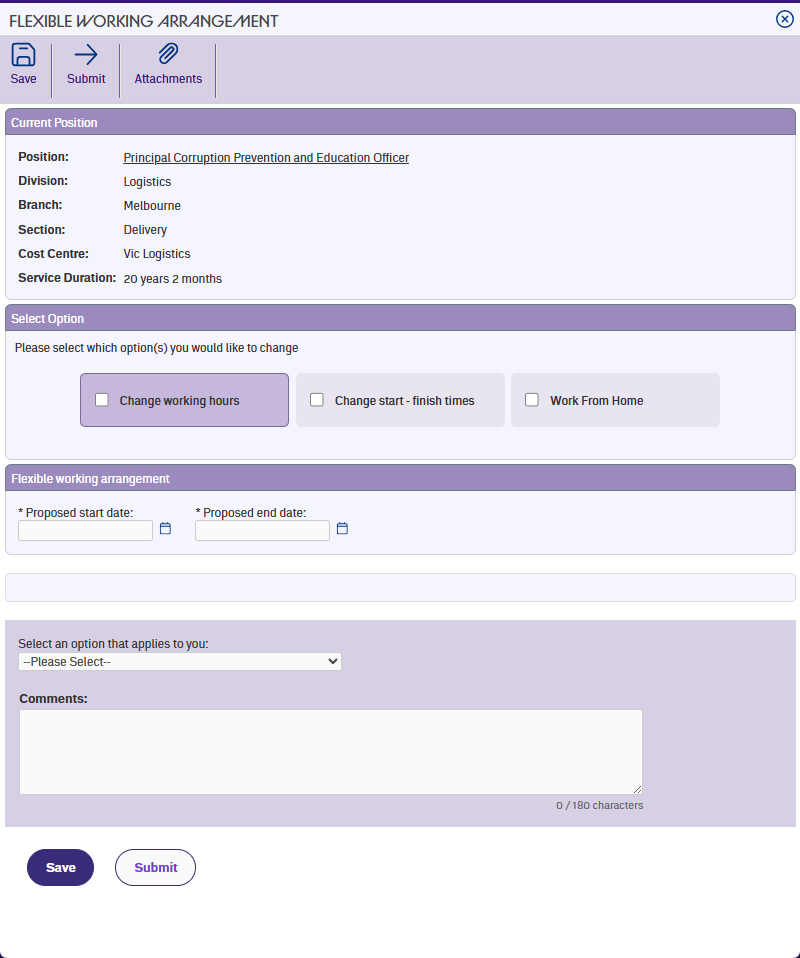
The form starts by showing your current position details – your division, branch, section, and cost centre. If you hold more than one position, you'll see a dropdown so you can choose which position this request is for.
Cost centre details are only visible if your employer uses them.
## Service duration
Your length of service appears below your position details. If you've been employed for less than 12 months, this displays in red with an information icon. Tap the icon to learn more – you can still submit a request, but approval is at your manager's discretion rather than a legislative entitlement under the Fair Work Act.
## What happens next
What you see after the current position section depends on your role. Some employees go straight to entering their proposed dates and hours. Others see a set of options to choose from first. The next article covers this in detail.
| Next topic
[Choosing what to change (FWA)](/articles/ehr-user-guide/choosing-what-to-change-fwa "Click to open the next FWA request article in the FWA for employees folder") |
| --- |
© 2023 Fusion5. All rights reserved.