---
title: "GESB super interface files"
id: "gesb-super-interface-files"
project: "EHR User Guide"
url: "https://help.cloud5.com.au/articles/ehr-user-guide/gesb-super-interface-files"
updated: 2026-10-19T00:53:09Z
---
# GESB super interface files
## Run GESB SAFF interface file
To run the GESB SAFF interface file (**criogess**):
1. Go to **Background Jobs** > **Payroll Processing** > **Interfaces**> **GESB** **SAFF File**.
2. The **GESB** **SAFF File (criogess)** screen displays.
3. On the **Parameters**tab, in:
1. **Payroll Code**, click **Window**, find and double-click the payroll code you want to report on, or enter**** **%**for all payrolls.
2. **Interface Date**, enter the interface date. The report includes data for the fortnight ending at the date you enter here.
4. Click **Save**. EmpowerHR generates the file.
5. Go to **Background Jobs**>**Requested Jobs**> **Requested Jobs**to see the output file.
|  | The report includes data for both current and terminated employees with contributions paid within the date range entered in a standard pay.
Employee funds are selected where, in the [super fund code](/articles/ehr-user-guide/set-up-super-fund-codes-gesb), the fund is flagged as **GESB** in User Field 6. |
| --- | --- |
### GESB SAFF reports generated
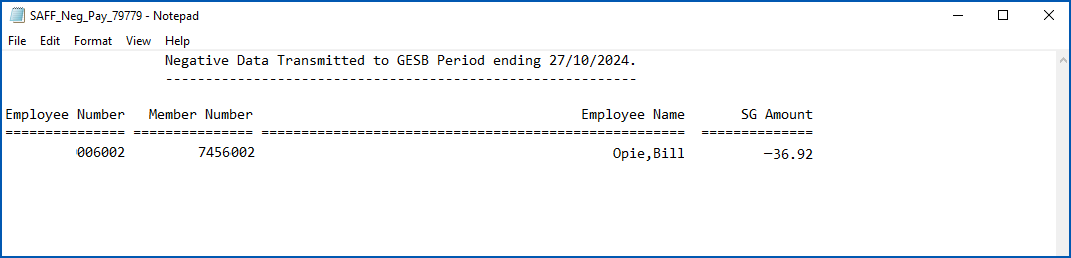
In addition to generating the SAFF extract file, EmpowerHR generates a SAFF Negative Payments Report.
Here is a negative payments report sample:
## Run GESB DES interface file
To run the GESB DES interface file (**criogesb**):
1. Go to **Background Jobs** > **Payroll Processing** > **Interfaces**> **GESB** **DES File**.
2. The **GESB** **DES File (criogesb)** screen displays.
3. On the **Parameters**tab, in:
1. **Payroll Code**, click **Window**, find and double-click the payroll code you want to report on, or enter**%** for all payrolls.
2. **Interface Date**, enter the interface date. The report includes data for the fortnight ending at the date you enter here.
4. Click **Save**. EmpowerHR generates the file.
5. Go to **Background Jobs**>**Requested Jobs**> **Requested Jobs**to see the output file.
|  | If an employee has both ME (after tax) and PA (pre-tax) contributions, the employee is output twice. |
| --- | --- |
### GESB DES reports generated
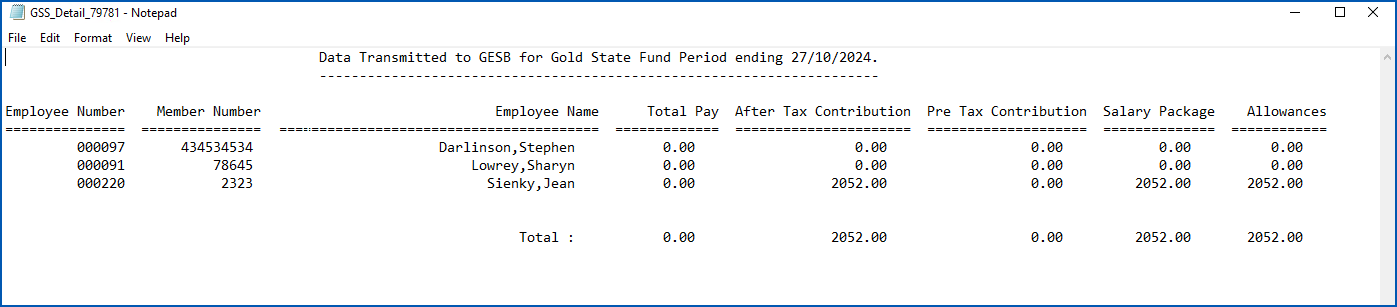
In addition to generating the DES extract file, EmpowerHR generates a GSS Detail Report and GSS Negative Payments Report.
Here is a detail report sample:
Here is a negative payments report sample. It shows there were no negative payments in the reporting period:

| Next topic
[Manage termination payments](/articles/ehr-user-guide/manage-termination-payments) |
| --- |
© 2023 Fusion5. All rights reserved.