---
title: "Gender diversity code fields & selectors"
id: "gender-diversity-code-fields-selectors"
project: "EHR User Guide"
url: "https://help.cloud5.com.au/articles/ehr-user-guide/gender-diversity-code-fields-selectors"
updated: 2026-10-19T00:54:16Z
---
# Gender diversity code fields & selectors
In this topic, we show how to complete the [gender diversity control code fields](/articles/ehr-user-guide/gender-diversity-code-fields-selectors/a/h2_825717775) for:
* Employee Gender Identity
* Sexual Orientation
* Sex Characteristics Variable
But first, let's talk about configuring the selector...
## How do I configure the selector?
From the control code, EmpowerHR allows you to configure the selector in a way that best suits your organisation's requirements. You can:
* order the code in a certain way in the selector (**Sort By**)
* display the additional information field when a user selects a certain option (code), allowing them to add comments (**Display Additional Information?** flag)
* apply a rule, for example, requiring the user to select a response (**Placeholder PH**), or to simply accept a default value (**Default DV**)
###
To learn more about configuring the selector, check this case study about collecting commonplace data.
[+] [Show case study](javascript:void%280%29)
[-] [Hide case study](javascript:void%280%29)
#### Case study: configuring the selector
Welcome to the Hotel California!
To help fine-tune our services and enhance the customer experience, we want to collect information about our event patrons’ preferences.
We use three screen selectors:
* Favourite bath robe
* Dietary requirement
* Favourite breakfast drink
Here's what we did...
| Favourite bath robe | Hotel California configured the selector to:
- Sort by N (Number) with the value Don’t have one set to Number 1
- apply the rule, DV (Default Value), to the value None selected
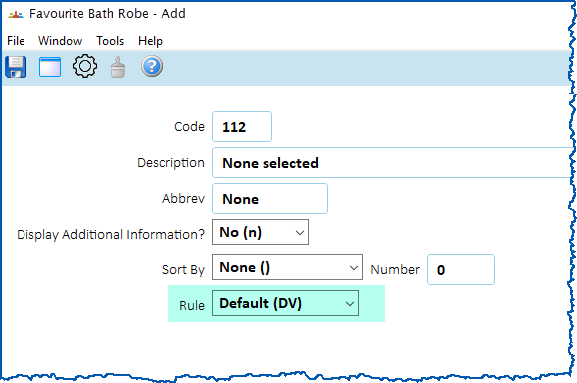 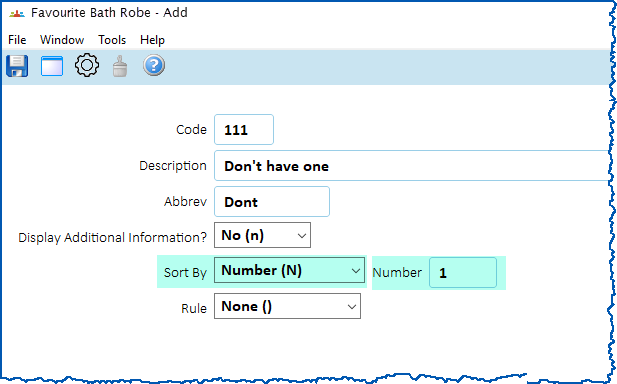
The first time the page loads for the user, the favourite bath robe selector displays:
- the default value, None selected
- numbered values first, and then the rest in alphabetical order
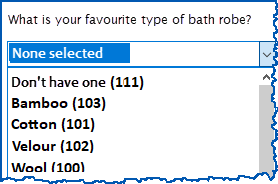
The user doesn’t need to change the default value, and can save the data. |
| --- | --- |
| Dietary requirement | Hotel California configured the selector to:
- Sort by N (Number) with the value None set to Number 1
- apply the rule, PH (Placeholder), to the value Please select
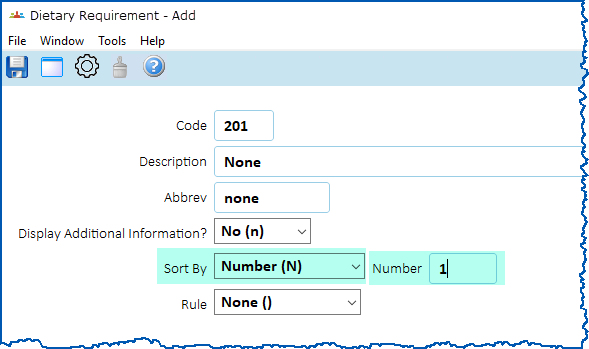 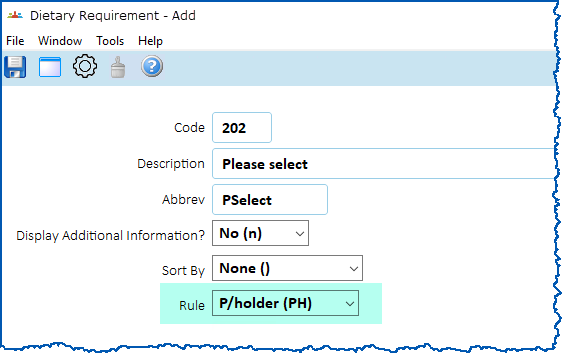
The first time the page loads for the user, the dietary requirement selector displays:
- the placeholder, Please select
- numbered values first, and then the rest in alphabetical order
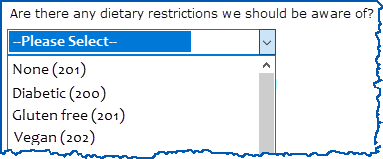
The user must make a selection before the data is saved. |
| Favourite breakfast drink | Hotel California configured the selector to:
- Sort by A (Number) with the value None set to Number 1
- apply the rule, PH (Placeholder), to the value Please select
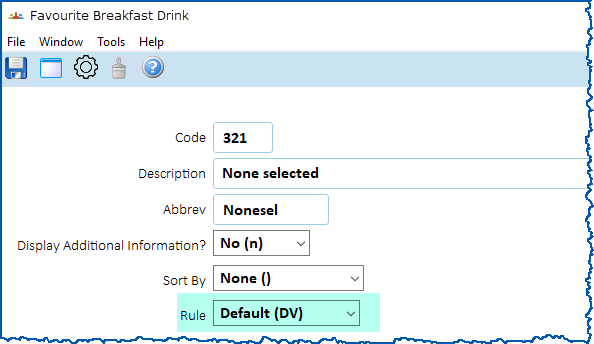 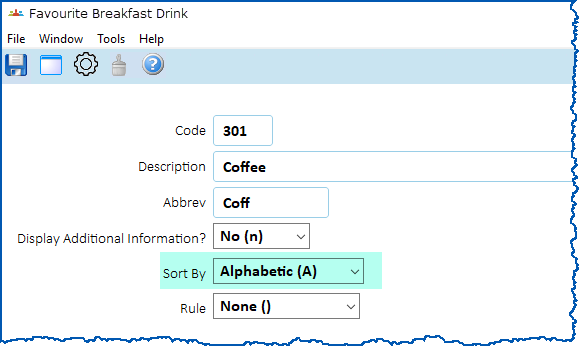
The first time the page loads for the user, the favourite breakfast drink selector displays:
- None selected
- the values in alphabetical order
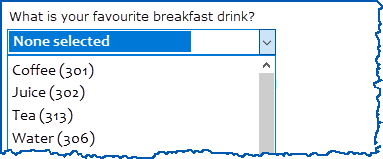
The user doesn’t need to change the default value, and can save the data. |
## Gender diversity control code fields
| **In this field...** | **Do this...** |
| --- | --- |
| Code | If:
- adding a new code to the table, enter the code (up to 4 characters)
- updating an existing code, you cannot change this field
|
| Description | Enter/change the full description (up to 40 characters). |
| Abbreviation | Enter/change the abbreviation (up to 10 characters). |
| Display Additional Information? | At the dropdown list, select **y** (yes) from the dropdown list to flag that you want to display the additional information field when the user selects this code (option).
Otherwise, keep the default value of **n**(no).
|  | Only **Employee Gender Identity** and **Sexual Orientation** control codes have the **Display Additional Information?** flag. |
| --- | --- | |
| Sort By | Select a sorting option from the dropdown list:
- [ ] (blank) = there is no sort order in the selector
- Alphabetic (A) = the sort order is alphabetical
- Number (N) = the sort order is by the Number you assign
|
| Number | If you selected **Number (N)** in the **Sort By** field, enter a value in the **Number** field to indicate the position in the selector. |
| Rule | Select a rule from the dropdown list:
- None = no rules attached
- Default (DV) = the default value. The value displays in the selector and is a valid selection. This means you can save the screen with this default value. You may want a description that says ---Not provided---
- P/holder (PH) = a placeholder displays in the selector and is an invalid selection if the user does not change the value. This means a user can't save the screen until they've made a selection. You many want a description that says ---Please select---
|
| Sort Code 1 - Sort Code 6 | N/A |
| Next topic
[Employee personal data codes](/articles/ehr-user-guide/employee-personal-data-codes) |
| --- |
© 2023 Fusion5. All rights reserved.