---
title: "Funding source codes"
id: "funding-source-codes"
project: "EHR User Guide"
url: "https://help.cloud5.com.au/articles/ehr-user-guide/funding-source-codes"
updated: 2026-10-19T00:53:43Z
---
# Funding source codes
Funding source codes are used to identify cost centres that are centrally managed funds. They are used in managing expenditure on casual relief staff.
## Create a funding source code
To create a funding source code:
1. Go to **Control Tables** > **Casual Relief** > **Funding Source**.
2. The **Funding Source** summary screen displays.
3. Click **New**.
4. At the **Funding Source (add)** detail screen, make your entries using the following table as a guide.
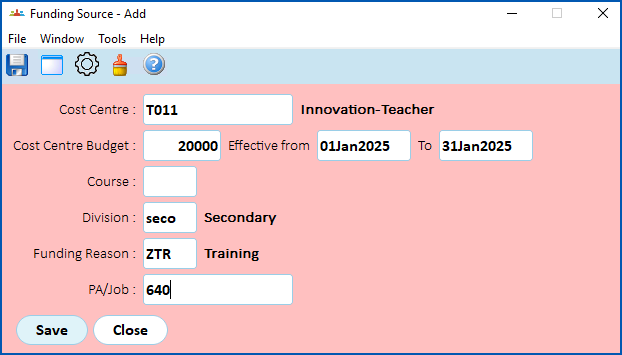
| **At this field...** | **Do this...** |
| --- | --- |
| Cost Centre | Enter a valid cost centre code if you know it, *or*
Click **Window**, find and double-click the code to add it to the field. |
| Cost Centre Budget | Enter a valid cost centre budget code if you know it, *or*
Click **Window**, find and double-click the code to add it to the field. |
| Course | Enter a valid course code if you know it, *or*
Click **Window**, find and double-click the code to add it to the field. |
| Division | If you want to associate the funding source with:
- a particular division, then enter a valid division code if you know it, or click Window, find and double-click the code to add it to the field
- all divisions, leave this field blank
|
| Funding Reason | Enter a valid funding reason code if you know it, *or*
Click **Window**, find and double-click the code to add it to the field. |
| PA/Job | Enter a valid program activity/job code if you know it, *or*
Click **Window**, find and double-click the code to add it to the field. |
1. Click **Save**.
2. Repeat this procedure, starting at step 3, until you have created all the funding source codes you need.
| Next topic
[GL leave probability factors](/articles/ehr-user-guide/gl-leave-probability-factors) |
| --- |
© 2023 Fusion5. All rights reserved.