---
title: "Flexi timesheets"
id: "flexi-timesheets"
project: "EHR User Guide"
url: "https://help.cloud5.com.au/articles/ehr-user-guide/flexi-timesheets"
updated: 2026-10-19T00:53:16Z
---
# Flexi timesheets
## Create an employee's timesheet for a closed settlement period
In some circumstances, you may need to create a flexi timesheet for an employee after a settlement period closes (for example, if the employee is away for a lengthy period). This is because employees can only create timesheets for open settlement periods.
**Note: This function is under review so details of how to perform the procedure may vary.**
To create flexi timesheets for an employee:
1. Go to **Manager** > **Staff** > **Staff Management** > **Staff Lookup** ***(under review)***
2. At the **Staff Lookup** catalogue, go to the **Search Filter** and, at **Name**, enter the employee's name in the following format: surname, given name
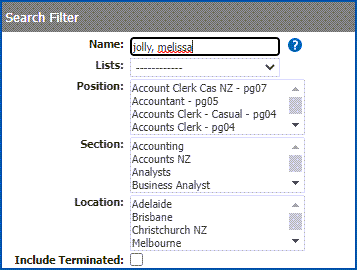
1. As you type, any names that match your entry are displayed.

1. Click **Actions** displayed next to the name you want to create a timesheet for, and then select **Create Flexi Timesheet**.
2. At **Create Flexi Timesheets** the system displays any closed settlement periods where the employee doesn't have a timesheet.
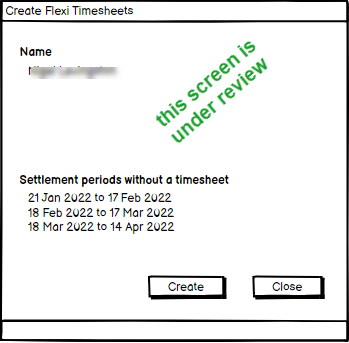
1. Click **Create** to create new timesheets for the listed settlement periods.
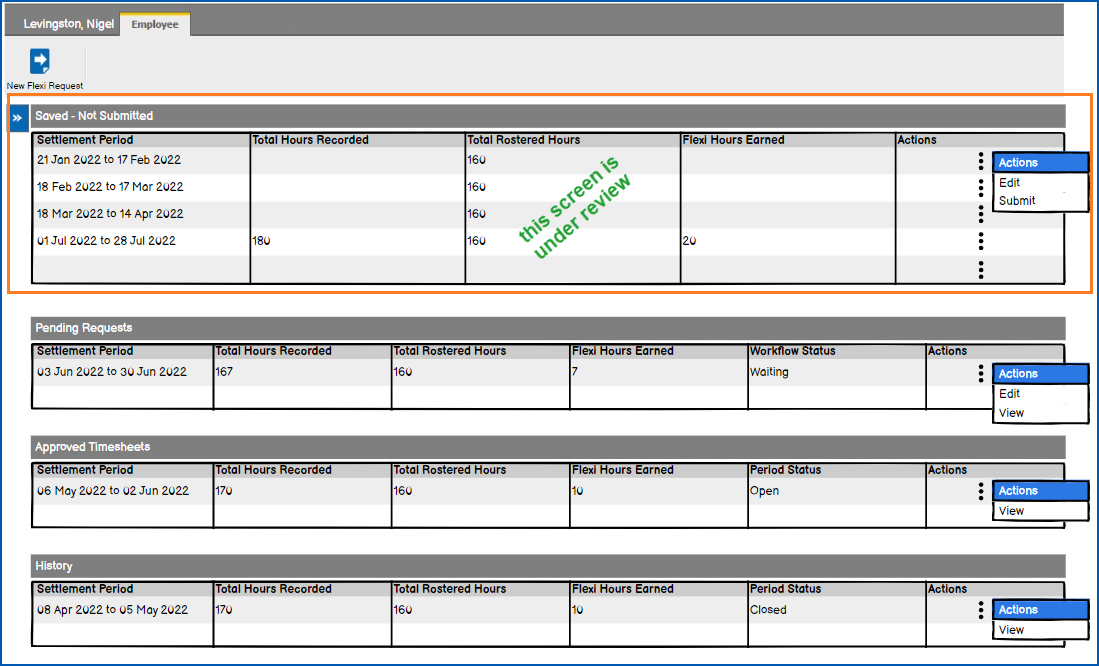
2. The new timesheets appear in the **Saved - Not Submitted** list in the employee's flexi timesheet catalogue, ready for the employee to record their time and submit the timesheets as usual.
## Screen painting the flexi timesheet
Screen painting lets you customise a screen to suit your organisation's needs. Here we show you how to screen paint the flexi timesheet.
To screen paint the flexi timesheet:
1. Go to Administration > Screen Management > Screen Painting.
2. At Screen Painting, use **Expand** to go to Self Service > Requests > Flexi Timesheet.
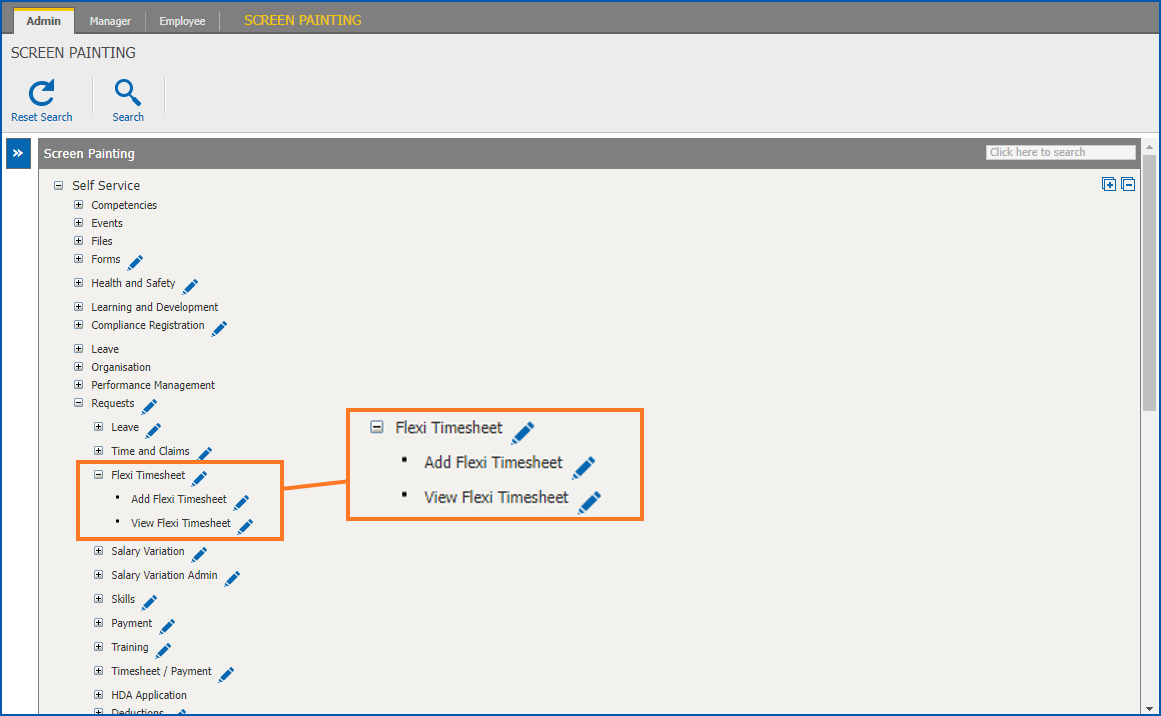
1. Click **Change** next to **Add Flexi Timesheet**.
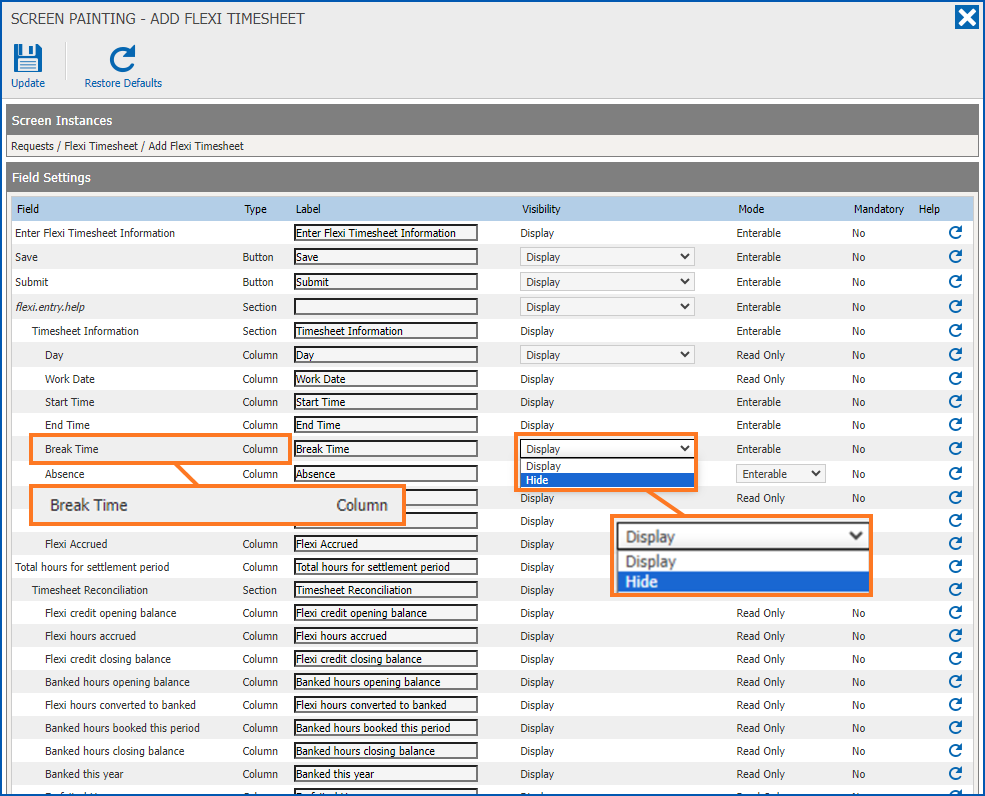
2. At **Screen Painting - Add Flexi Timesheet**, go to the field you want to screen paint, and make your changes, In the following example, selecting **Hide** from the **Visibility** dropdown list will hide the **Break Time** column on the timesheet.
1. Click **Update**.
###  Tips
| Make consistent changes | If you make a change to the **Add Flexi Timesheet** screen, it’s recommended you make the same change to the View Flexi Timesheet screen so the screen instances are consistent. |
| --- | --- |
| Restore default for a field | If, when making changes, you want to restore the default setting for a field, click **Restore Default** on the row for that field. In the following example, clicking **Restore Default** would restore Break Time to its default setting.
 |
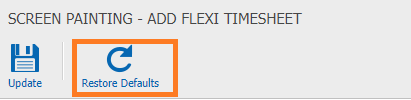
| Restore defaults for all fields | If you want to restore the default settings for all the fields, click **Restore Defaults** at the top of the screen.
 |
| Next topic
[Flexi time balances](/articles/ehr-user-guide/flexi-time-balances) |
| --- |
© 2023 Fusion5. All rights reserved.