---
title: "Fixed remuneration enquiry configuration"
id: "fixed-remuneration-enquiry-configuration"
project: "EHR User Guide"
url: "https://help.cloud5.com.au/articles/ehr-user-guide/fixed-remuneration-enquiry-configuration"
updated: 2026-10-19T00:53:48Z
---
# Fixed remuneration enquiry configuration
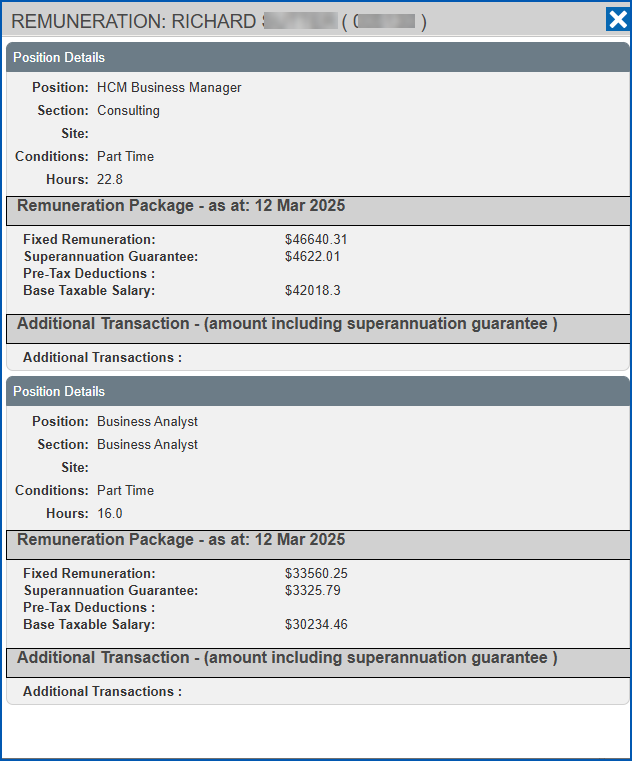
The Fixed Remuneration Enquiry screen in self service shows the employee salary package from a total remuneration perspective.
The screen displays the position details and the following components that make up the employee's salary package:
* fixed remuneration value (includes SGC value)
* pre-tax deductions (converted to an annual value)
* additional transactions (as the periodic value)
The installation setting called **(remn) elements for ss remuneration** holds the pay element codes which are used to nominate the regular transactions required for display in the pre-tax deductions and additional transactions sections.
## Set up the fixed remuneration enquiry feature
To set up the fixed remuneration enquiry feature:
1. Set up a new [pay element](/articles/ehr-user-guide/pay-element-codes)for **Pre-Tax Deductions** and add the relevant payment codes to the element. The payment codes must have the following attributes:
* **Payment type** must = **d** (deductions)
* **Percentage calculation?** must = **n** (no)
* **Pay after Tax is calculated?** must = **n** (no)
1. Set up a new [pay element](/articles/ehr-user-guide/pay-element-codes) for **Additional Transactions** and add the relevant payment codes to the element. The payment codes must have the following attributes:
* **Payment type** must *NOT* = **d** (deductions)
* **Percentage calculation?** must = **n (no)**
* **Pay after Tax is calculated?** must = **n (no)**
2. Use the following steps to configure the installation setting called **(remn) elements for ss remuneration**:
1. Go to **Administration**> **Configuration**> **All Configuration**.
2. At **Configuration Items**, expand **Self Service**, and then****expand **Pay**.
3. Click **(remn) elements for ss remuneration**.
4. At the:
* **Character**field, enter the pay element code you created for **Additional Transactions**
* **Text**field, enter the pay element code you created for **Pre-Tax Deduction** **s**
3. Grant access to staff. See [create and update self service templates](/articles/ehr-user-guide/create-and-update-self-service-templates)for instructions. For each relevant template, here's where to find the **Fixed Remuneration** checkbox in the **Security Access for...** screen. For:
* MSS and ESS templates: Expand **Self Service**, and then****expand **Employment**
* MSS only template: Expand **Self Service**, then expand **Staff**, and then expand **Staff Management**
## View the fixed remuneration enquiry screen
The Fixed Remuneration Enquiry (accessed as shown in the following instructions) is based around the actual remuneration package for the employee.
To view the Fixed Remuneration Enquiry screen in:
* ESS, go to **Employment** > **Fixed Remuneration**.
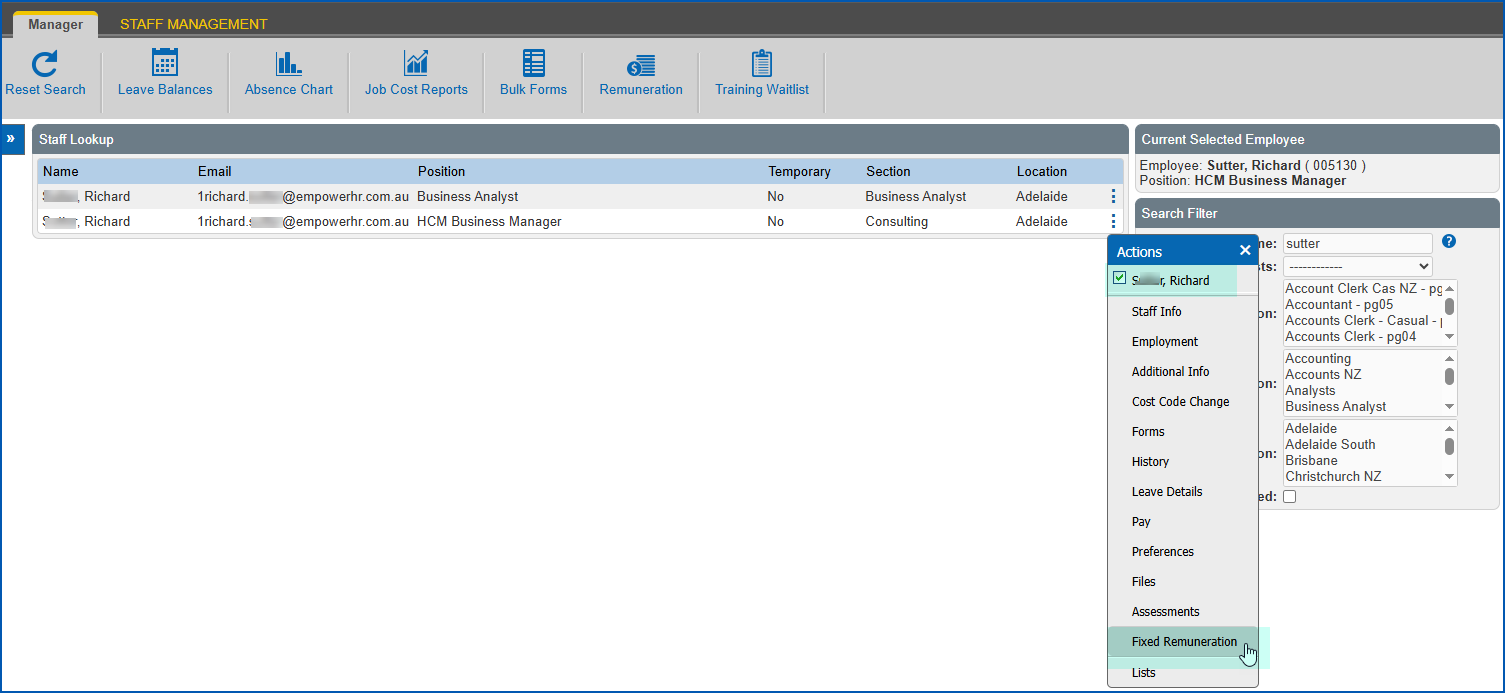
* MSS, go to **Employment** > **Fixed Remuneration***, or* go to **Staff Management**. ****Search for and select an employee, then click **Actions** and select **Fixed Remuneration** from the menu.
### **Example**
Here's an example of the fixed remuneration details screen:
| Next topic
[Casual vacancy configuration](/articles/ehr-user-guide/casual-vacancy-configuration) |
| --- |
© 2023 Fusion5. All rights reserved.