---
title: "Fix crossboarding errors"
id: "fix-crossboarding-errors"
project: "EHR User Guide"
url: "https://help.cloud5.com.au/articles/ehr-user-guide/fix-crossboarding-errors"
updated: 2026-10-19T00:52:39Z
---
# Fix crossboarding errors
To check and fix any errors once a crossboarding job is finished:
1. Go to **Background Jobs** > **Bulk Data Take-On** > **Crossboarding** > **Crossboarding Error Enquiry**.
2. EmpowerHR displays a summary of errors and warnings for you to review.
3. To fix an error, go to **Background Jobs** > **Bulk Data Take-On** > **Position/Employee Data** > **Crossboard Approval/Error Fix**.
4. EmpowerHR lists the employees with errors in the data upload.
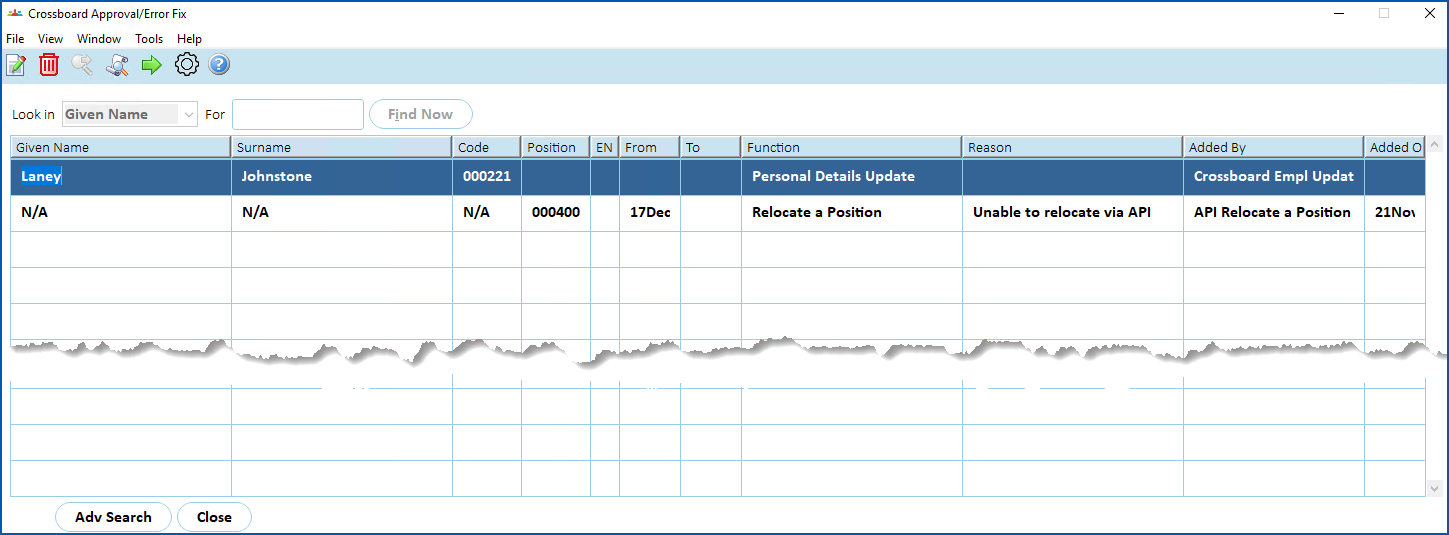
1. Select a row, and then click **Open**.
2. The **Personal Details Update Error Correction** screen displays details of the error. In the following example, on the **Gender Diversity**tab, the error message shows the **How does the employee describe their gender?** field value is invalid.
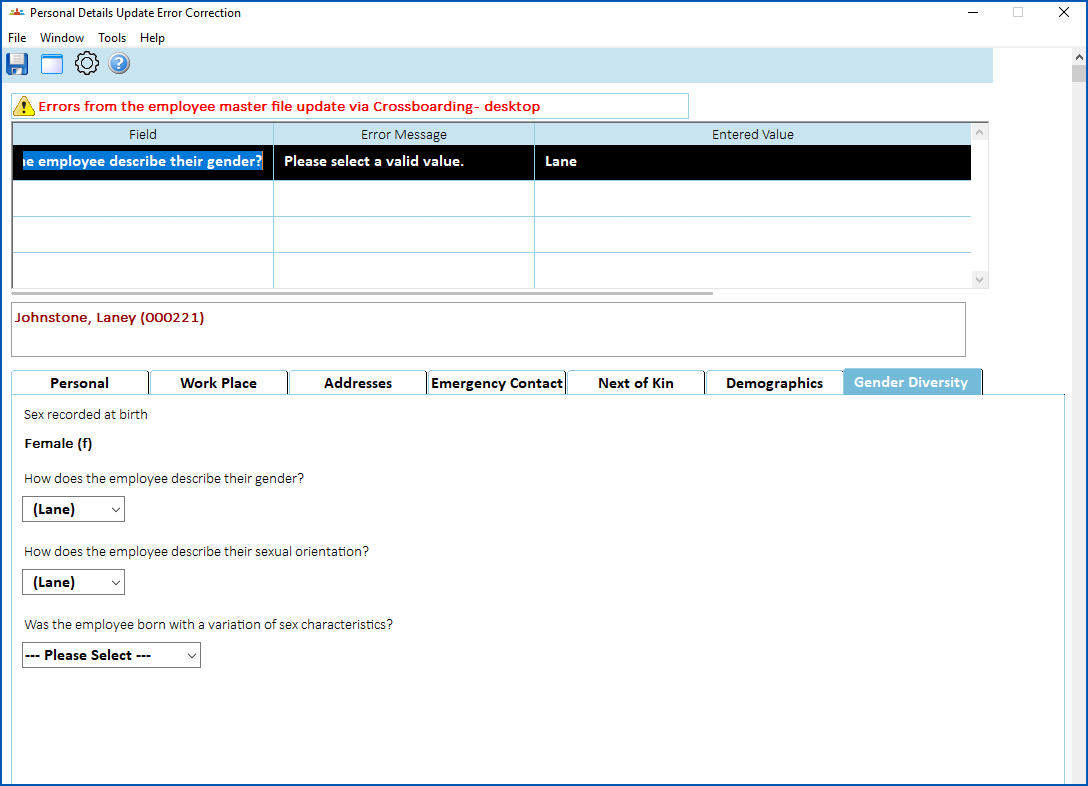
1. Fix the error by entering the correct data.
2. Click **Save**. EmpowerHR loads the data for the employee.
| Next topic
[Overtime code fields](/articles/ehr-user-guide/overtime-code-fields) |
| --- |
© 2023 Fusion5. All rights reserved.