---
title: "Final approval"
id: "final-approval"
project: "EHR User Guide"
url: "https://help.cloud5.com.au/articles/ehr-user-guide/final-approval"
updated: 2026-10-19T00:54:07Z
---
# Final approval
If you are the final approver in the compliance workflow, when you accept a request, the registration process is complete and the certificate is **current**.
To action an employee’s compliance registration request: 
1. When you log into the desktop, if you have any requests to action, the alerter displays:

1. Click **Click here** at the alerter.
2. At the EmpowerHR Tasks summary screen, go to the Compliance Requests tab.
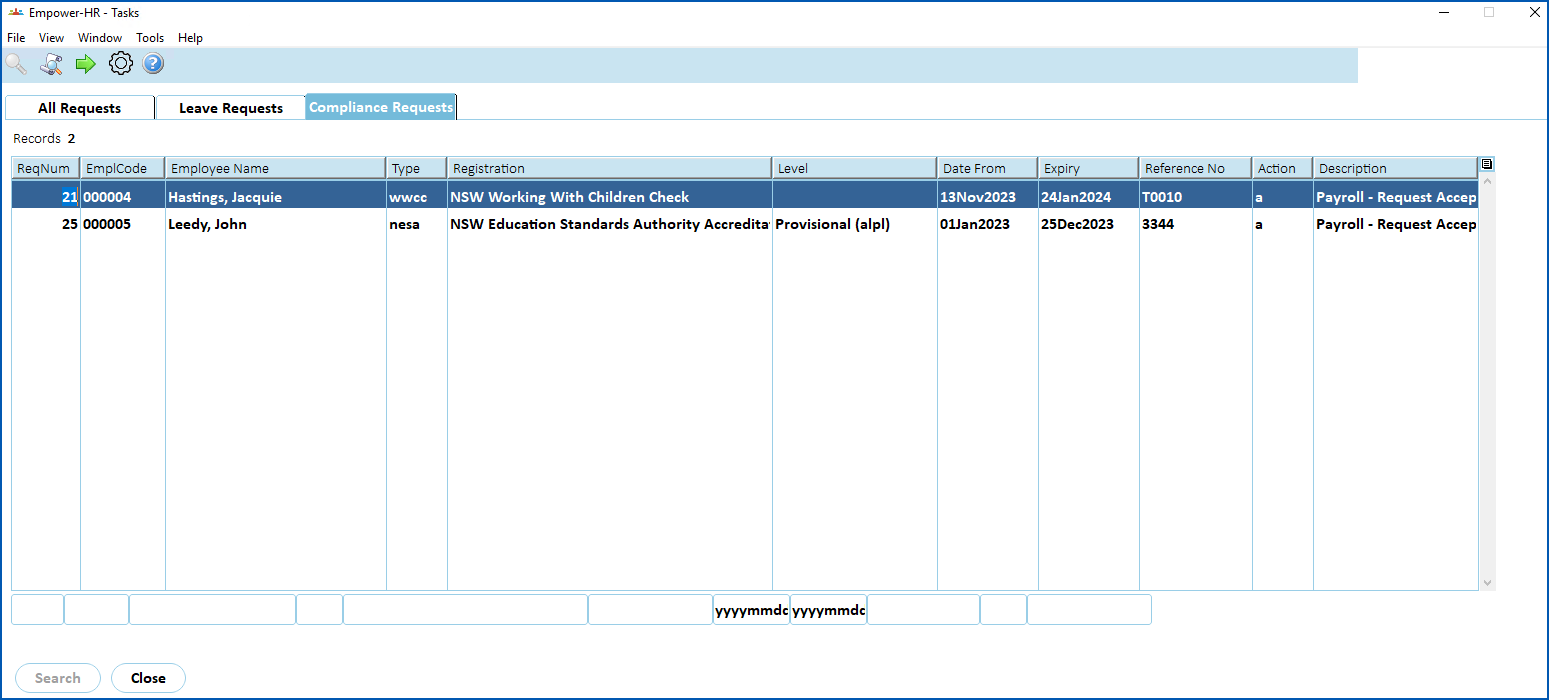
1. Select a request, and then click **Next Level**. The Compliance Task Actions detail screen displays.
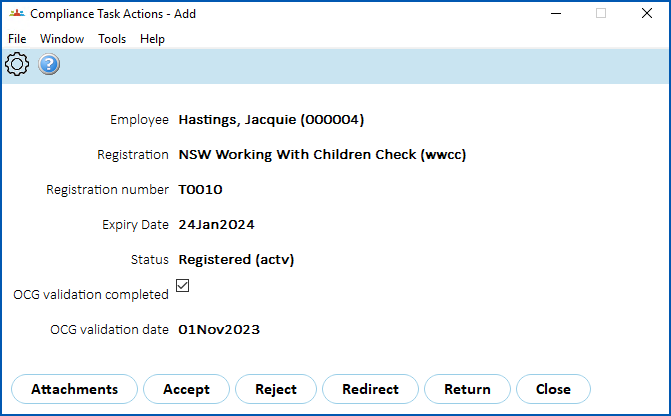
1. Click an action. Here's what you can do to action a request.
| **Click...** | **To...** |
| --- | --- |
| **Attachments** | View the request's attachments. |
| **Accept** | Approve the request. Once approved, the certificate is made current. |
| **Reject** | Reject the request and cancel the registration process. |
| **Redirect** | Redirect the request to another recipient. |
| **Return** | Return the registration request to the manager who approved it. |
| Next topic
[Bulk take-on registrations](/articles/ehr-user-guide/bulk-take-on-registrations) |
| --- |
© 2023 Fusion5. All rights reserved.