---
title: "Fill casual relief vacancies"
id: "fill-casual-relief-vacancies"
project: "EHR User Guide"
url: "https://help.cloud5.com.au/articles/ehr-user-guide/fill-casual-relief-vacancies"
updated: 2026-10-19T00:53:01Z
---
# Fill casual relief vacancies
EmpowerHR offers you two ways to fill a vacancy:
* send an automated broadcast message (using email and SMS) to multiple casual staff
* directly assign a casual staff member to the vacancy
EmpowerHR also lets you remove a casual assigned to a vacancy should they change their mind or you no longer need the vacancy.
## Option 1 - broadcast message
To start the recruitment process by sending a broadcast message:
1. Go to **Casual Relief** > **Casual Vacancies**> **Casual Vacancies**.
2. At the **Casual Vacancies** screen, search for the casual vacancy you want to fill.
3. Click **Actions** and then select **Broadcast Message** from the menu.
4. EmpowerHR displays the **Broadcast Message**screen listing casual staff who prefer to work at the school and are available during the vacancy period.
|  | If the list of casuals is too short, click **Widen Search** to include staff who are willing to occasionally work at the school. To return to the original list, click **Tighten Search**. |
| --- | --- |
1. In the **Escalation** column, click the escalation option for each casual in the list. This allows you to determine the order in which the casuals receive the message about the vacancy. The options are:
 Receive Initial Message
 Receive Next Message
 Receive Last Message
 No Message Sent
|  | Where you see a telephone icon displayed, this means the casual has chosen not to be notified by email or SMS, and you need to use another way to contact them. |
| --- | --- |
[+] [Show example: escalation options](javascript:void%280%29)
[-] [Hide example: escalation options](javascript:void%280%29)
Here's an example of a broadcast message with selected escalation options.
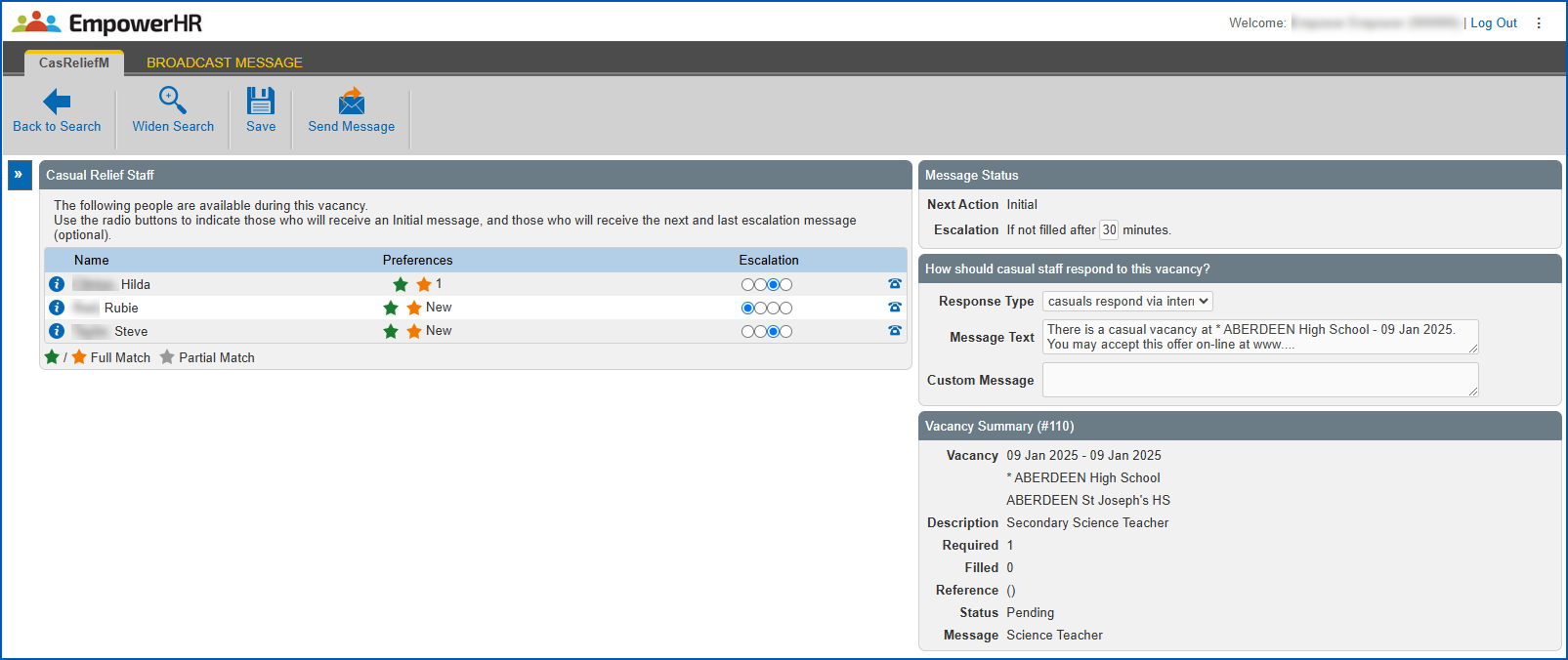
In this example, the chosen options mean:
* Rubie receives an initial message.
* If Rubie does not accept the offer, Hilda and Steve receive a notification.
1. At **Message Status**, in **Escalation**, you can leave the default escalation period, or change it by entering a different number of minutes. If the vacancy is not filled after the period is reached, EmpowerHR automatically escalates the message to the next stage.
2. At **How should casual staff respond to this vacancy?**, in:
1. **Response Type**, choose an option from the dropdown list:
1. **casuals respond via internet** (the first casual to accept wins the assignment), *or*
2. **casuals contact me directly** (so you control assigning the work)
2. **Message Text**, make sure the directions are clear
3. **Custom Message**, enter an additional message if you wish
3. Click **Save**.
4. When you're ready to start broadcasting, click **Send Message**. EmpowerHR:
1. displays **Recruiting has begun** at the top of the **Casual Vacancies** screen
2. immediately notifies the casuals who are flagged with the **Initial Message** escalation option
3. changes the vacancy **Status** to **Recruiting** on the **Casual Vacancies** screen
|  | If you want to change the details of the vacancy after you have started broadcasting, you can - provided no-one has yet accepted the assignment. Click **Stop**, make the necessary changes to the vacancy details, and then click **Send Message** to start broadcasting again. |
| --- | --- |
## Option 2 - direct assignment
To directly assign a casual to a vacancy:
1. Go to **Casual Relief** > **Casual Vacancies**> **Casual Vacancies**.
2. At the **Casual Vacancies** screen, search for the casual vacancy you want to fill.
3. Click **Actions** and then select **Assignments**from the menu.
4. EmpowerHR displays the **Assignments** ****screen.
5. If the vacancy status is:
1. **Filled**, EmpowerHR lists the staff who have accepted the assignment. No further action is required.
2. **Pending**, click **Assign Staff**. EmpowerHR displays the **Assign Staff** screen.
1. Enter part of the person's name and click **Search**. EmpowerHR lists staff who meet the search criteria.
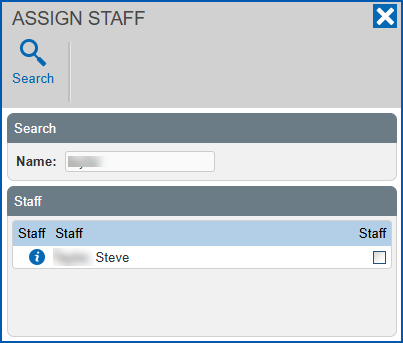
1. Click the checkbox next to the name of the person you want to assign. EmpowerHR:
1. assigns the person to the vacancy
2. updates their availability so they are not available for other assignments in the same period
3. changes the vacancy **Status** on the **Casual Vacancies** screen
## Unassign a casual from a vacancy
You may need to remove a casual from a vacancy they are assigned to if, for example, they change their mind.
To unassign a casual from a vacancy:
1. Go to **Casual Relief** > **Casual Vacancies**> **Casual Vacancies**.
2. At the **Casual Vacancies** screen, search for the casual vacancy you want to unassign the casual from.
3. Click **Actions** and then select **Assignments** from the menu.
4. EmpowerHR displays the **Assignments** ****screen.
5. At the row showing the assigned casual, click **Actions** and then select **Unassign...** from the menu.
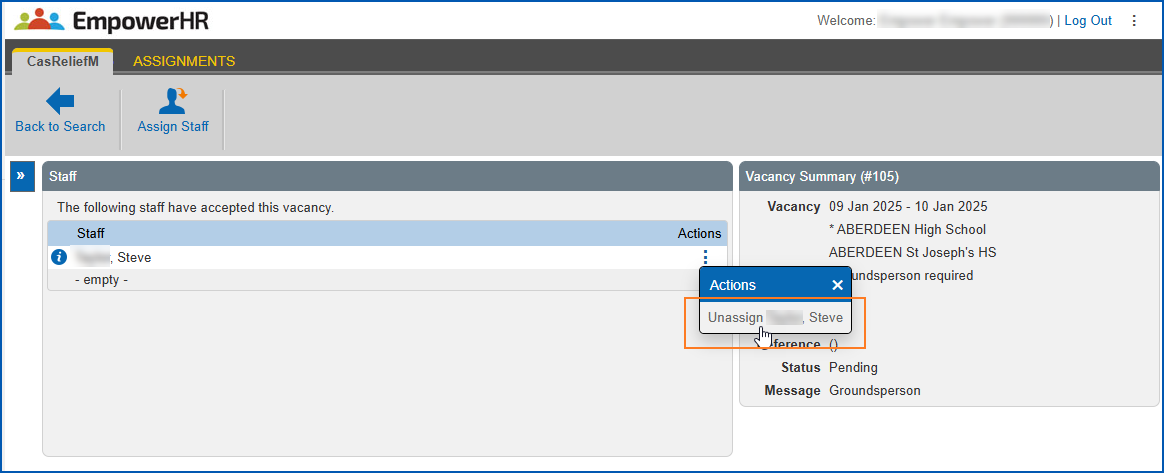
1. EmpowerHR displays the **Unassign Staff** screen.
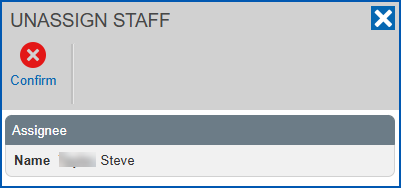
1. Click **Confirm**.
2. EmpowerHR removes the casual from the vacancy assignment and they no longer appear on the **Assignments** screen.
## Review messages and responses
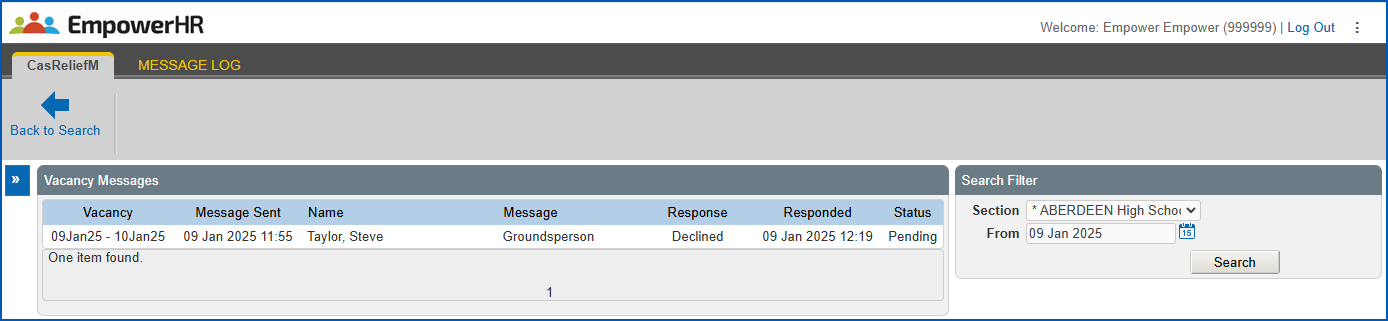
To review messages sent to staff and responses EmpowerHR has received:
1. Go to **Casual Relief** > **Casual Vacancies**> **Message Log**.
2. At the **Message Log** screen, search on the **Section** (school) and **From** (date) you want to review.
3. EmpowerHR displays the messages sent and responses received on and after the date you selected.
| Next topic
[Action a claim for payment (casual relief work)](/articles/ehr-user-guide/action-a-claim-for-payment-casual-relief-work) |
| --- |
© 2023 Fusion5. All rights reserved.