---
title: "Field error validation"
id: "field-error-validation"
project: "EHR User Guide"
url: "https://help.cloud5.com.au/articles/ehr-user-guide/field-error-validation"
updated: 2026-10-19T00:54:28Z
---
# Field error validation
You can control whether EmpowerHR issues error or warning messages when users enter values in fields that do not pass validation rules.
You can set the severity level to:
* **y** = Yes. The field must be completed with valid data otherwise an error displays and stops the user from going further.
* **w** = Warning. A warning message displays but the user can still go ahead.
* **n** = No severity. No error or warning is provided and the user is allowed to leave the field blank.
|  | Fields may have a combination of these validation routines. |
| --- | --- |
To set the severity level for a particular field, you need to first identify the frame (form)  name of the screen where the field is located.
A frame (form) is a holder for a group of fields and displays data to the user. A frame can be used for any number of screens.
## Identify frame name
To identify the frame name:
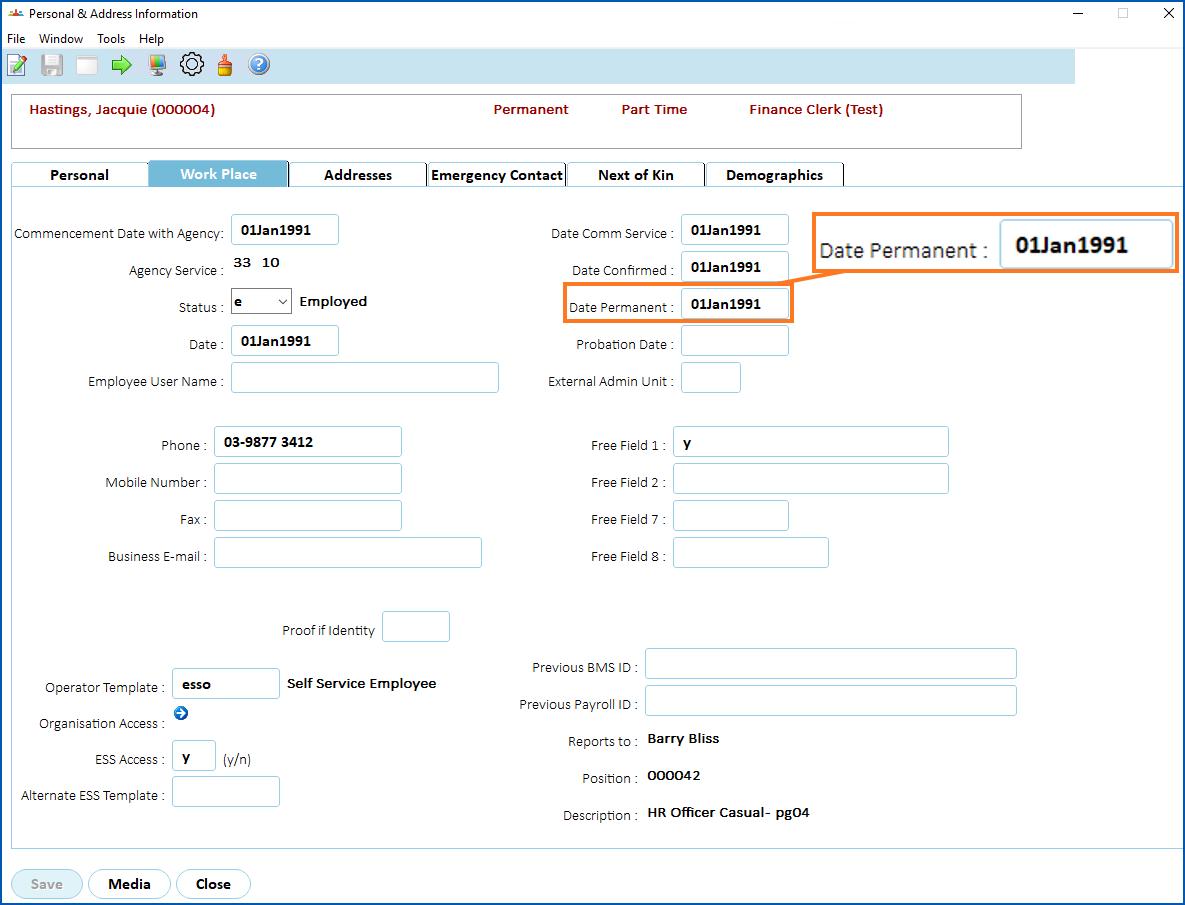
1. Go to the screen where the field is located. In the following example, we want to change the severity level of the **Date Permanent** field. This field is located on the **Employee Information** - **Personal & Address Information** screen (**Work Place** tab).
1. Click **Utilities**. The **Utilities** window displays.
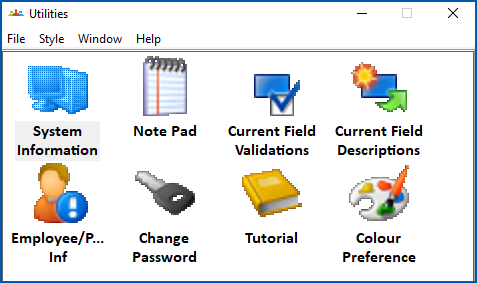
1. Double-click **System Information**.
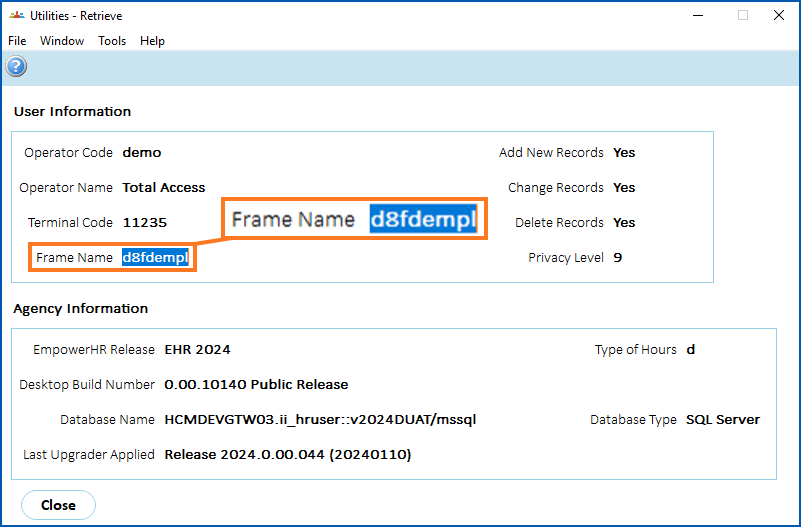
2. At the **System Information** screen, select and copy the name displayed in the **Frame Name** field. In this example, the frame name is **d8fdempl**.
1. Now you've identified the frame name, use the following instructions to set the validation severity on the field.
## Set field error validation severity
To set the field error validation severity:
1. Go to **Administration**> **Screen Management**> **Field Severity Level Update**.
2. At the **Field Severity Level Update**summary screen:
* select **Form** from the **Look in** dropdown list
* paste the frame name you copied from the **System Information** screen into the **For** field, and then click **Find Now**
1. The results are displayed.
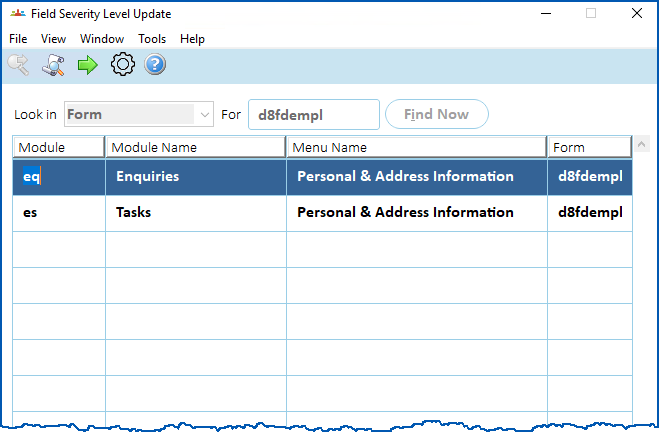
1. Select the relevant module, and then click **Next Level**. We selected the **Tasks** module.
2. A list of fields display.
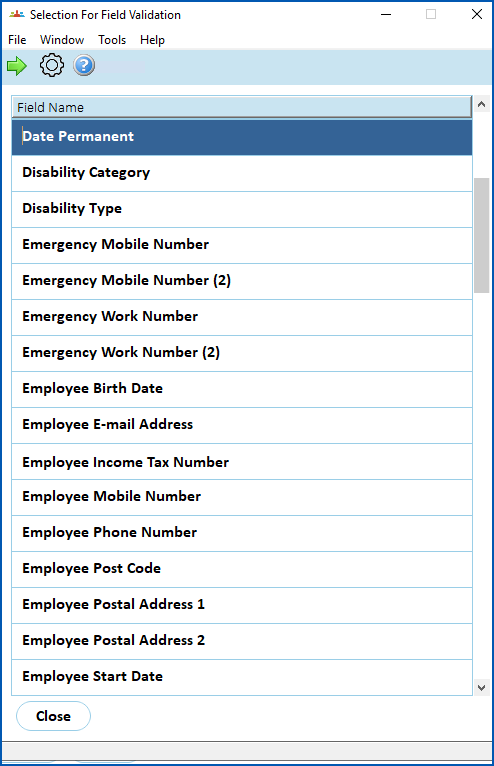
1. Find and select the field, and then click **Next Level**. We selected the **Date Permanent**field.
2. A list of the validation routines for the field displays and lists the available **Options** for each routine.
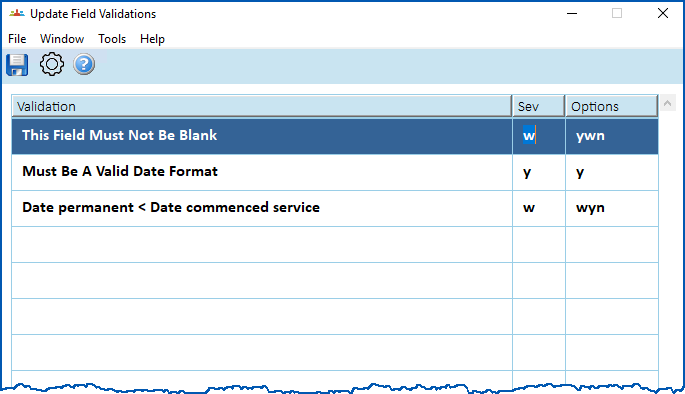
1. At the **Update Field Validations** screen, make your changes in the **Sev** (severity) column.
|  | You won't be allowed to change the level on a validation routine if doing so impacts system integrity. The **Must Be a Valid Date Format** routine (as shown in step 7) is an example - it has the level **y** (must be completed) and doesn't offer any options. |
| --- | --- |
1. Click **Save**.
| Next topic
[Transaction rules](/articles/ehr-user-guide/transaction-rules) |
| --- |
© 2023 Fusion5. All rights reserved.