---
title: "Family and domestic violence leave options"
id: "family-and-domestic-violence-leave-options"
project: "EHR User Guide"
url: "https://help.cloud5.com.au/articles/ehr-user-guide/family-and-domestic-violence-leave-options"
updated: 2026-10-19T00:53:19Z
---
# Family and domestic violence leave options
Family and domestic violence leave is a **standalone leave entitlemen** **t**.
With this entitlement:
* confidentiality and security is extremely important
* the leave balance *must not* show in Employee Self Service or on the employee’s payslip
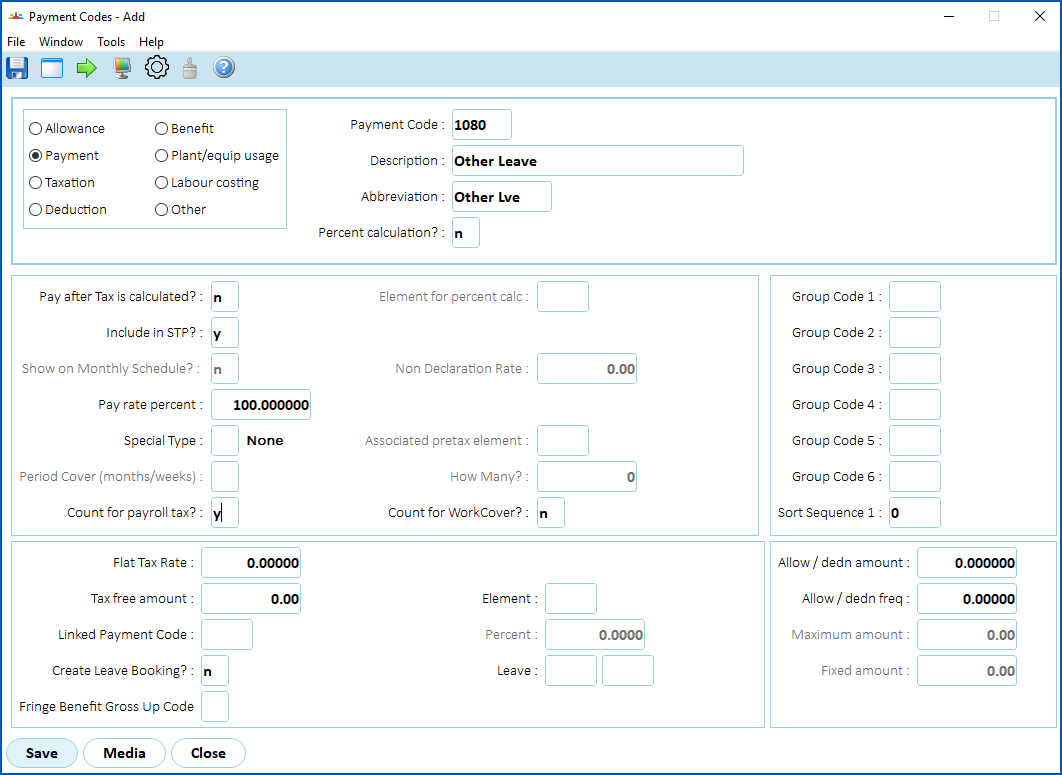
* the payment code description *must not* directly show details of the leave type, instead use something general - for example Other, or Ordinary, etc
Here we outline four options for managing this entitlement in EmpowerHR.
* * *
## Option 1
### Manage requests using option 1
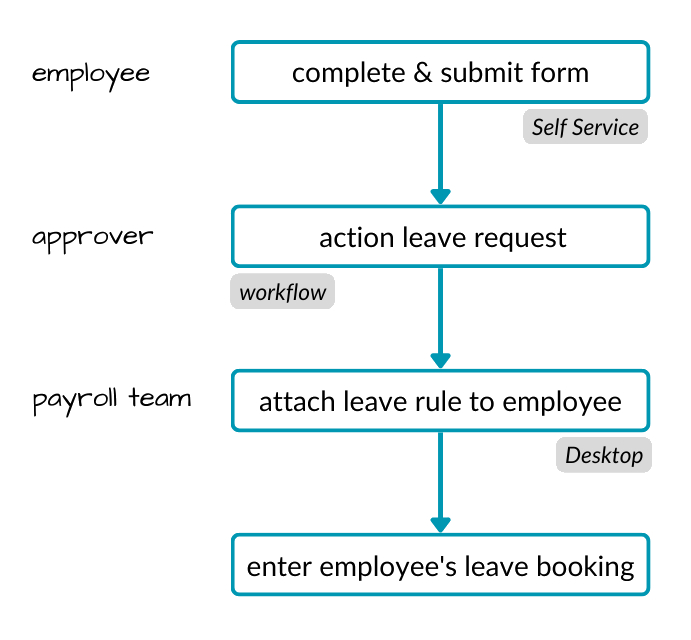
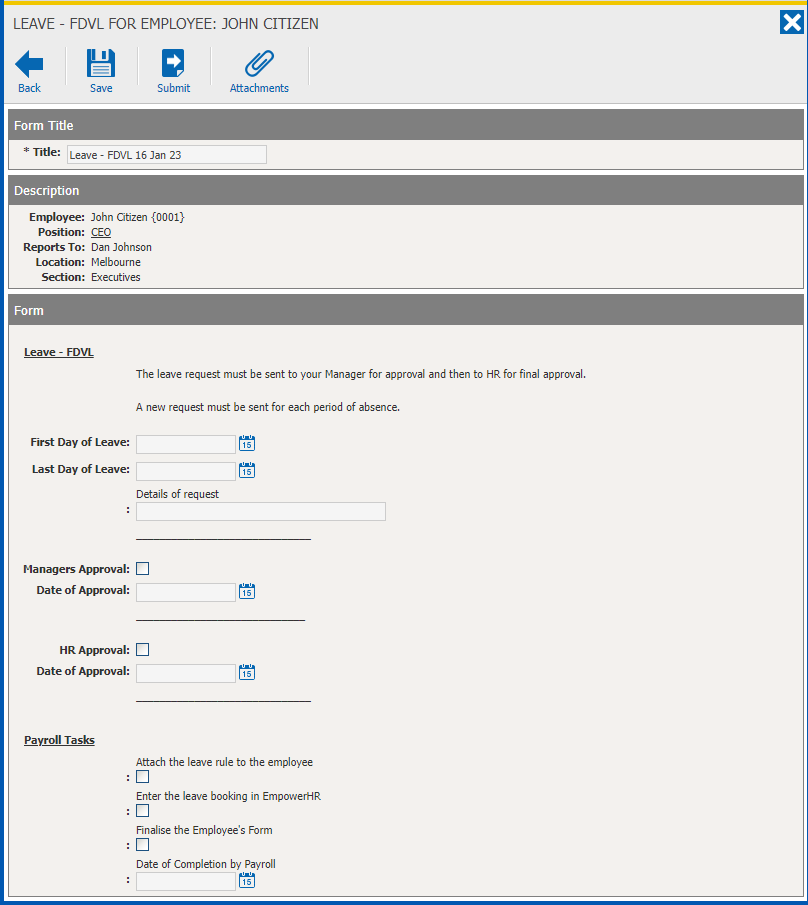
With this option, the employee completes a form in Self Service for each occurrence. Once they submit the form, workflow applies all the approval steps.
At the final step, the payroll team:
* attaches the leave rule to the employee
* enters the employee's leave booking
### Set up for option 1
Here's how to set up EmpowerHR so you can use option 1.

#### Create a payment code
#### 
Go to **Tasks** > **Payroll** > **Payment Codes** and then see [payment codes](/articles/ehr-user-guide/payment-codes) for instructions on how to create a payment code.
[+] [Show example](javascript:void%280%29)
[-] [Hide example](javascript:void%280%29)
#### Create a leave rule
#### 
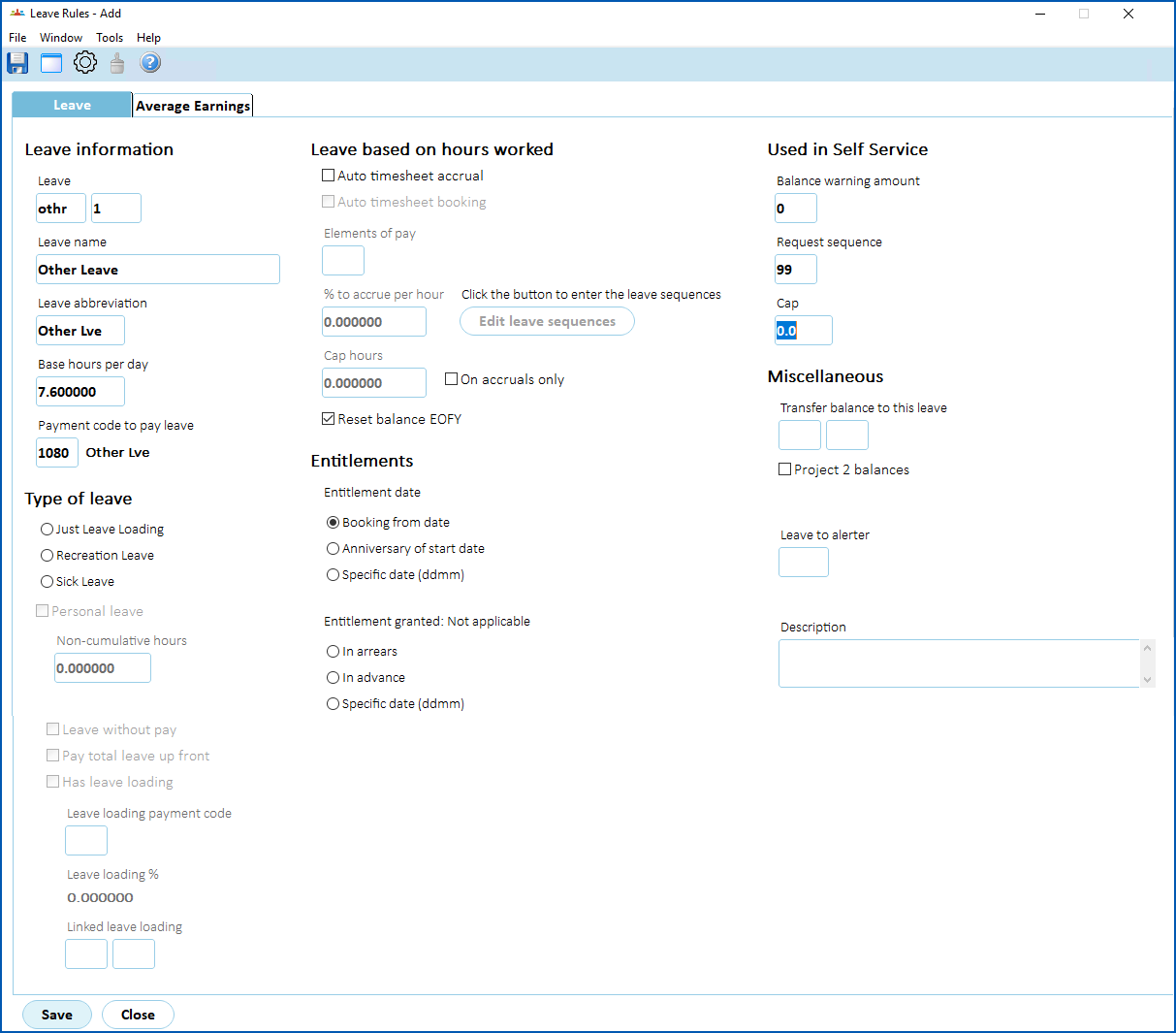
Go to **Tasks** > **Leave** > **Leave Accruals and Rules** > **Leave Rules** and then see [set up leave rules](/articles/ehr-user-guide/leave-set-up-leave-rules)for instructions on how to create a leave rule.
[+] [Show example](javascript:void%280%29)
[-] [Hide example](javascript:void%280%29)
#### Create a workflow task
#### 
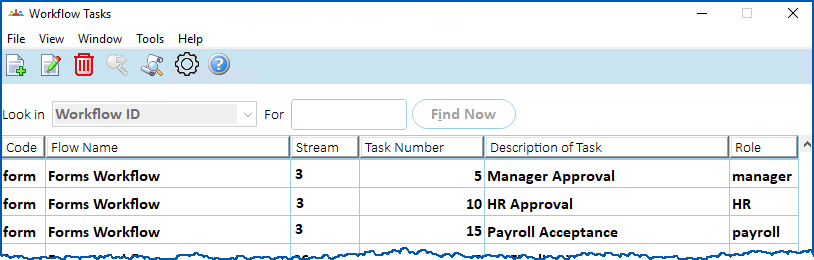
Go to **Administration** > **Workflow** > **Workflow Task**s and then see [design workflow](/articles/ehr-user-guide/design-workflow)for instructions on how to create a workflow task .
Workflow tasks are the steps in a leave request workflow. For example, you set who needs to perform each step in the approval process.[+] [Show example](javascript:void%280%29)
[-] [Hide example](javascript:void%280%29)
###
#### Add form to workflow elements
#### 
Go to **Administration**> **Workflow**> **Workflow Elements** and then see [design workflow](/articles/ehr-user-guide/design-workflow) for instructions on how to add the form to workflow elements.
[+] [Show example](javascript:void%280%29)
[-] [Hide example](javascript:void%280%29)

#### Create a form
#### 
Go to **Administration** > **Screen Managemen** **t** > **Self Service Forms** and then see [self service forms administration](/articles/ehr-user-guide/self-service-forms-administration) for instructions on how to create a form.
Then, in Self Service, go to **Administration** > **Security** > **Templates** and update the template for employee.
### 
If you need help with developing a form, log an [iHelp request](https://infusion.fusion5.com/).
[+] [Show example](javascript:void%280%29)
[-] [Hide example](javascript:void%280%29)
* * *
## Option 2
### Manage requests using option 2
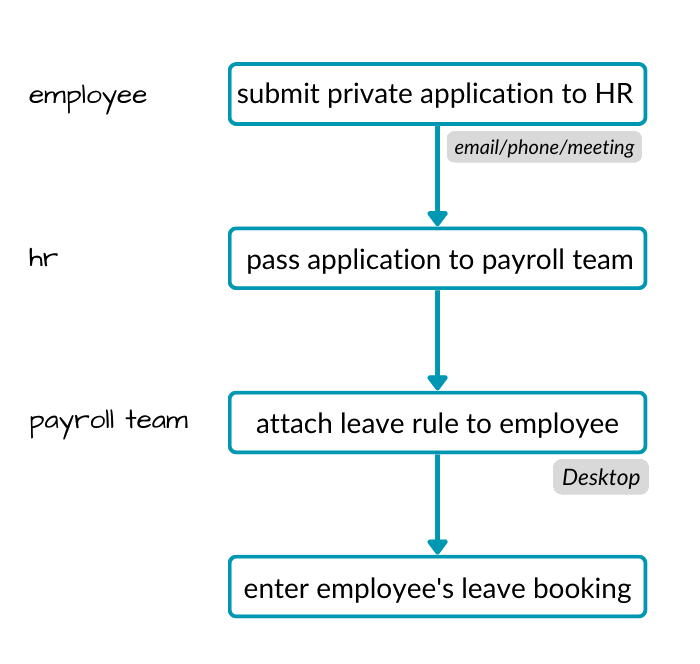
With this option, the employee provides a private application directly to HR (for example, via phone, meeting, email, etc).
Once HR receives the private application, they pass the request to the payroll team.
The payroll team:
* creates a leave rule
* attaches the leave rule to the employee
* enters the employee's leave booking
### 
### Set up for option 2
Here's how to set up EmpowerHR so you can use option 2.
#### Create a payment code
Go to **Tasks**> **Payroll**> **Payment Codes** and then see [payment codes](/articles/ehr-user-guide/payment-codes) for instructions on how to create a payment code.
[+] [Show example](javascript:void%280%29)
[-] [Hide example](javascript:void%280%29)
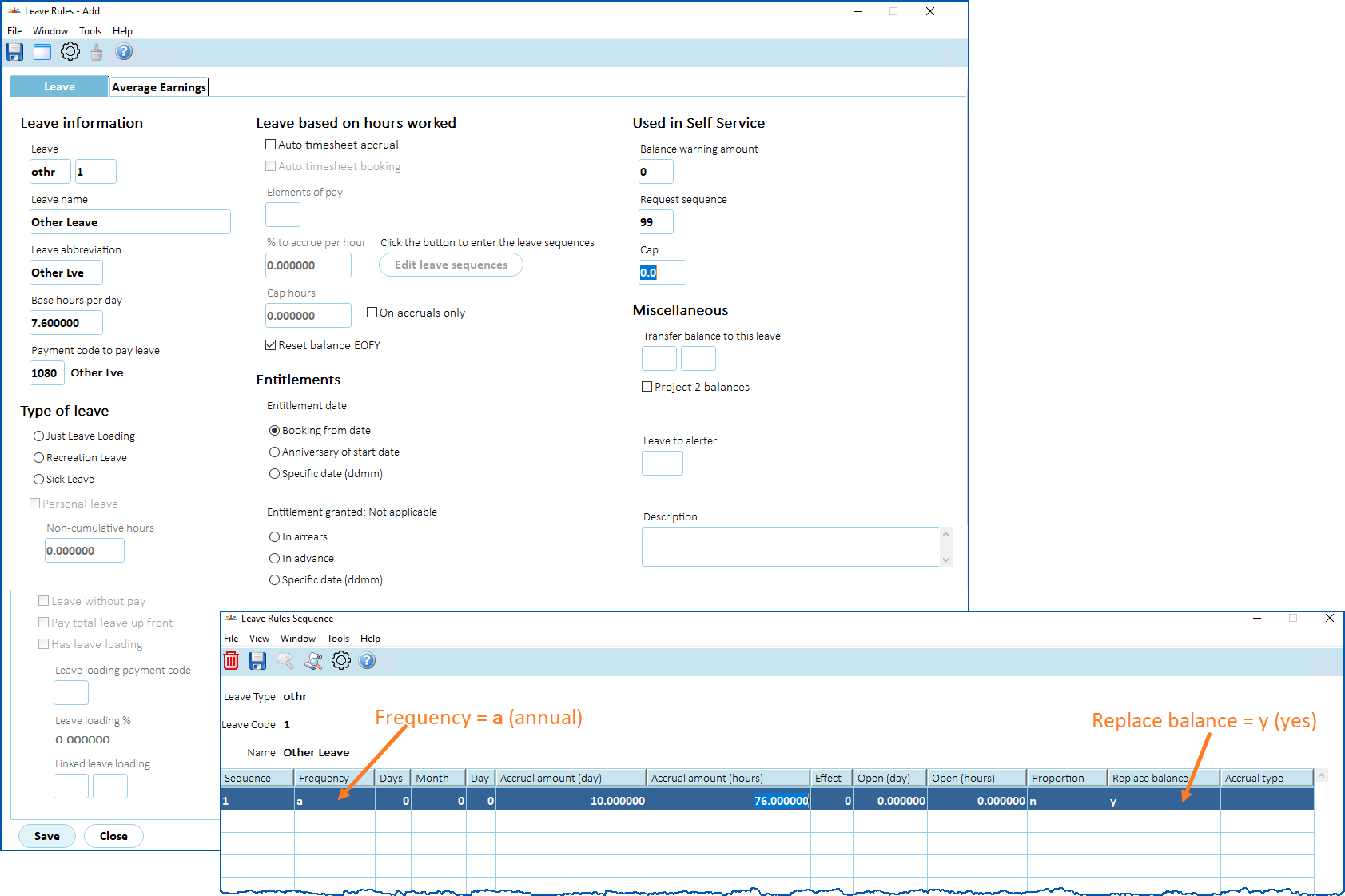
#### Create a leave rule
#### 
Go to **Tasks**> **Leave**> **Leave Accruals and Rule**s > **Leave Rules**and then see [set up leave rules](/articles/ehr-user-guide/leave-set-up-leave-rules)for instructions on how to create a leave rule.
|  | Set up the leave rule for 10 days accrual per year up front, but show the balance in hours. The rule does not accrue from year to year so make sure **Replace Balance** on the **Leave Rule Sequence** screen is set to **y** (yes). |
| --- | --- |
[+] [Show example](javascript:void%280%29)
[-] [Hide example](javascript:void%280%29)
* * *
## Option 3
|  | Option 3 may suit smaller organisations. |
| --- | --- |
### Manage requests using option 3
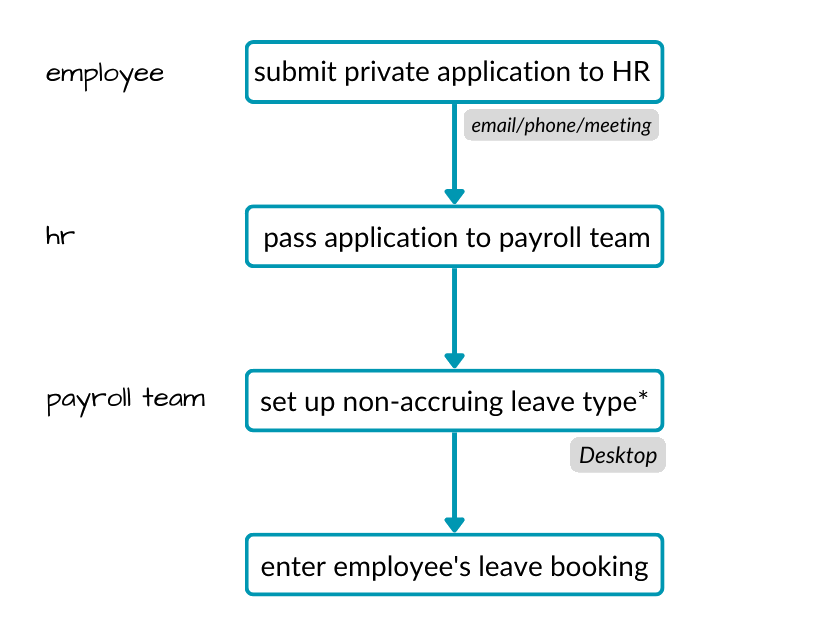
With this option, the employee provides a private application directly to HR (for example, via phone, meeting, email, etc).
Once HR receives the private application, they pass the request to the payroll team.
The payroll team:
* creates a non-accruing leave rule
* enters the employee's leave booking
### Set up for option 3
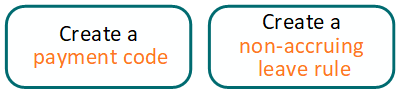
Here's how to set up EmpowerHR so you can use option 3.
#### 
#### Create a payment code
#### 
Go to **Tasks** > **Payroll**> **Payment Codes** and then see [payment codes](/articles/ehr-user-guide/payment-codes) for instructions on how to create a payment code.
[+] [Show example](javascript:void%280%29)
[-] [Hide example](javascript:void%280%29)

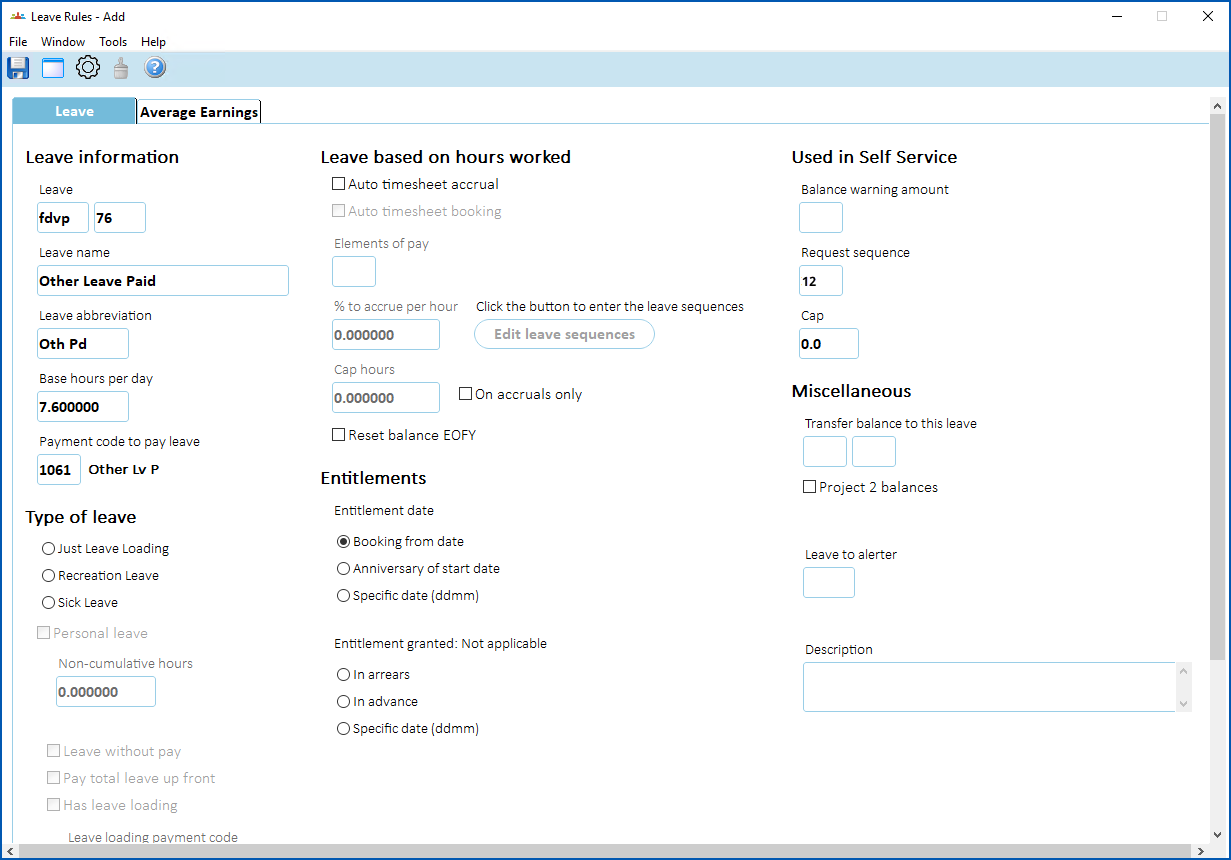
#### Create a non-accruing leave rule
#### 
Go to **Tasks** > **Leave**> **Leave Accruals and Rule** **s** > **Leave Rules**and then see [set up leave rules](/articles/ehr-user-guide/leave-set-up-leave-rules)for instructions on how to create a leave rule.
[+] [Show example](javascript:void%280%29)
[-] [Hide example](javascript:void%280%29)
* * *
## Option 4
### Manage requests using option 4
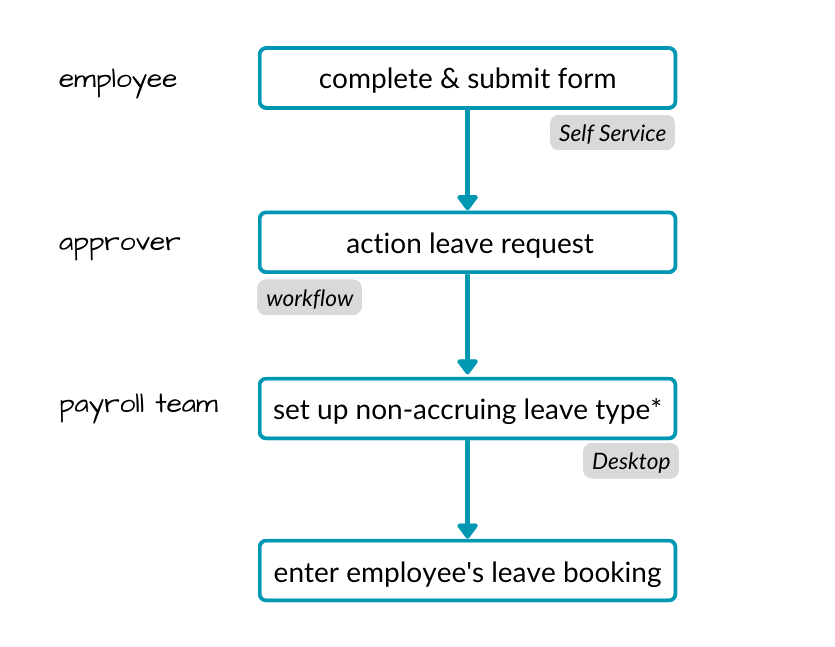
With this option, the employee completes a form in Self Service for each occurrence. Once they submit the form, workflow applies all the approval steps.
At the final step, the payroll team:
* creates a non-accruing leave rule
* enters the employee's leave booking
### Set up for option 4
Here's how to set up EmpowerHR so you can use option 4.

#### Create a payment code
#### 
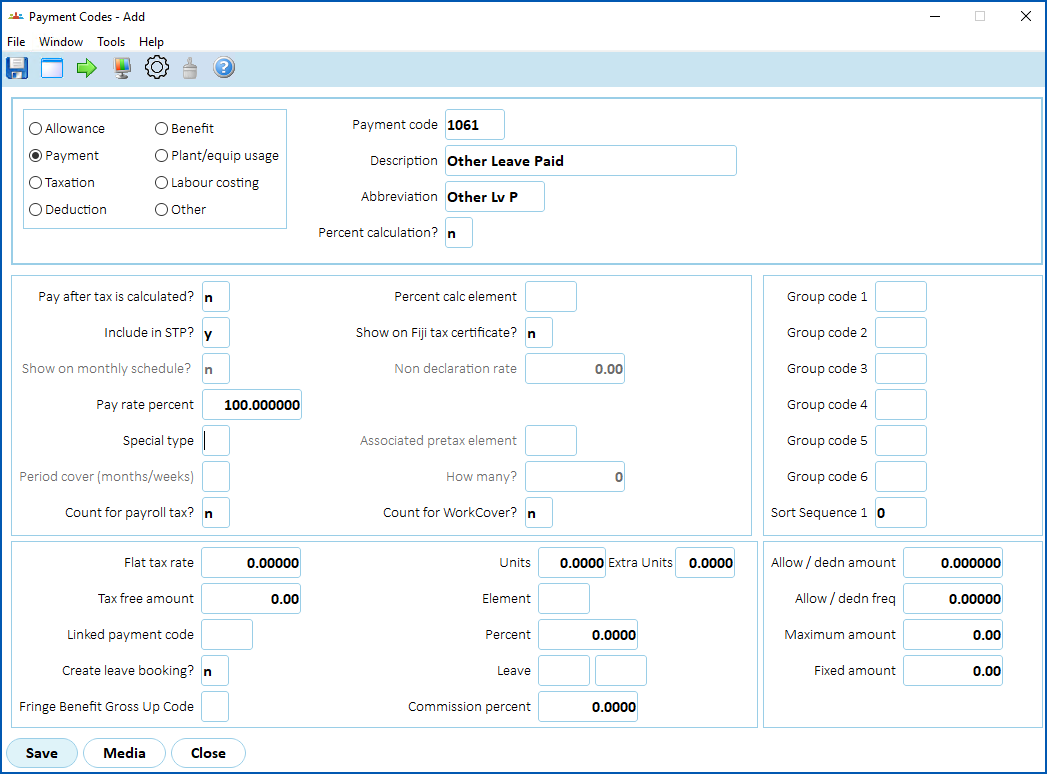
Go to **Tasks** > **Payroll**> **Payment Codes** and then see [payment codes](/articles/ehr-user-guide/payment-codes) for instructions on how to create a payment code.
[+] [Show example](javascript:void%280%29)
[-] [Hide example](javascript:void%280%29)
#### Create a non-accruing leave rule
#### 
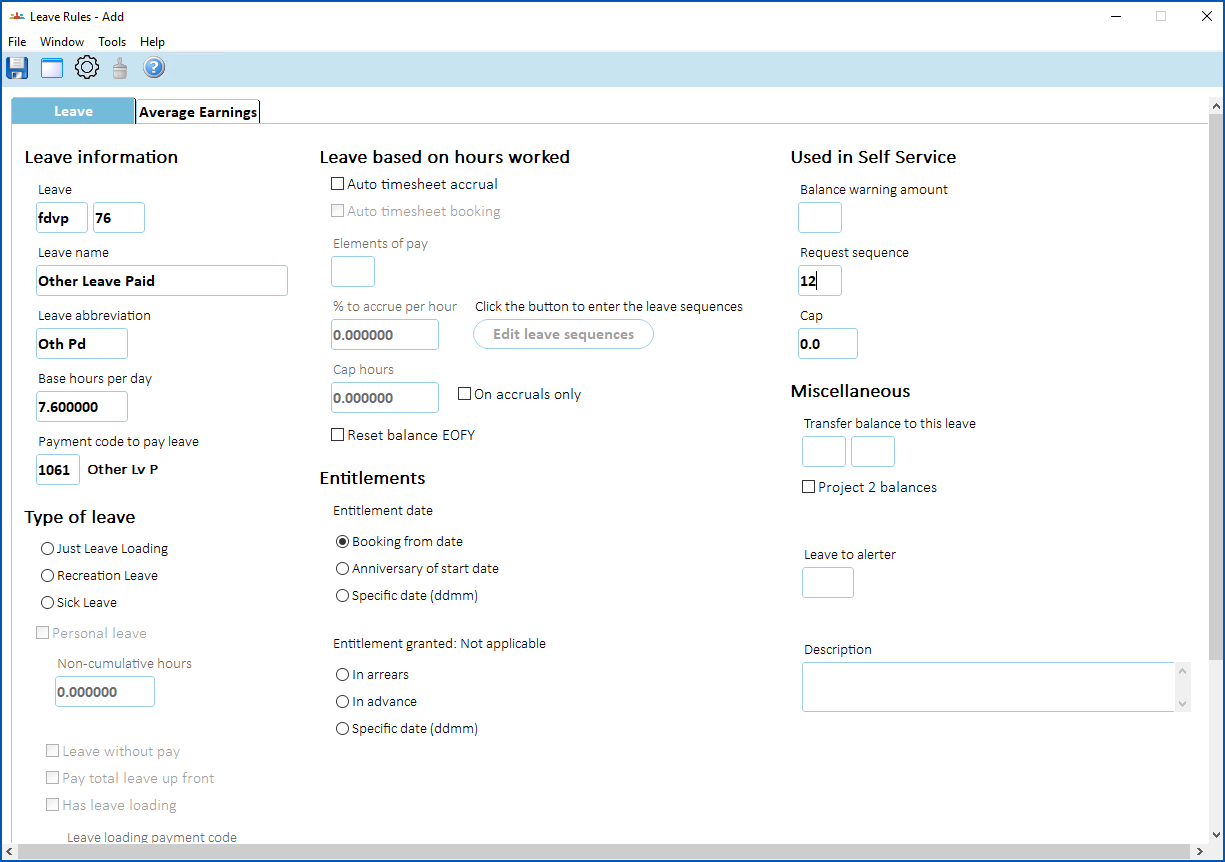
Go to **Tasks**> **Leave**> **Leave Accruals** **and Rules** > **Leave Rules** and then see [set up leave rules](/articles/ehr-user-guide/leave-set-up-leave-rules)for instructions on how to create a leave rule.
|  | When you save the leave rule, EmpowerHR displays the **Leave Rules Sequence** screen. You don't need to complete this screen when you are create a non-accruing leave type, so just click **Close**. See [Leave rules sequence fields](/articles/ehr-user-guide/leave-rules-sequence-fields) for more information. |
| --- | --- |
[+] [Show example](javascript:void%280%29)
[-] [Hide example](javascript:void%280%29)
#### Create a workflow task
#### 
Go to **Administration**> **Workflow** > **Workflow Tasks** and then see [design workflow](/articles/ehr-user-guide/design-workflow) for instructions on how to create a workflow task .
Workflow tasks are the steps in a leave request workflow. For example, you set who needs to perform each step in the approval process.[+] [Show example](javascript:void%280%29)
[-] [Hide example](javascript:void%280%29)

#### Add form to workflow elements
#### 
Go to Administration > Workflow > **Workflow Elements**and then see [design workflow](/articles/ehr-user-guide/design-workflow) for instructions on how to add the form to workflow elements.
[+] [Show example](javascript:void%280%29)
[-] [Hide example](javascript:void%280%29)

#### Create a form
#### 
Go to **Administration**> **Screen Management** > **Self Service Forms** and then see [self service forms administration](/articles/ehr-user-guide/self-service-forms-administration) for instructions on how to create a form.
Then, in Self Service, go to **Administration**>**Security** > **Templates**and update the template for **employee**.
### ****
If you need help with developing a form, log an [iHelp request](https://infusion.fusion5.com/).
[+] [Show example](javascript:void%280%29)
[-] [Hide example](javascript:void%280%29)

| Next topic
[Sick and carer's (personal) leave options](/articles/ehr-user-guide/sick-and-carer-s-personal-leave-options) |
| --- |
© 2023 Fusion5. All rights reserved.