---
title: "Employee category rules admin"
id: "employee-category-rules-admin"
project: "EHR User Guide"
url: "https://help.cloud5.com.au/articles/ehr-user-guide/employee-category-rules-admin"
updated: 2026-10-19T00:53:29Z
---
# Employee category rules admin
The Employee Category Rules Admin screen is where you manage employee category rules for the RDO payment category. Adding an employee category means RDO days taken can be recorded for employees with that category.
Once you add a category, you can add employees who match the rules to the [RDO Register](/articles/ehr-user-guide/manage-rdo-register)and then [RDO requests](/articles/ehr-user-guide/create-and-submit-an-rdo-request) can be created.
For more information, see [employee category rules](/articles/ehr-user-guide/employee-category-rules).
## Add categories to employee category rules administration
To add an employee category to employee category rules administration: 
1. Go to **Relief and Payments** > **Employee Category Rules** **Admin**.
2. At the **Employee Category Rules Admin** screen, click **Add**.
3. At the **Add Employee Category Rule** screen, in:
1. **Employee Category**, select a category from the dropdown list
2. **Payment Category**, select **Rostered Day Off** from the dropdown list
3. **Position Type**, select the position type from the dropdown list
4. **Employment Condition**, select the condition type from the dropdown list
5. **Remove Condition**, select a condition to remove (for example, a part-time or casual position)
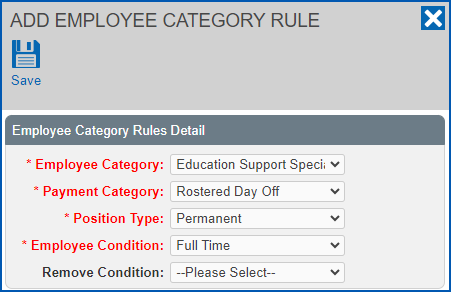
1. Click **Save**.
2. Now you can start adding employees who have the employee category to the [RDO Register](/articles/ehr-user-guide/manage-rdo-register).
| Next topic
[Set installation settings](/articles/ehr-user-guide/set-installation-settings) |
| --- |
© 2023 Fusion5. All rights reserved.