---
title: "Delete operator codes"
id: "delete-operator-codes"
project: "EHR User Guide"
url: "https://help.cloud5.com.au/articles/ehr-user-guide/delete-operator-codes"
updated: 2026-10-19T00:52:38Z
---
# Delete operator codes
You can delete an operator code and, if you need it again later, reinstate it.
To delete an operator code: 
1. Go to **Administration**> **System Security**> **Operator Codes / Functions**.
2. At the **Operator Codes / Functions**summary screen, click **Find Now** to display a list of existing operator codes.
3. Select the template, and then click **Delete**.
4. At the **Operator Codes / Functions** **- Delete** screen, click **Save**.
5. When EmpowerHR asks if you are sure, click **OK**.
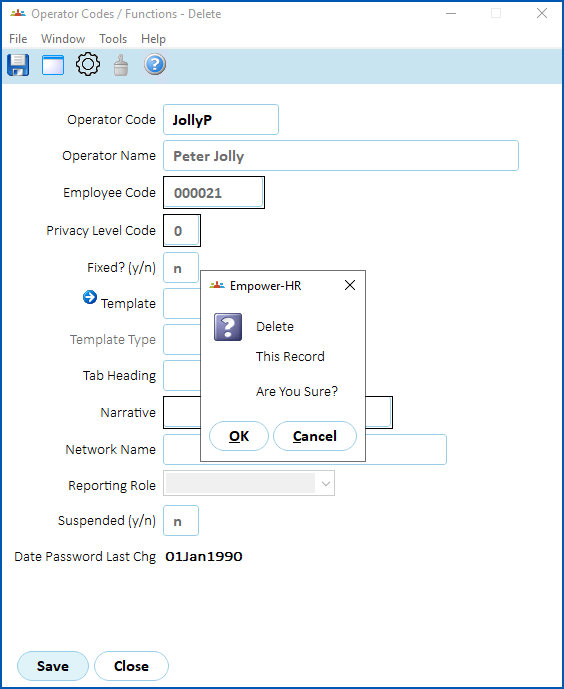
1. EmpowerHR removes the record from the **Operator Codes / Functions**summary screen.
|  | **Reinstating a deleted operator code**
To reinstate a deleted operator code, [create a new code](/articles/ehr-user-guide/create-and-update-operator-codes) but enter the same code as the original in the **Operator Code** field. In our example, the original code is **JollyP**.
EmpowerHR recognises the original code and populates most of the fields for you. |
| --- | --- |
| Next topic
[Passwords](/articles/ehr-user-guide/passwords) |
| --- |
© 2023 Fusion5. All rights reserved.